Introduction
The Unified Government ID is a field used to store an official government identification number for users. In Greek schools, this field represents the Personal Number. In Classter, it is always referred to as Unified Government ID.
- For _Students_, the Unified Government ID is part of Demographic Data.
- For _Teachers_, relatives, employees, and contacts, it is stored under Other Data → Various
Where to Find
The Unified Government ID is available for:
- _Students_
- _Teachers_
- Relatives
- Employees
- Contacts
Each user can save their own Unified Government ID in their profile.
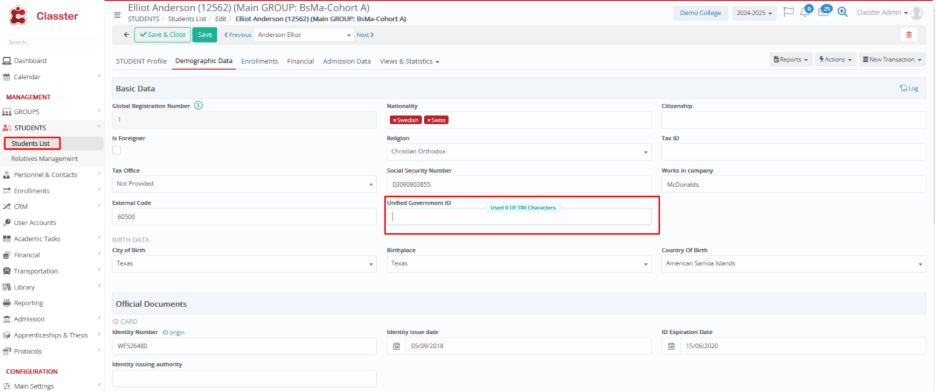
For _Students_:
Open the Student profile > Go to the Demographic tab > Enter the Unified Government ID (Basic Data fields) > Save the changes
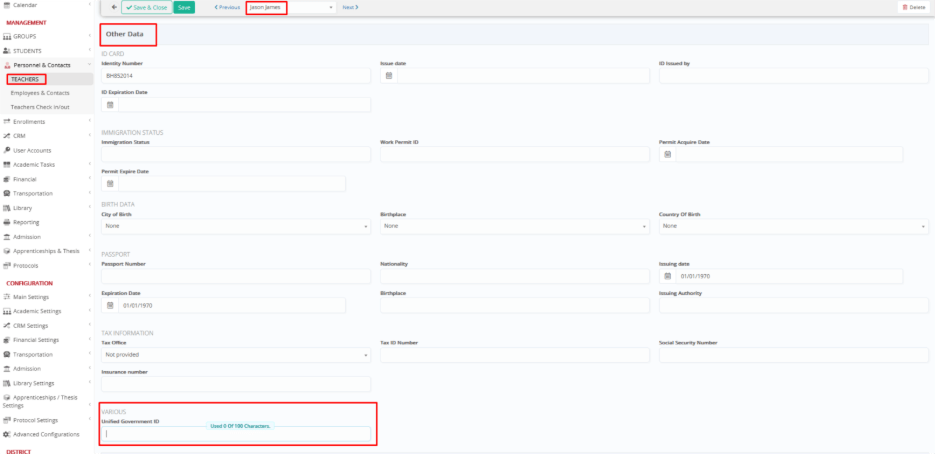
For _Teachers_:
Open the Related profile > Go to the Other Data – on the Various section > Enter the Unified Government ID > Save the changes
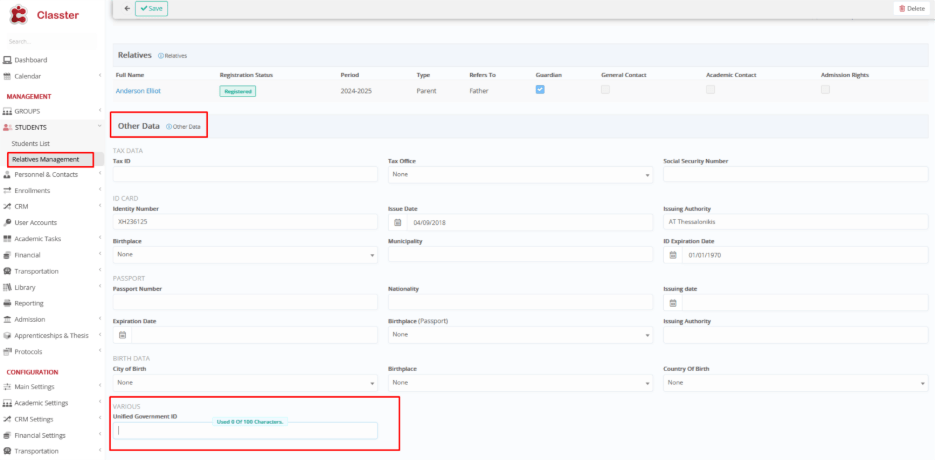
For Relatives:
Open the Relatives Management > Other Data > Enter the Unified Government ID > Save the changes.
For Employees & Contacts:
Open the Personnel & Contacts > Go to Other Data > Enter the Unified Government ID (Basic Data fields) > Save the changes.
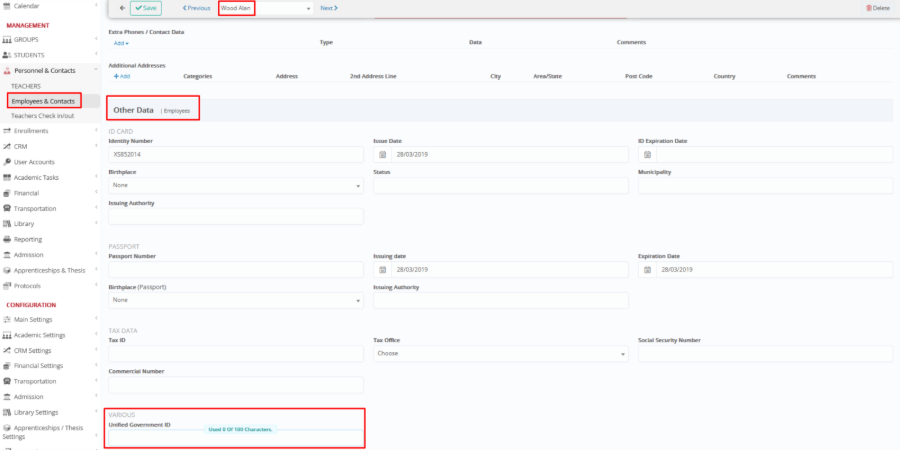
Field rules
- You can enter up to 100 characters in the Unified Government ID field.
- This limit is the same in all profiles, as shown in the examples above.
How to Use
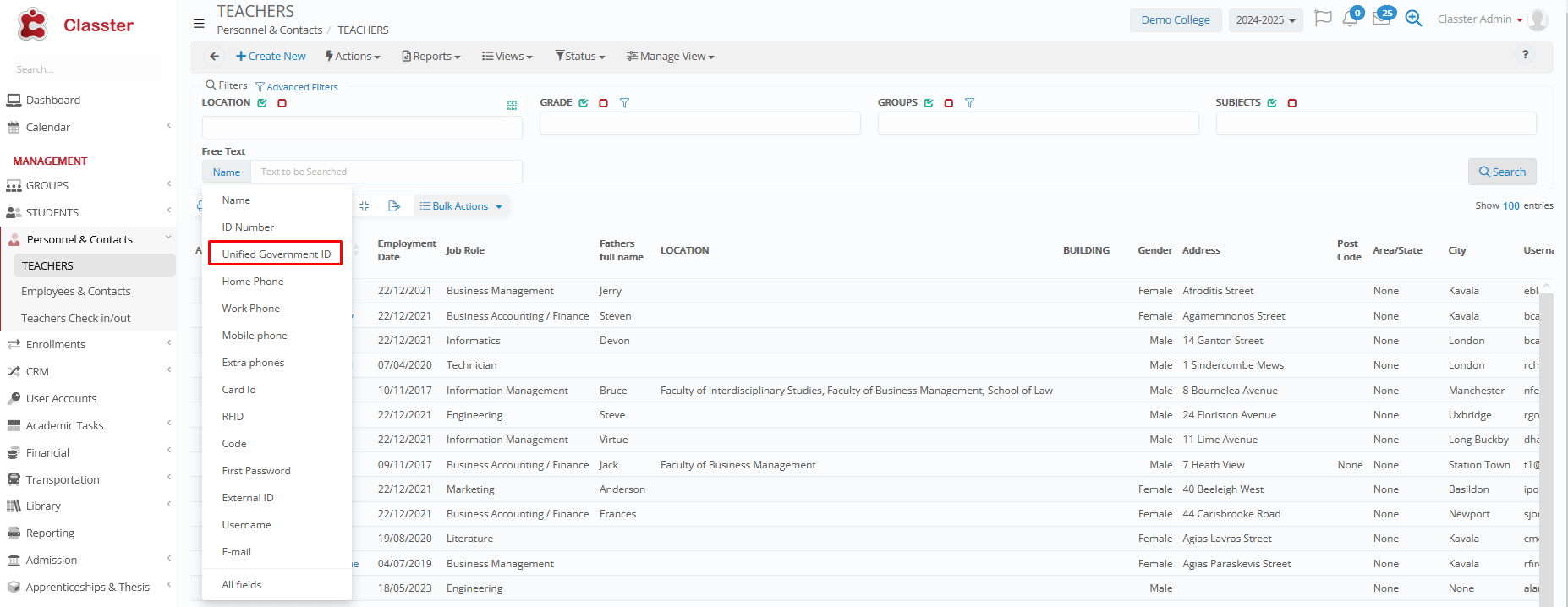
You can search users using the Unified Government ID filter through Quick Search in several search fields:
Searching
Dashboard Search
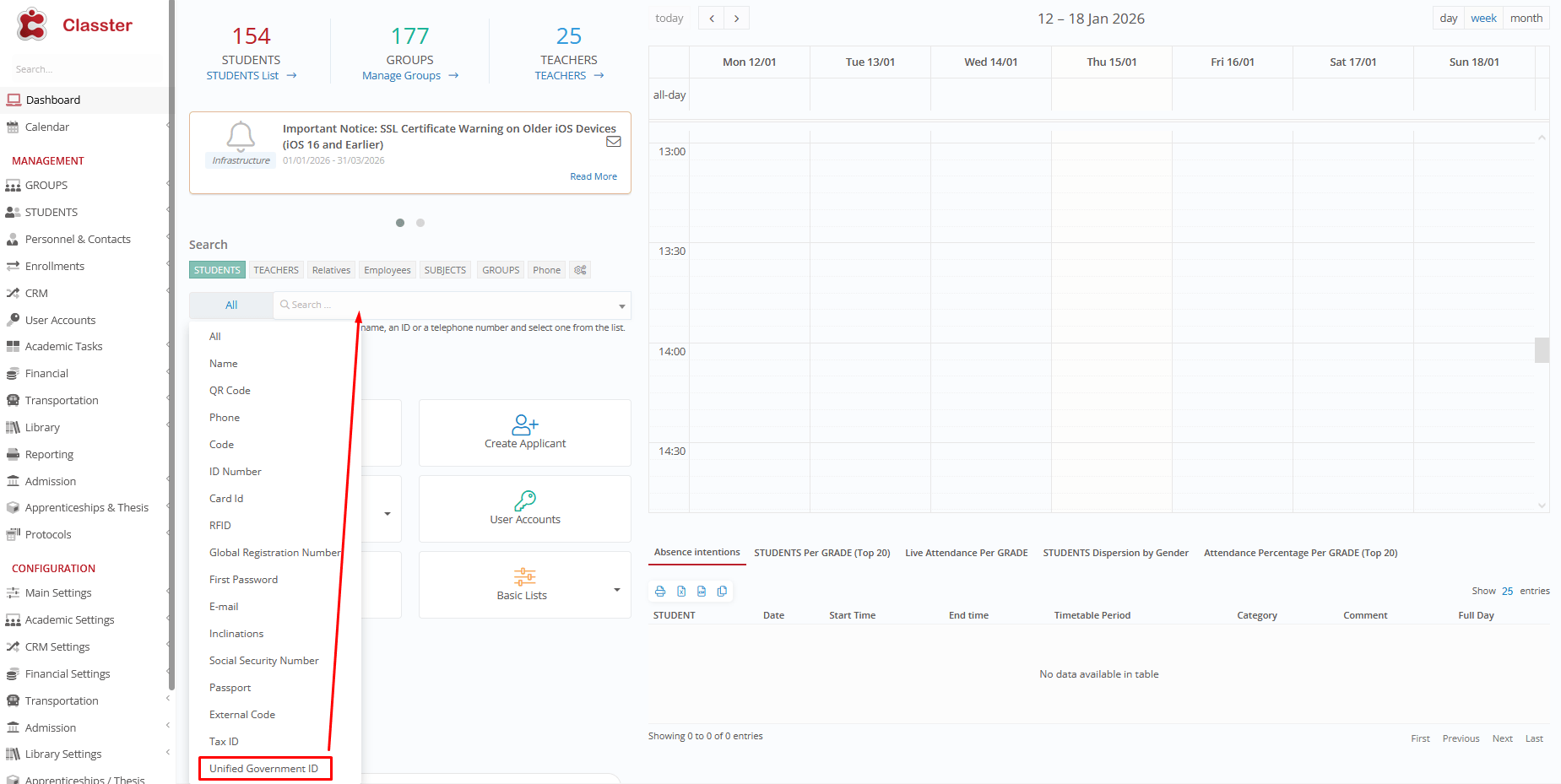
Quick Search
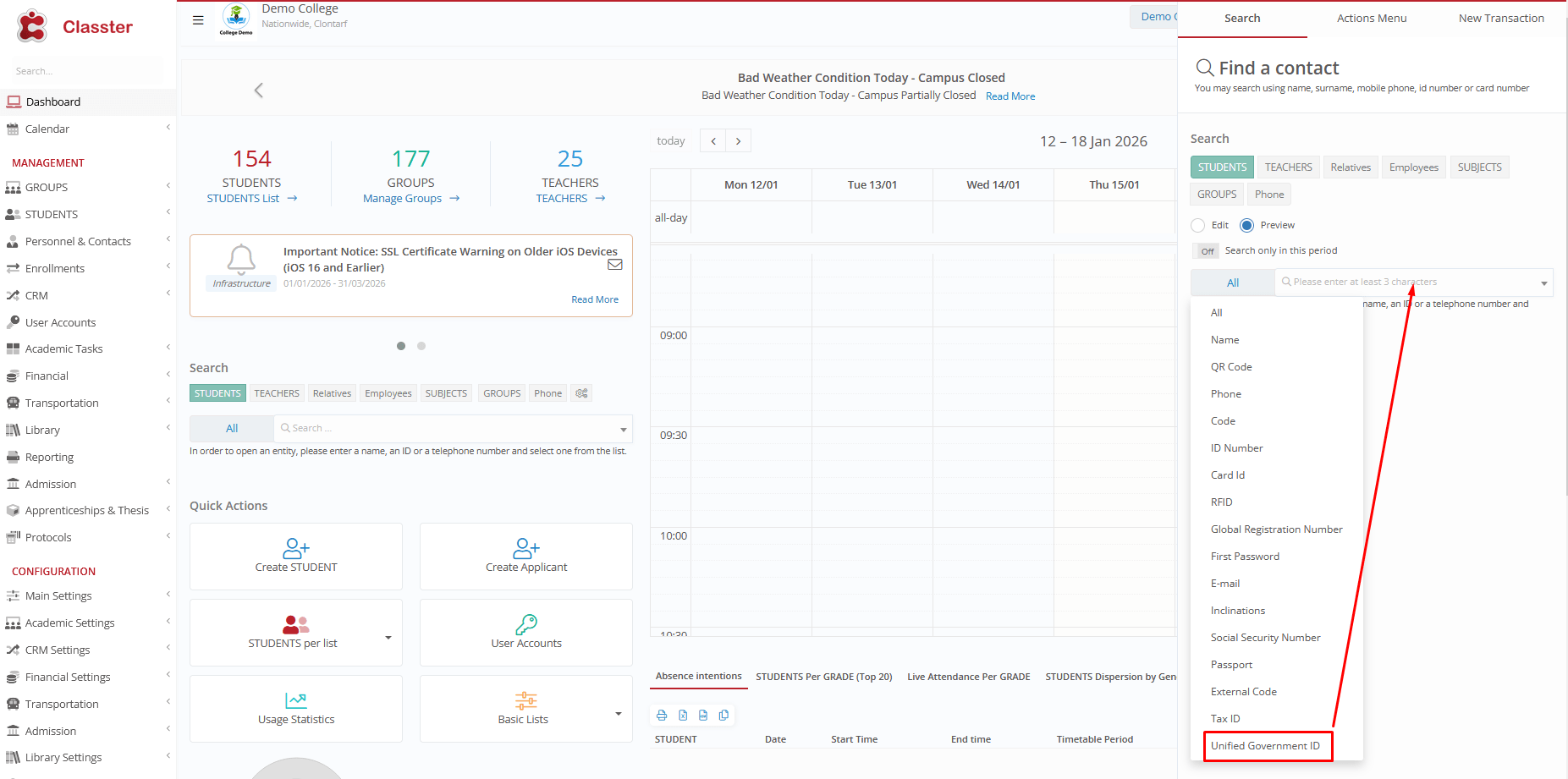
Student List Search
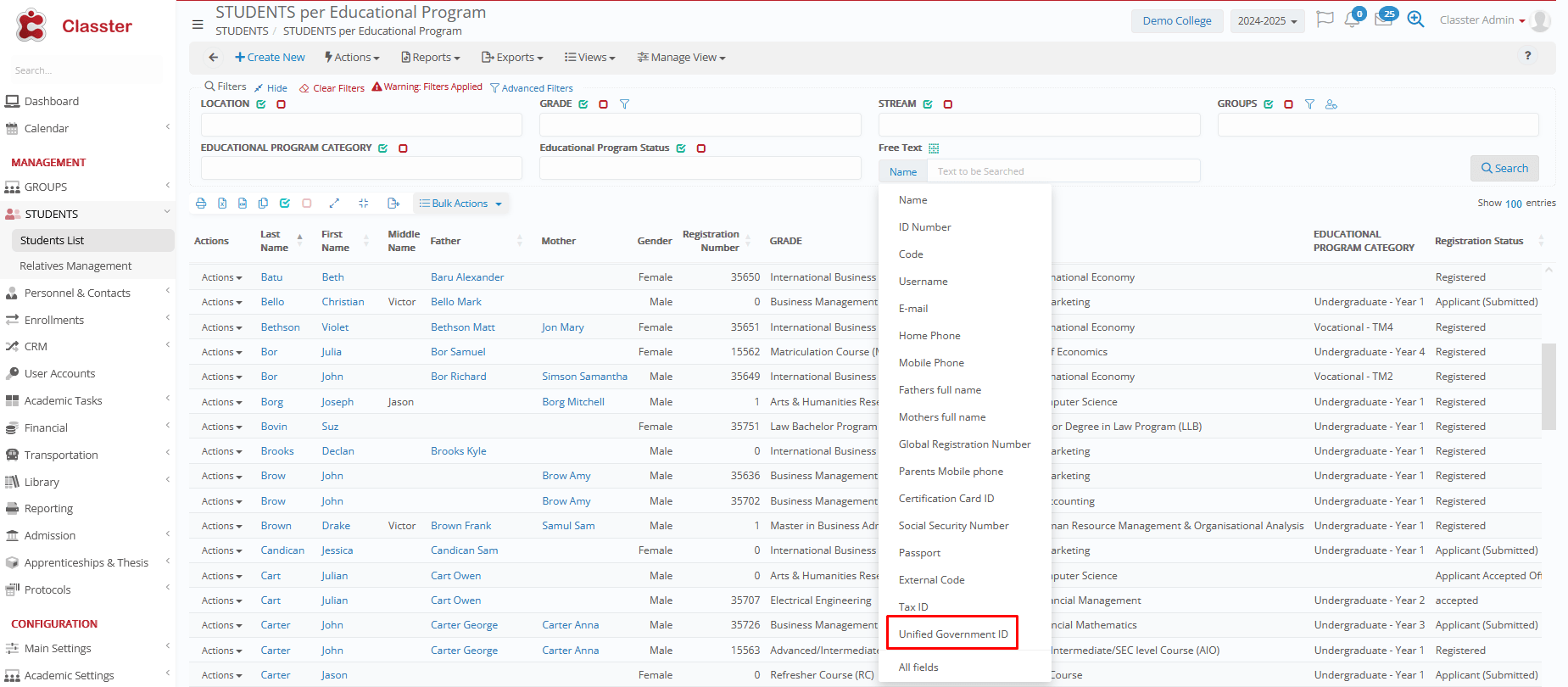
Teacher List Search
Lists & Filters
Student Lists
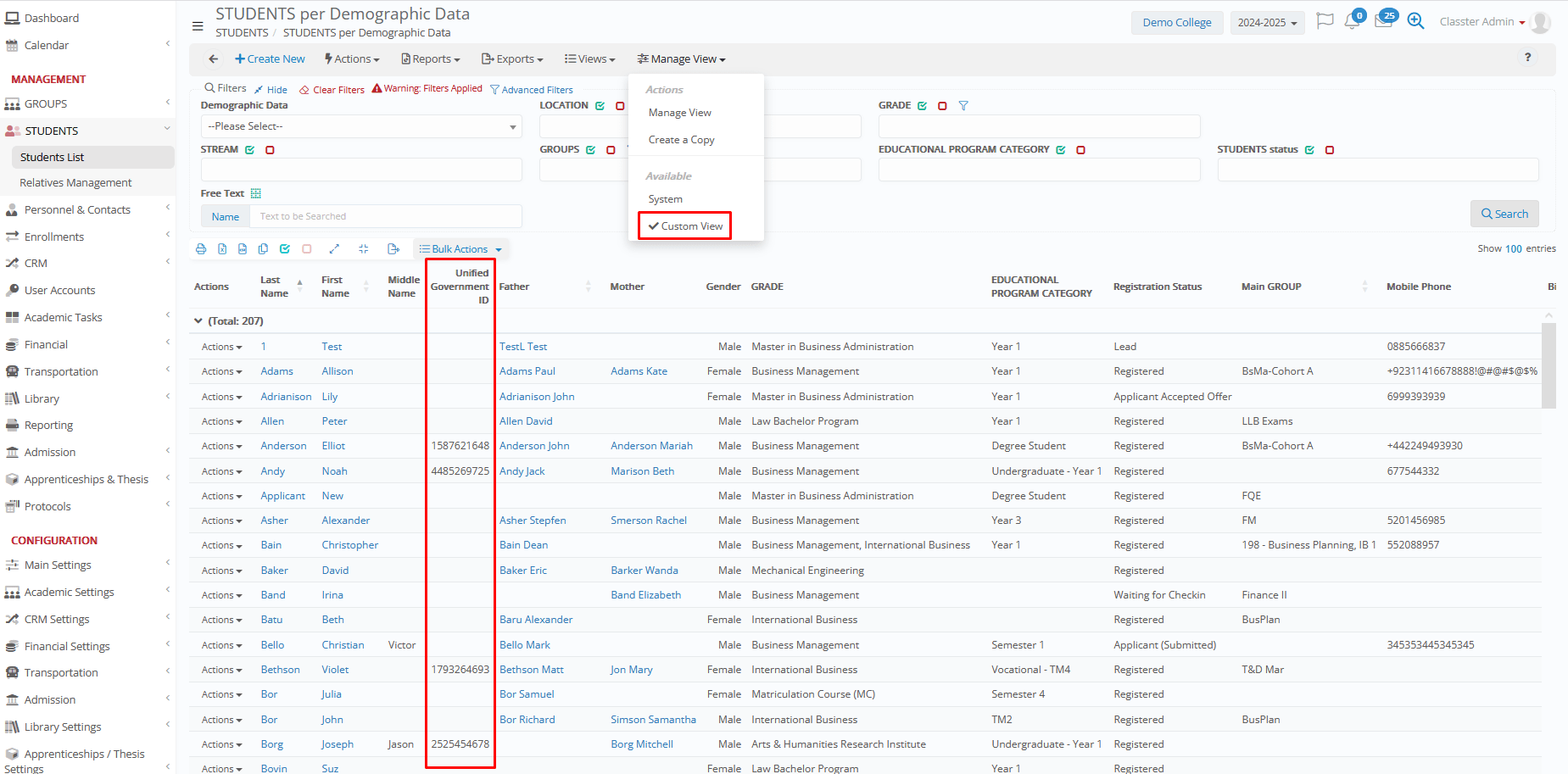
- A Unified Government ID column is available
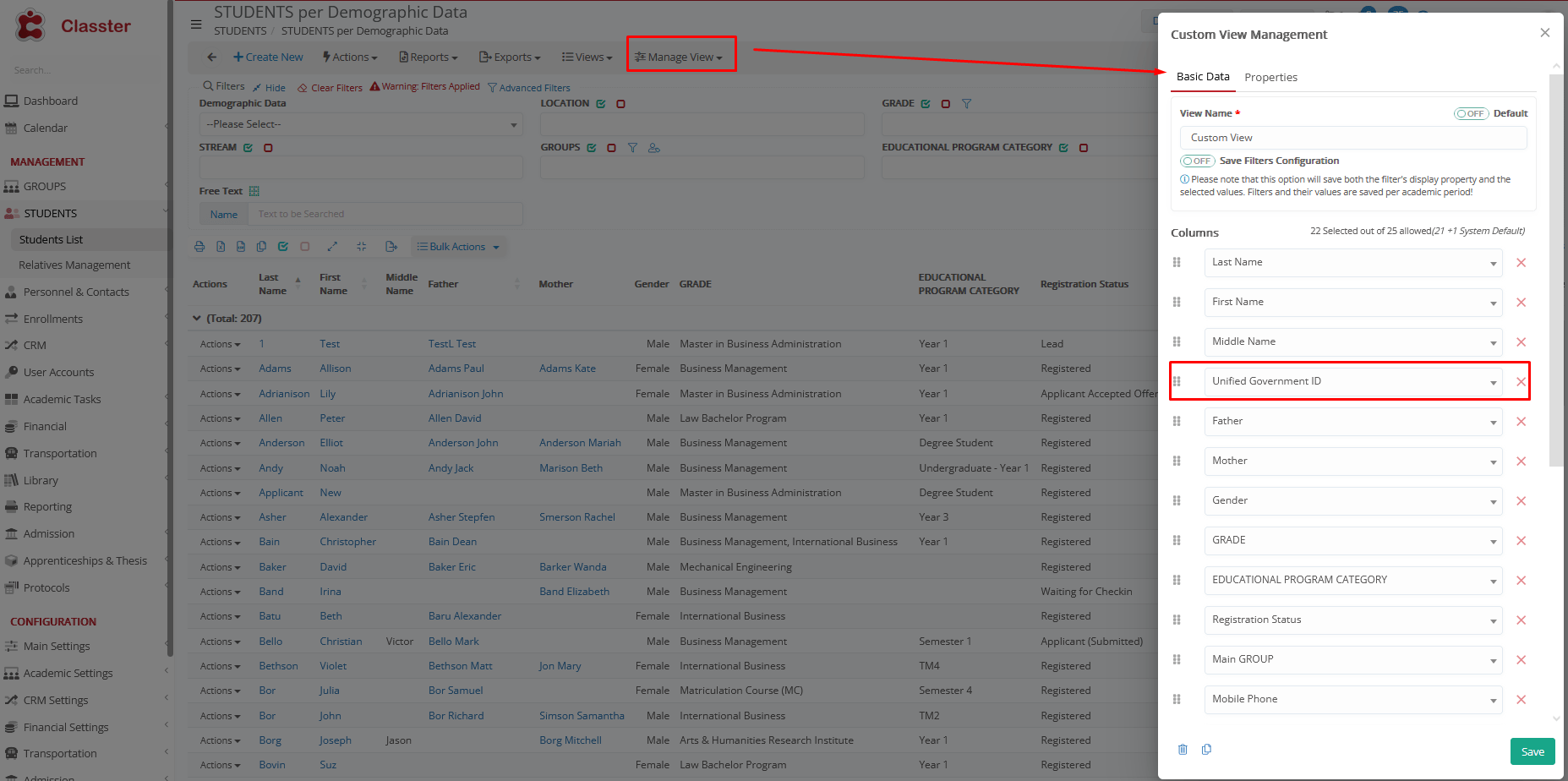
- The column is hidden by default. You can make it visible by using Manage View > Create Custom View. For a deeper understanding of how Manage View works, please follow the full guide here.
- You can also filter students by Unified Government ID using the Advanced Demographic Data filters. Enter the exact Unified Government ID to return the corresponding student records.
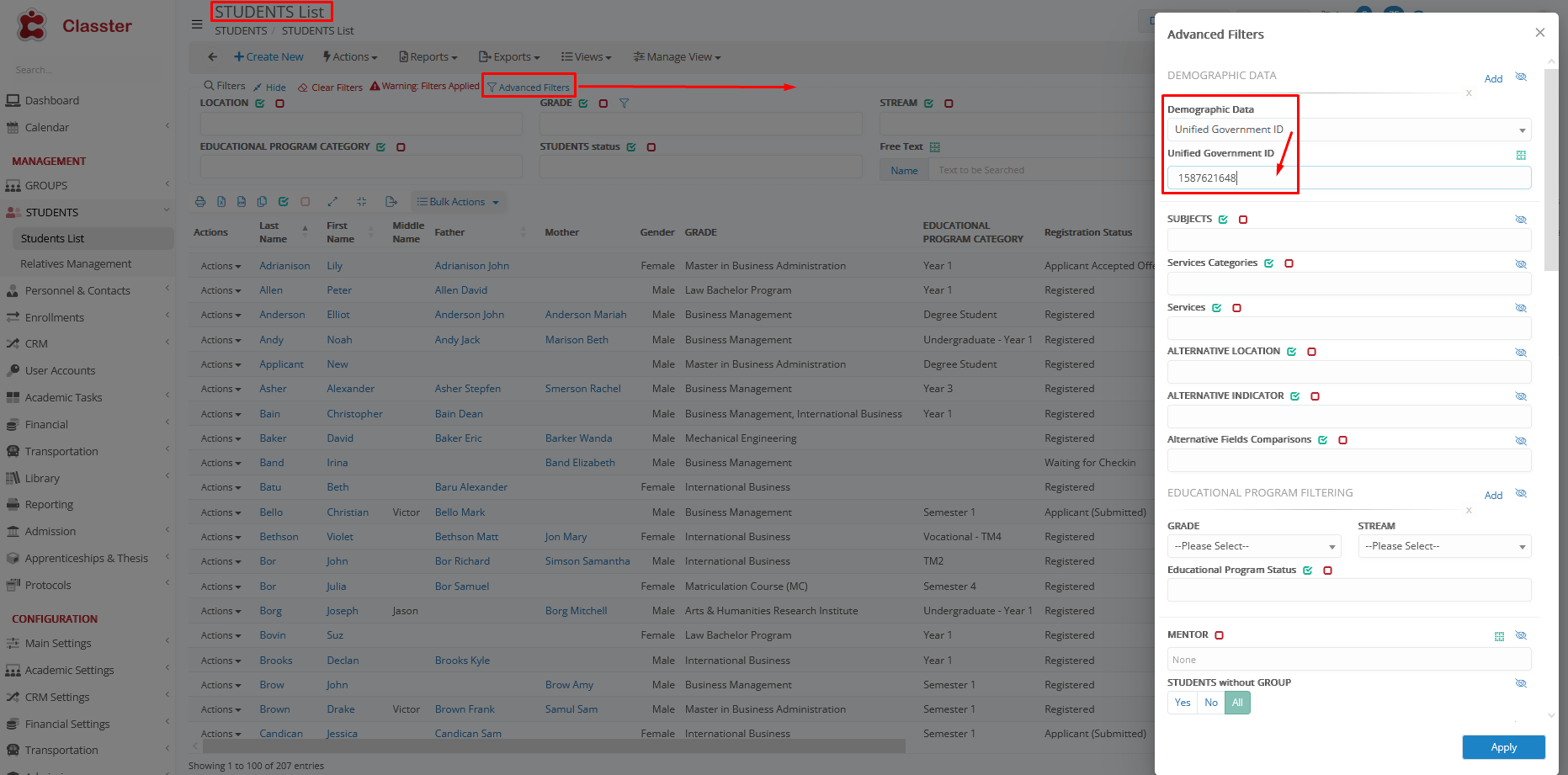
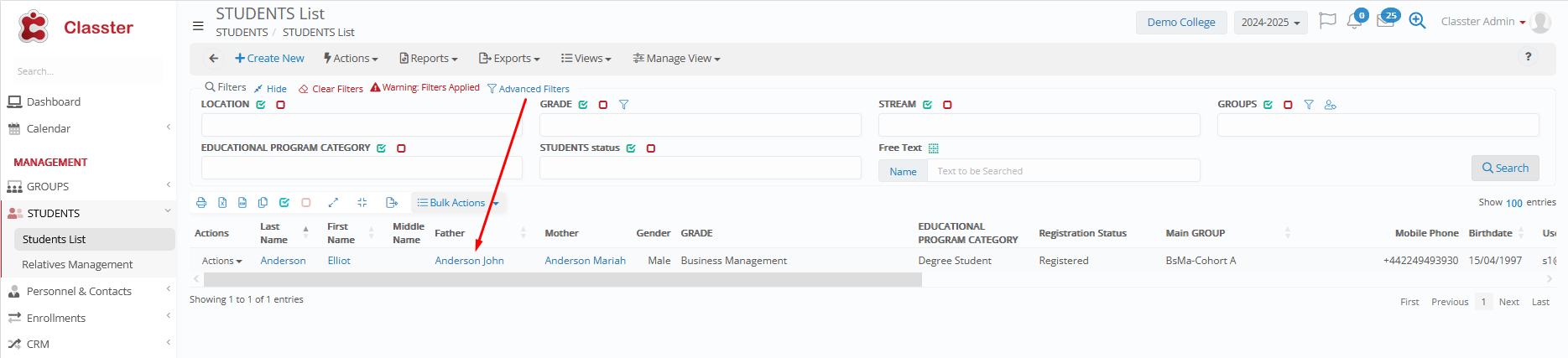
After entering the Unified Government ID, the system displays the matching student record
NOTE: Teachers see the students’ Unified Government ID only if they have permission to view student demographic data.
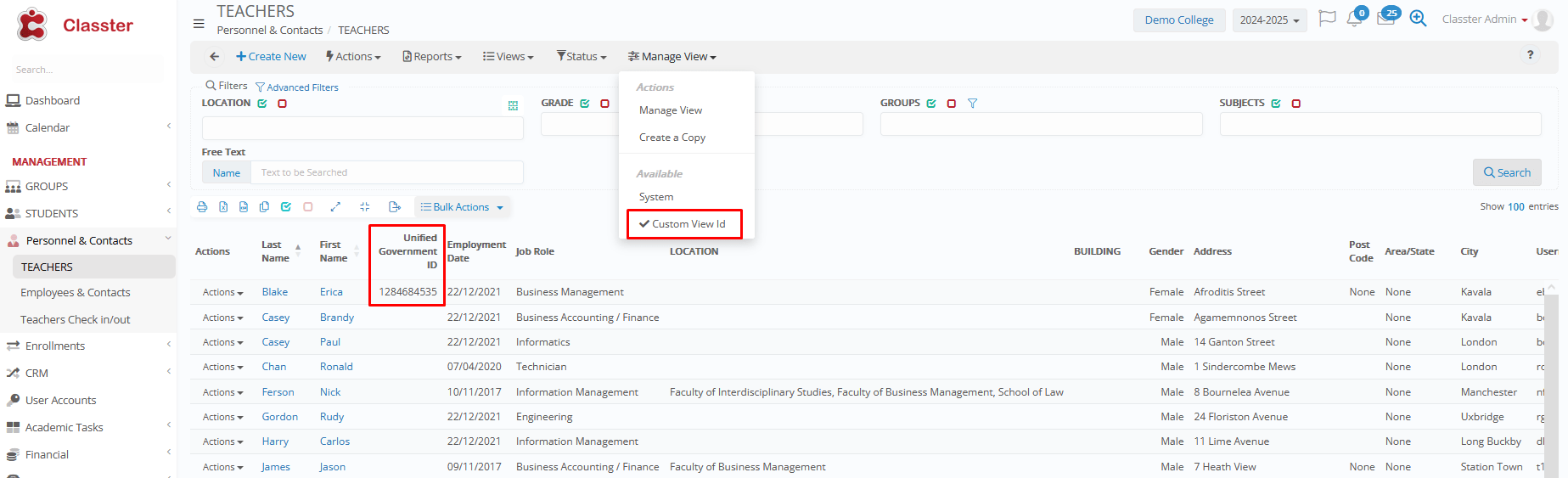
Teacher Lists
- A Unified Government ID column is available
The column is hidden by default. You can make it visible by using Manage View > Create Custom View. For a deeper understanding of how Manage View works, please follow the full guide here.
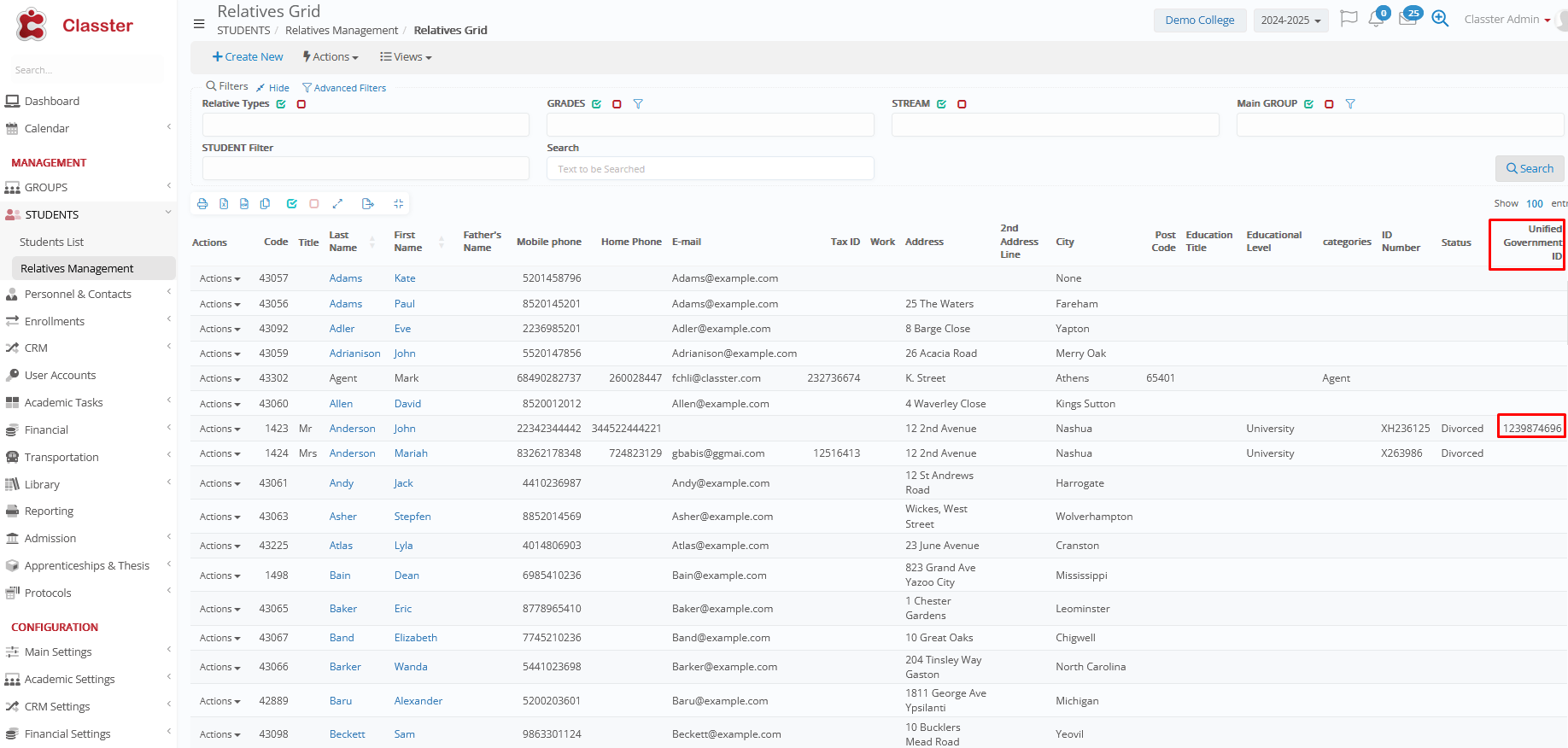
Relative, Employees & Other Contact Lists
- A Unified Government ID column appears at the end of the list by default.
- Custom View is not supported in these cases.
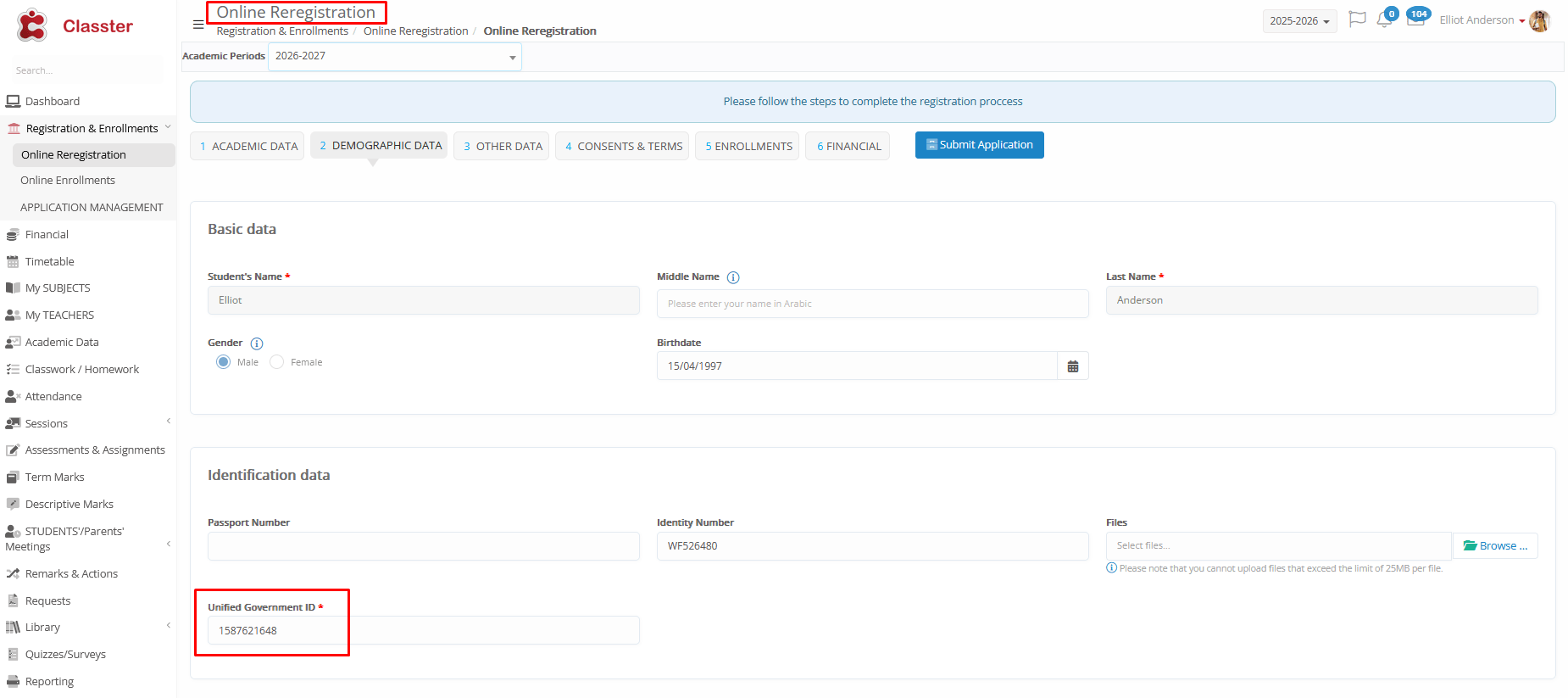
Admissions & Re-registration
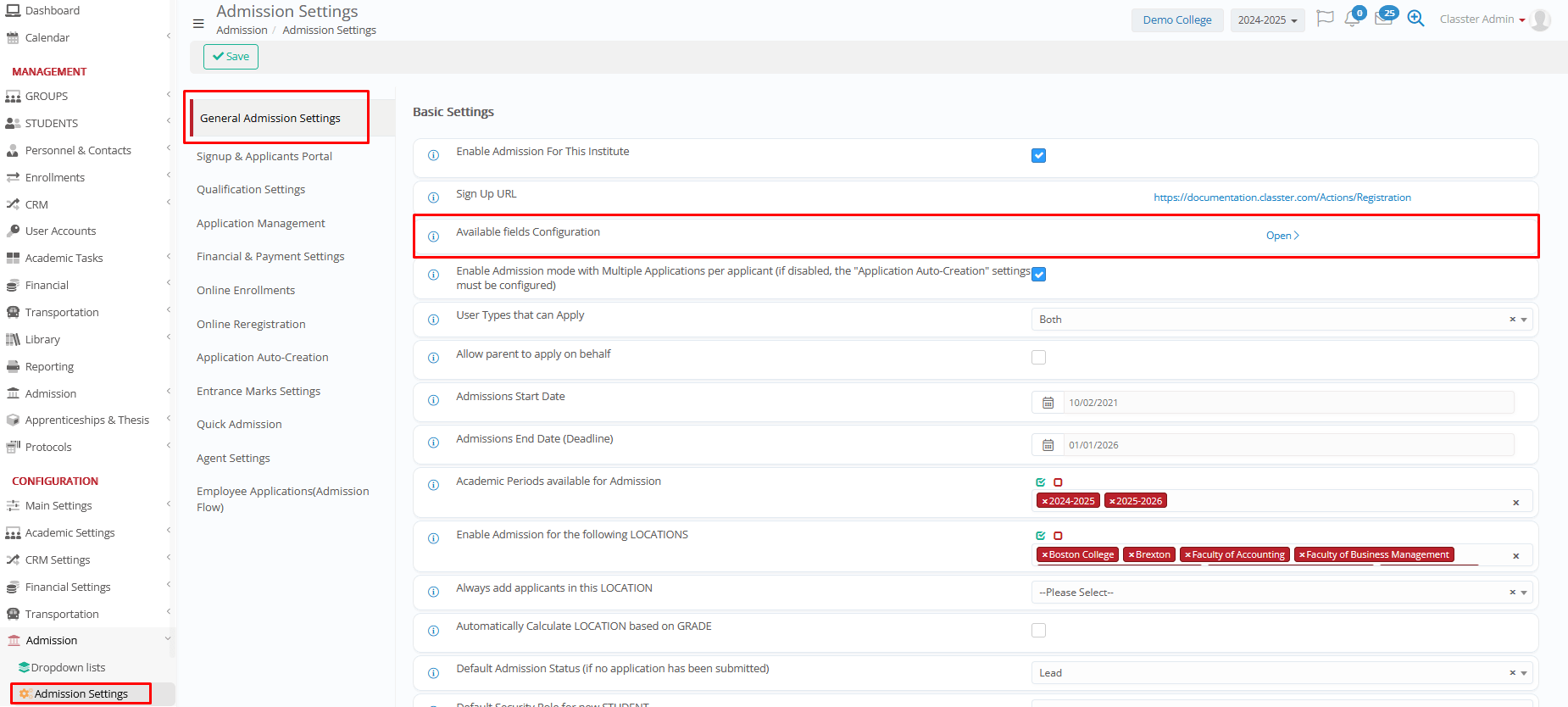
The Unified Government ID can be enabled in Admission Personal Data settings.
Admission settings > General Admission Settings > Available fields Configuration > Open
The value is saved as identification data for the student.
From this section, you can configure how the Unified Government ID is displayed during the admission and re-registration processes. You can define:
- The field label (literal)
- The English label
- The placeholder text
- Whether the field uses a free text input
- The rules that apply during admission and re-registration (for example, whether the field is required or optional, visible or not)
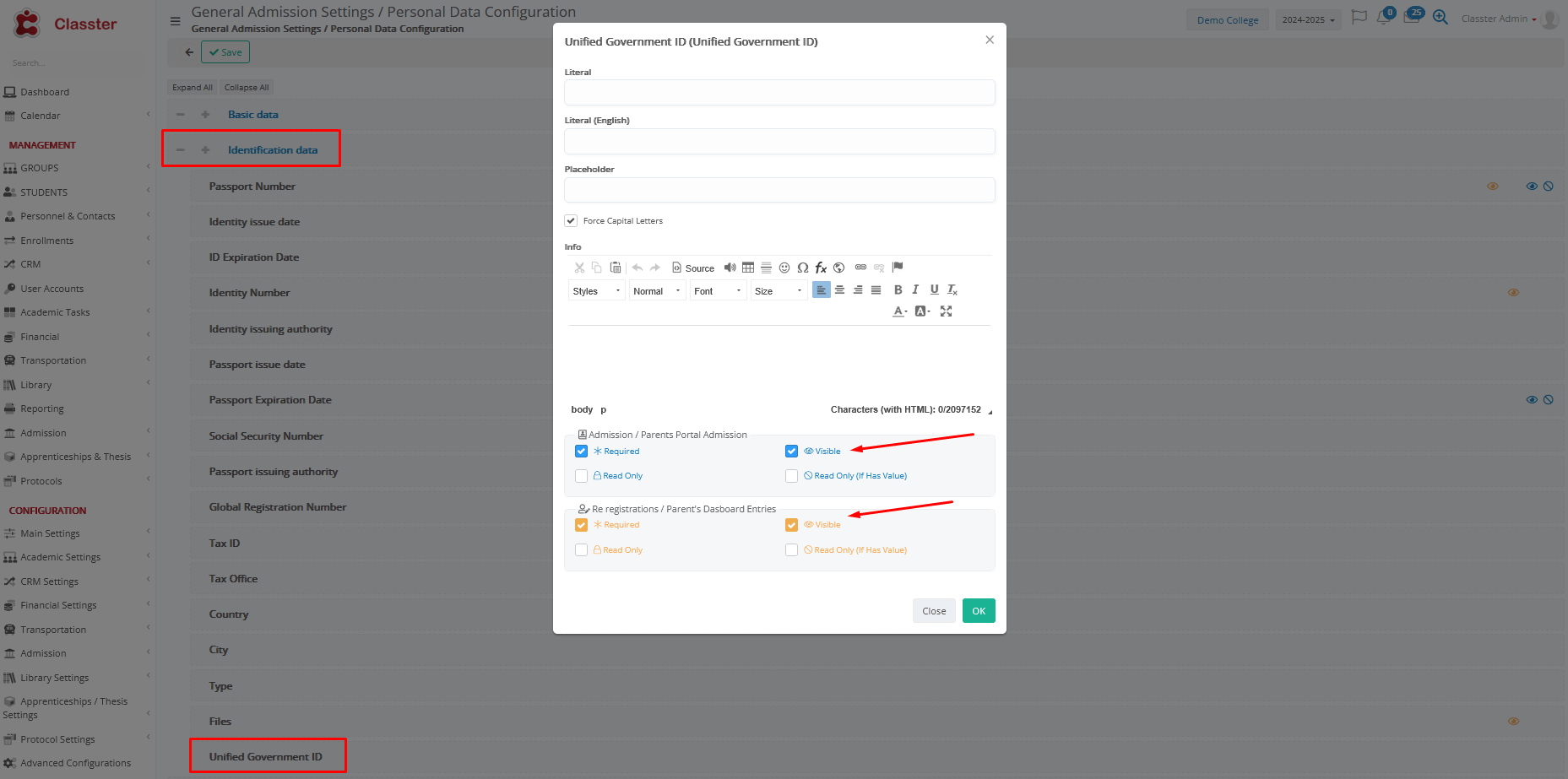
Once enabled, the Unified Government ID is available during:
- Admissions
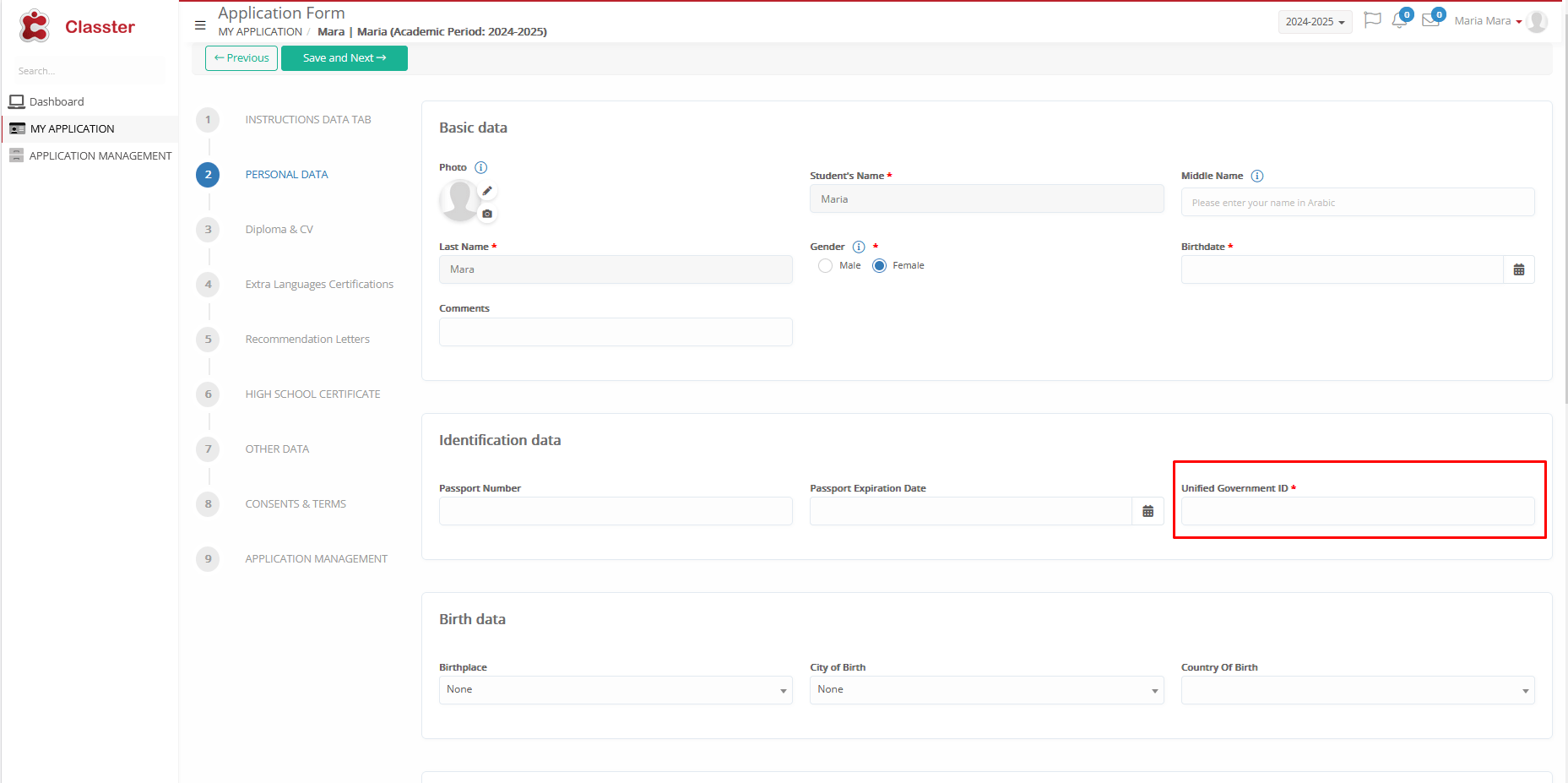
- Edit Personal Data
Editing the Applicant, navigating through the Application Management > Row Action: Edit Applicant.
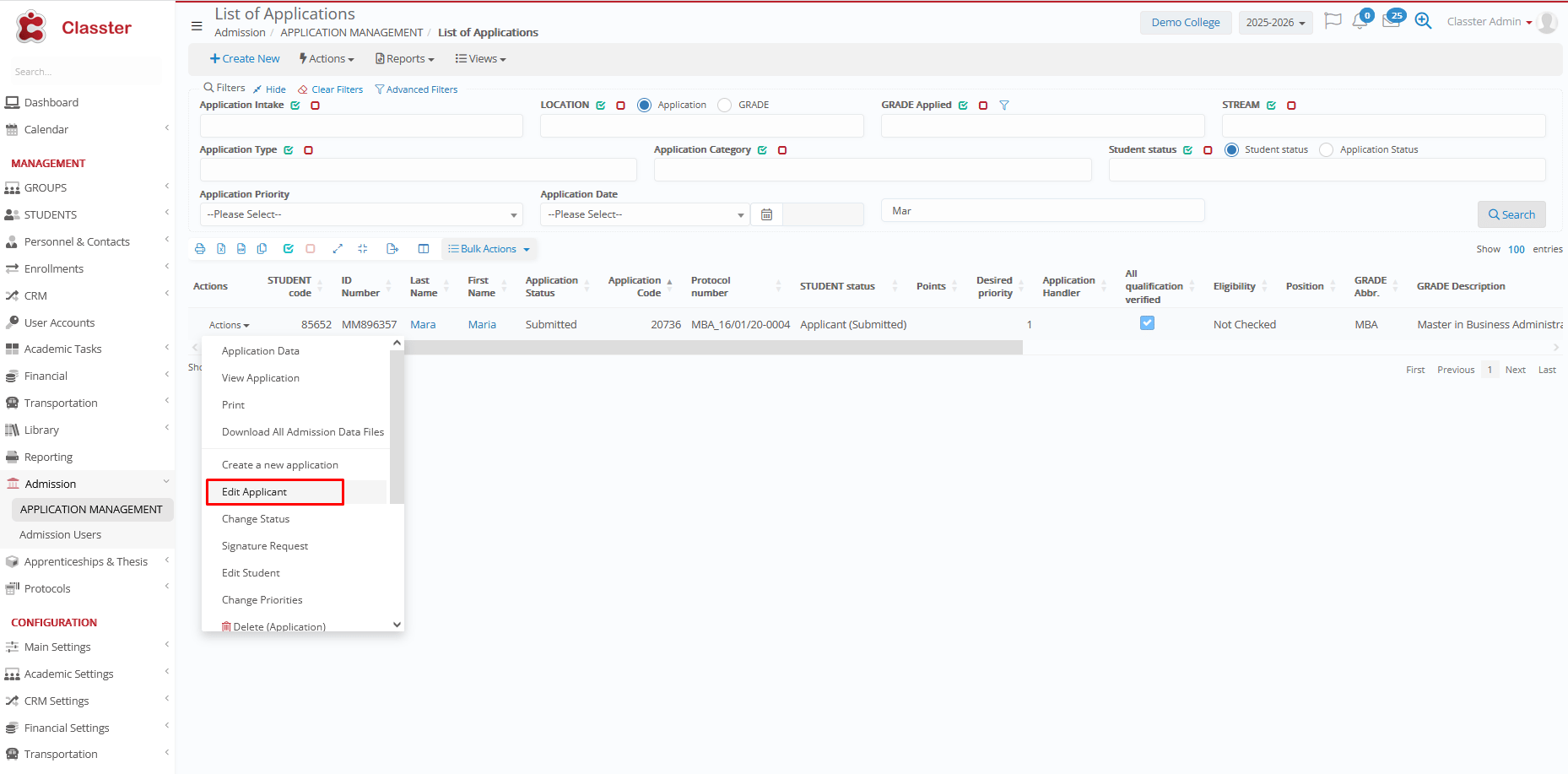
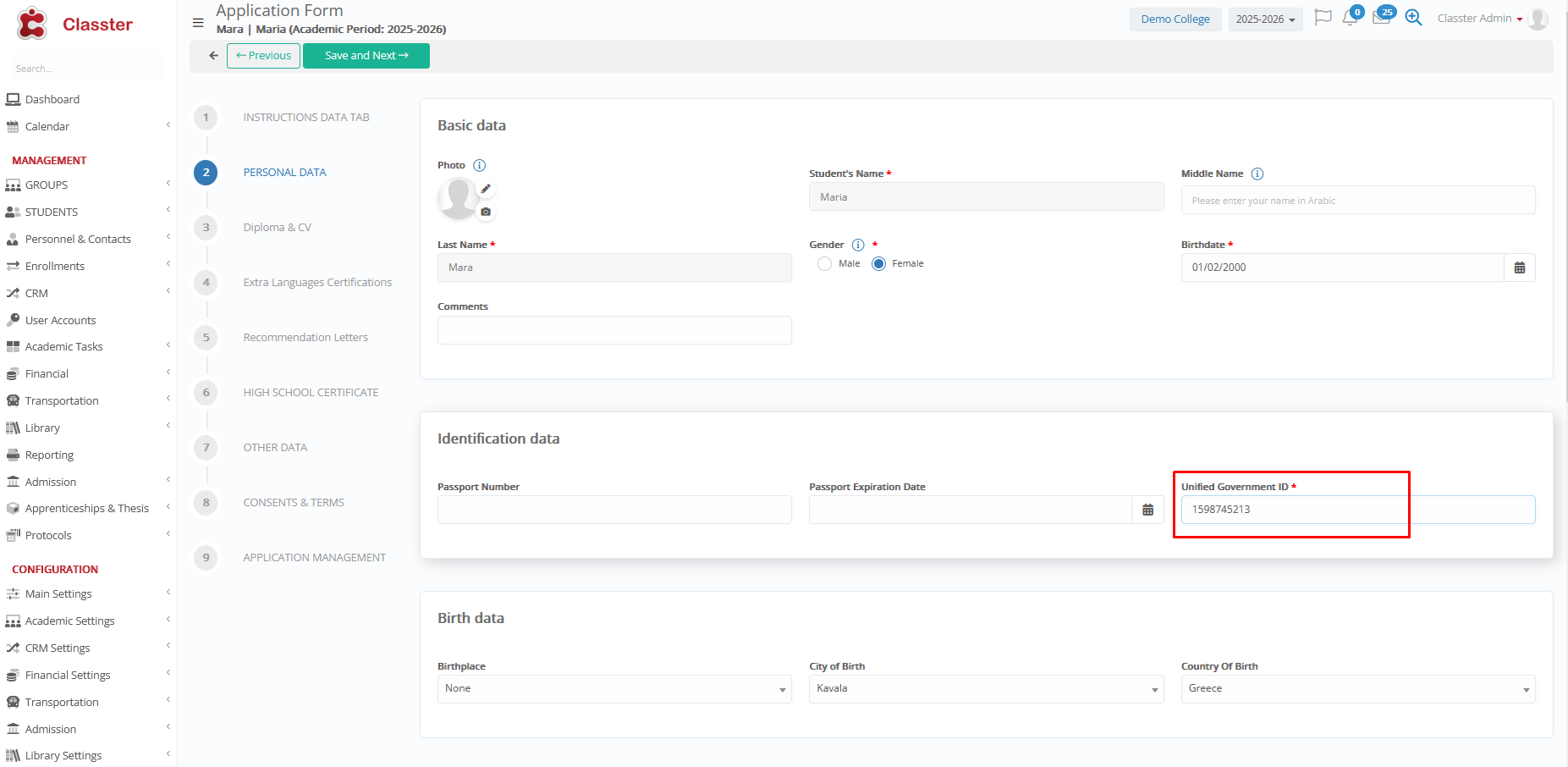
Or from the Student List (Registration Status: Applicant)
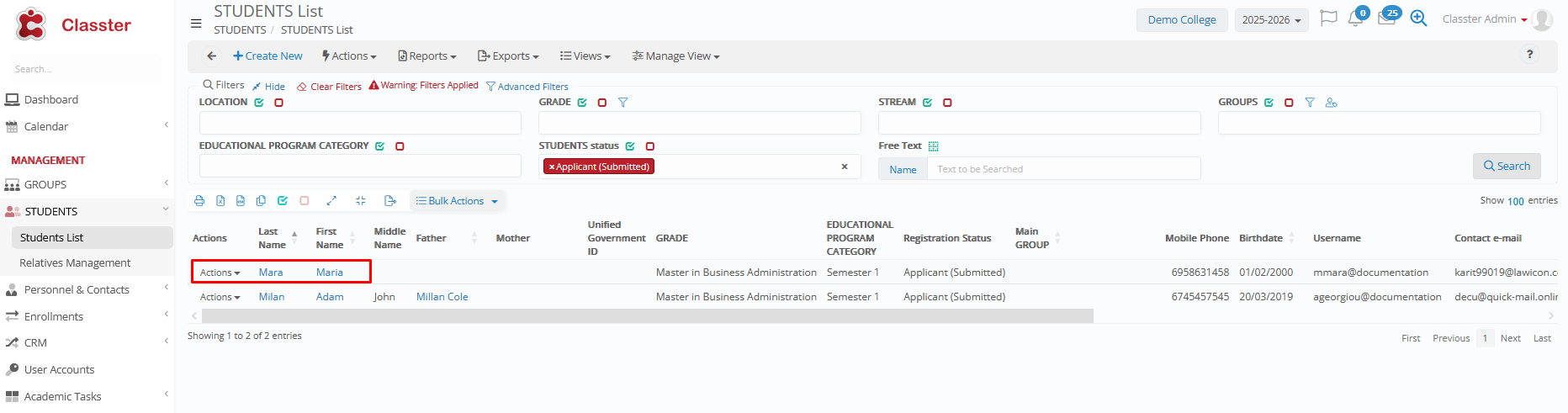
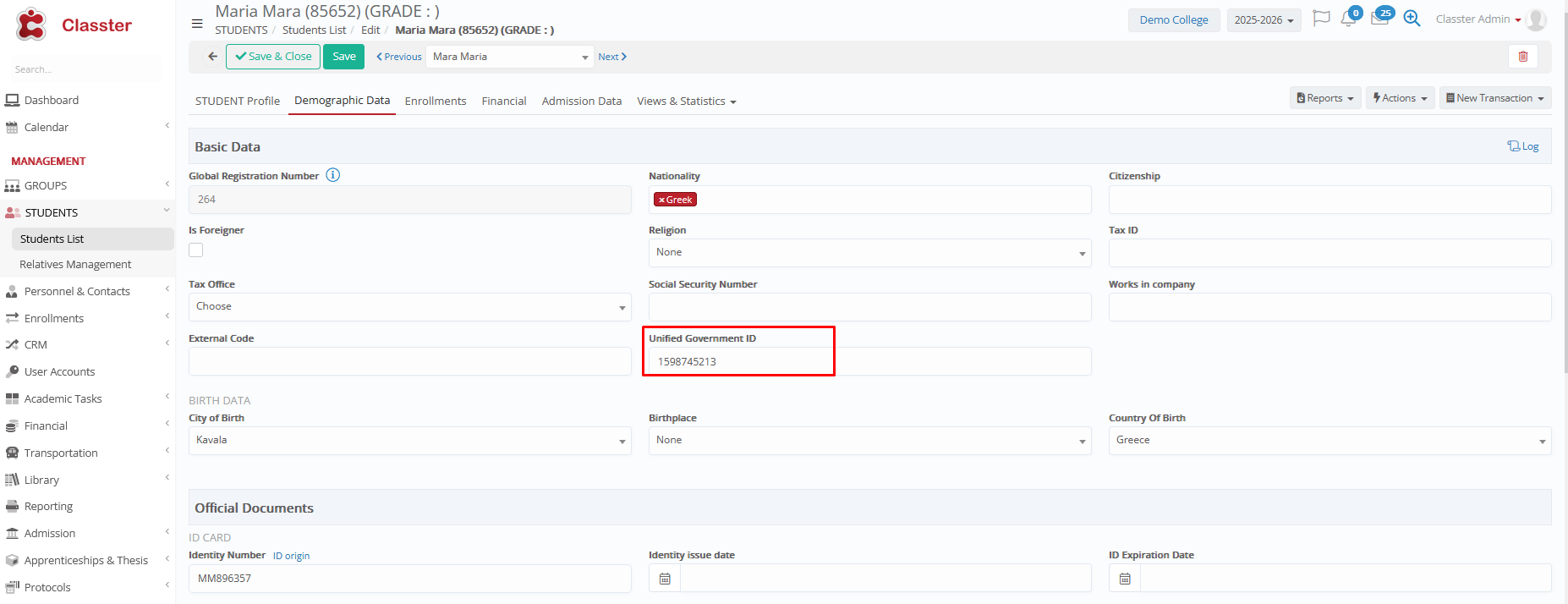
Same as a Registered Students profile, on the Demographic Tab.
- Re-registration
Card Management
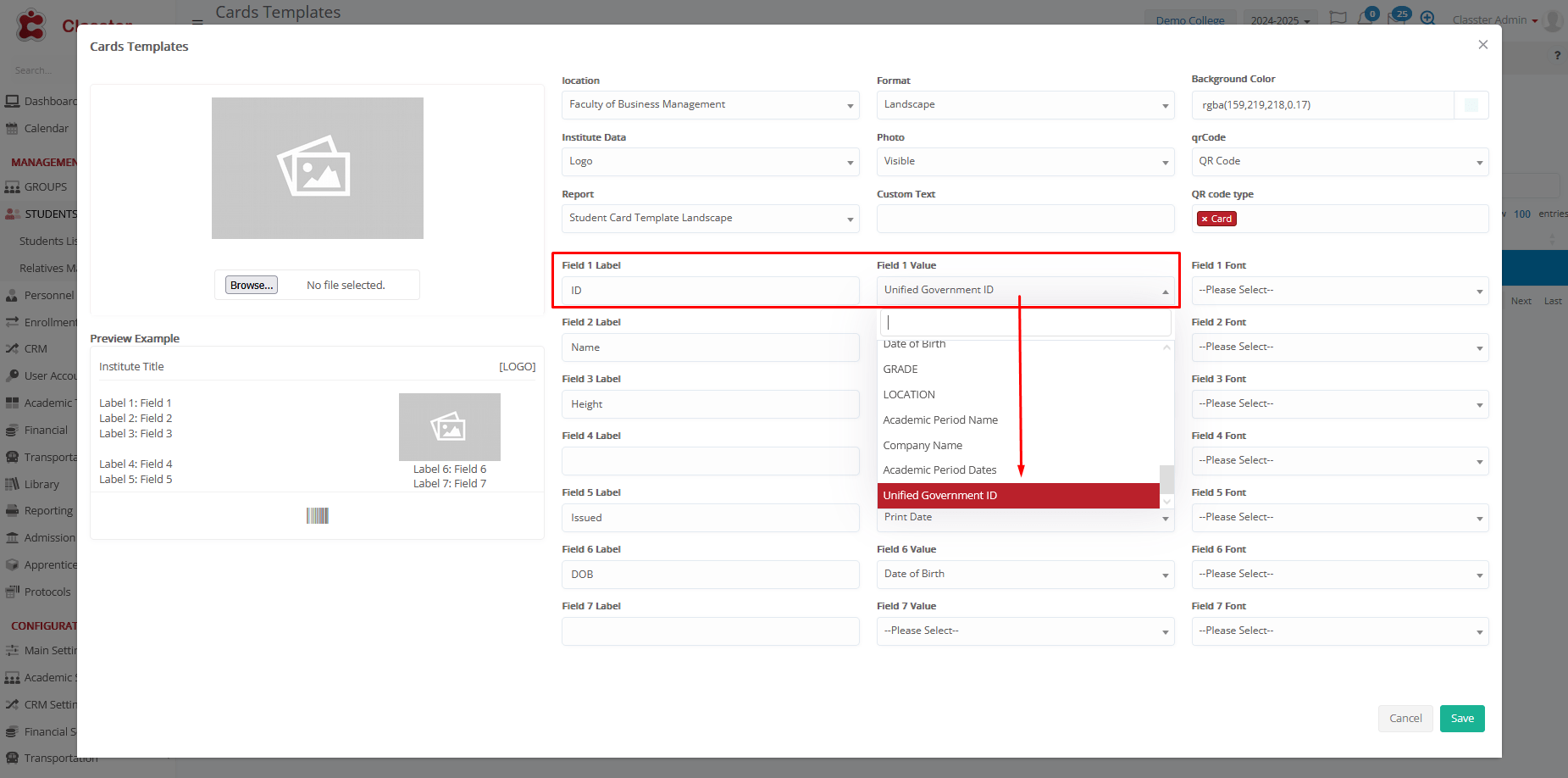
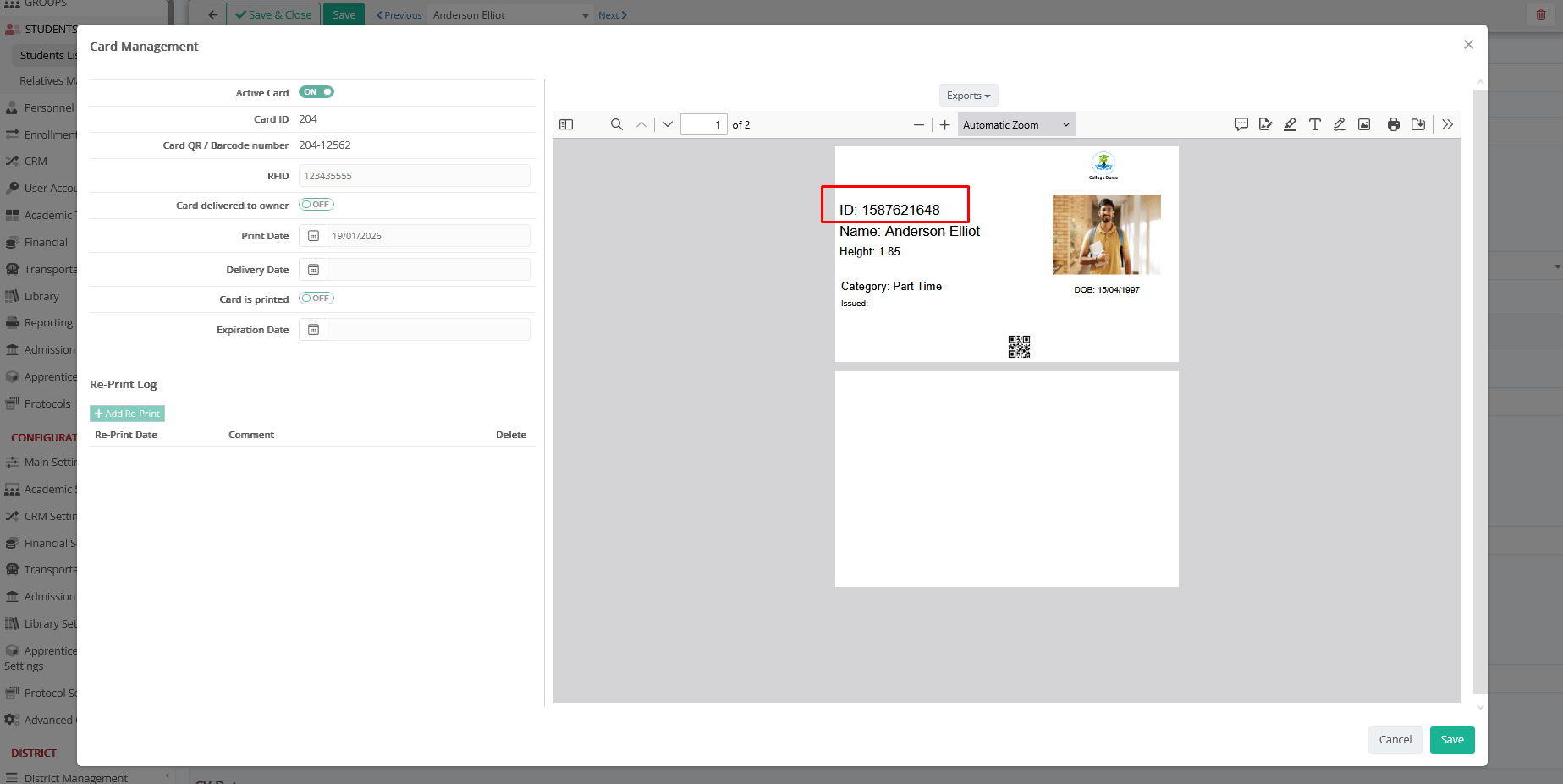
The Unified Government ID is available as a selectable field in Card Management
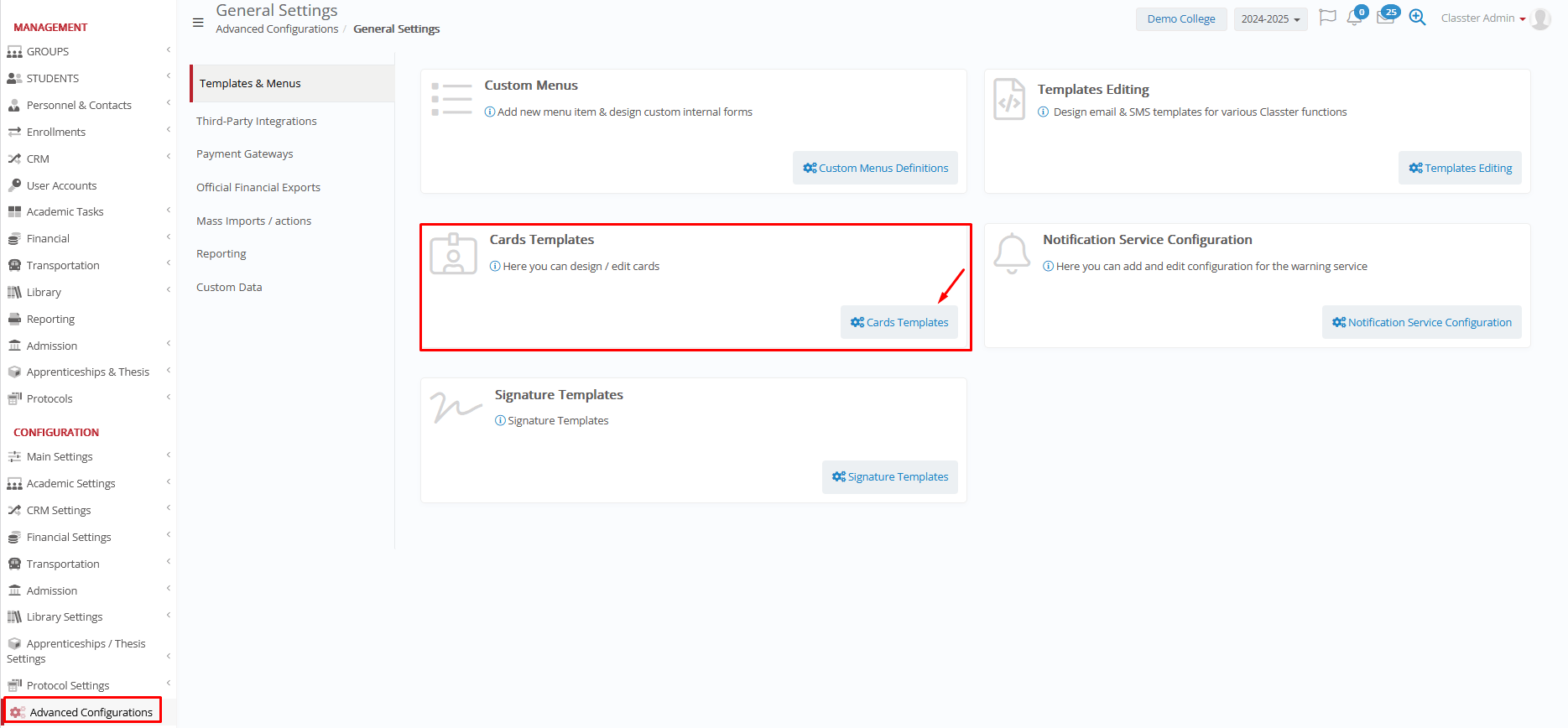
Display depends on the card configuration and permissions
Permissions & Settings
Permissions (Teachers)
There are two teacher-related settings that control whether teachers can see the Unified Government ID.
1. Access to Student Demographic Data
The Unified Government ID is treated as demographic data for students. If a user does not have permission to view student demographic data, the Unified Government ID remains hidden, even if it is selected for display in system settings.
Visibility is controlled by the Access to Student Information settings. Users without demographic access cannot see the field anywhere in the system. To allow teachers to view the Unified Government ID (and other student demographic data), navigate to:
Main Settings > Teacher Portal Rights > Access to Student information > Make sure that the option “Teachers do not have access to their students’ contact and demographic data” is disabled.
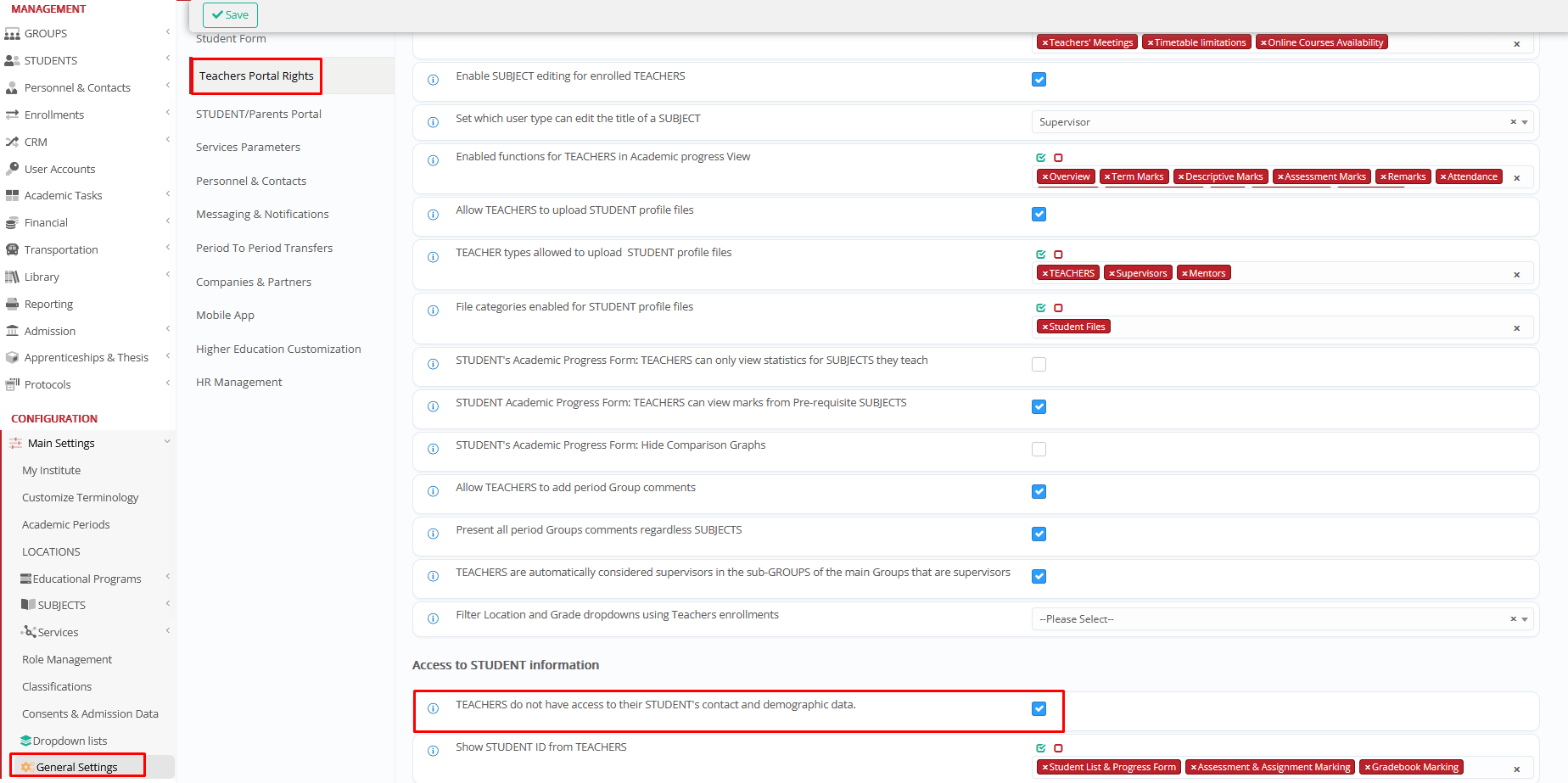
If this option remains enabled, teachers cannot see the Unified Government ID in any screen, list, gradebook, or assessment view.
2. Show Student ID in the Teacher Views (Gradebook & Assessments)
In addition to demographic access, teachers must also be allowed to see student identification columns.
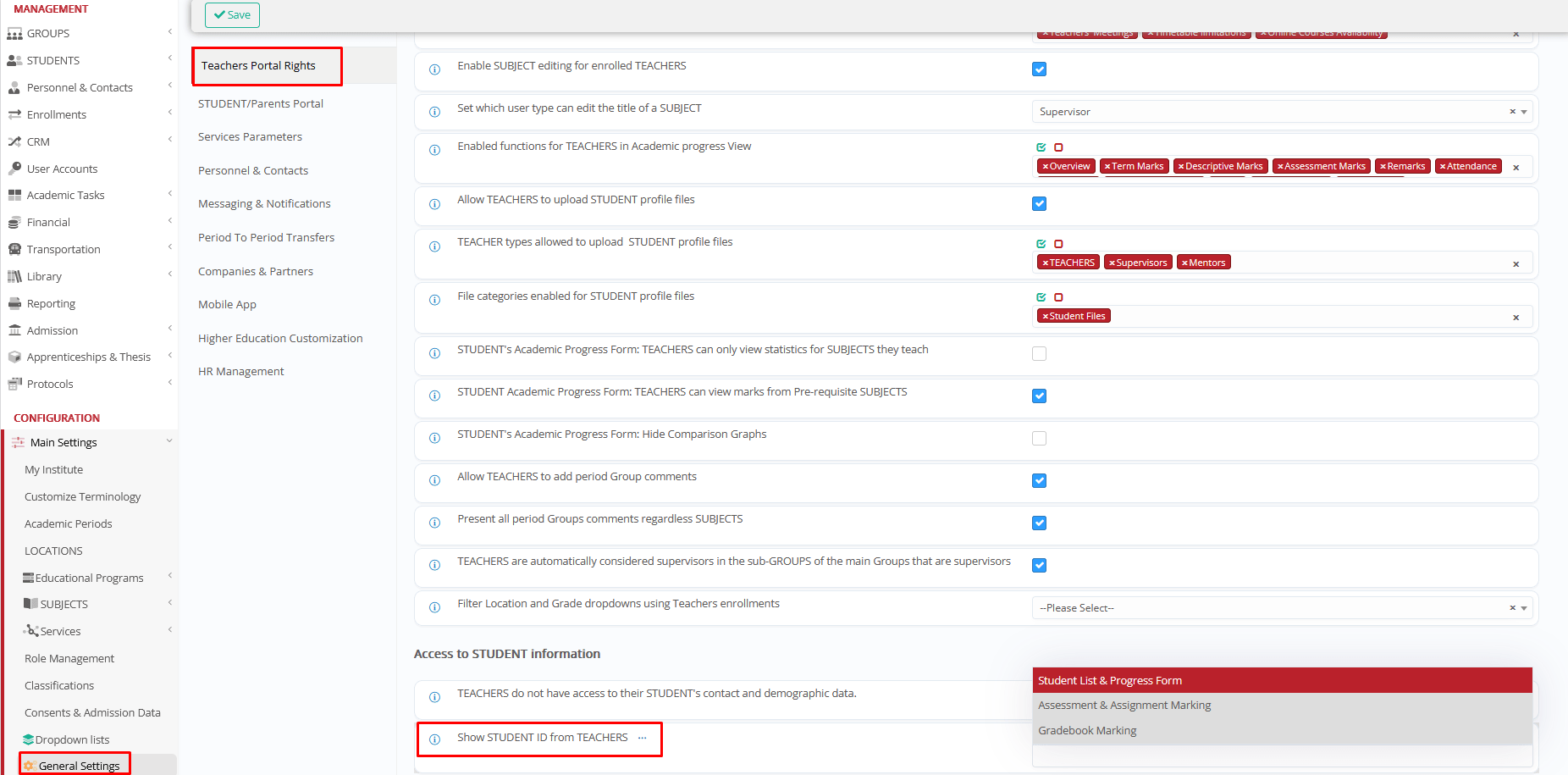
To make the Unified Government ID visible to teachers, you must enable the setting “Show Student ID from Teachers” by navigating to Main Settings > Teacher Portal Rights > Access to Student information.
If this setting is not enabled, teachers will not see the Unified Government ID in:
- Student Lists and Progress Form
- Teacher Gradebook
- Assessment Marking
This applies even if:
- The Unified Government ID is selected as the identification number, and
- Teachers have permission to view student demographic data.
Settings
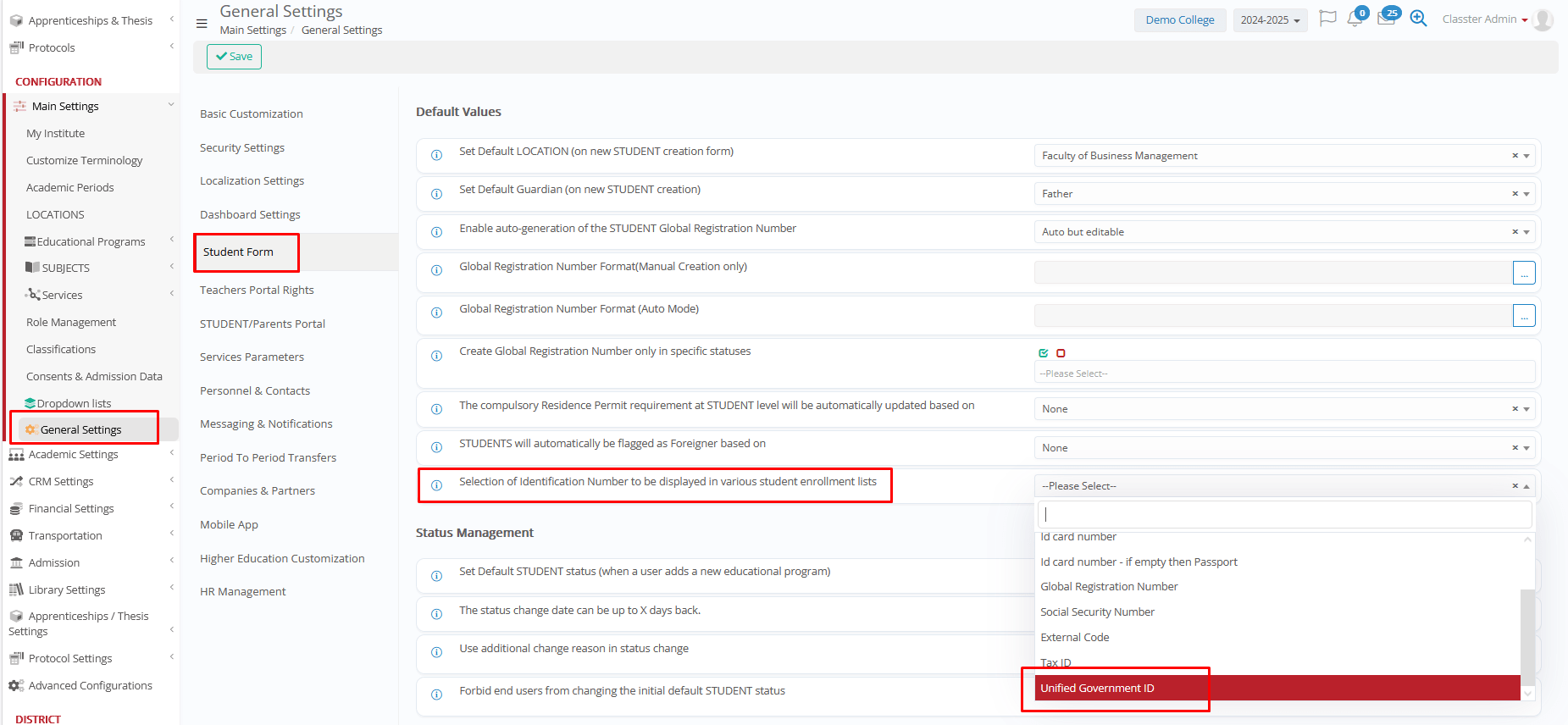
The Unified Government ID can be selected as the identification number displayed in different areas of the system, such as academic records, the gradebook, and assessment marking.
Academic records
Main Settings > General Settings > Student Form > Default Values > Selection of Identification Number to be displayed in various student enrollment lists: Unified Government ID
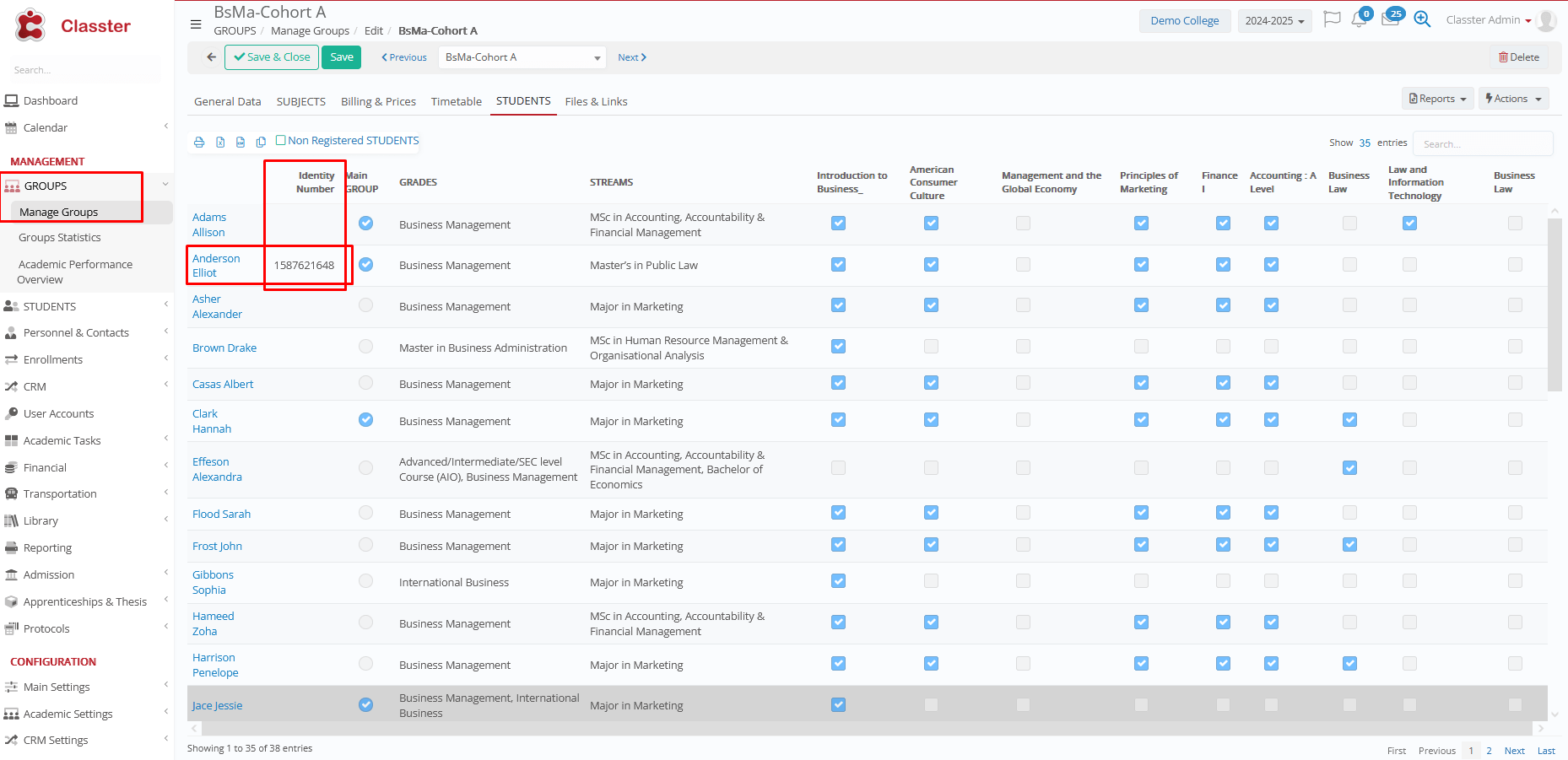
How it looks in Group Management – Student List:
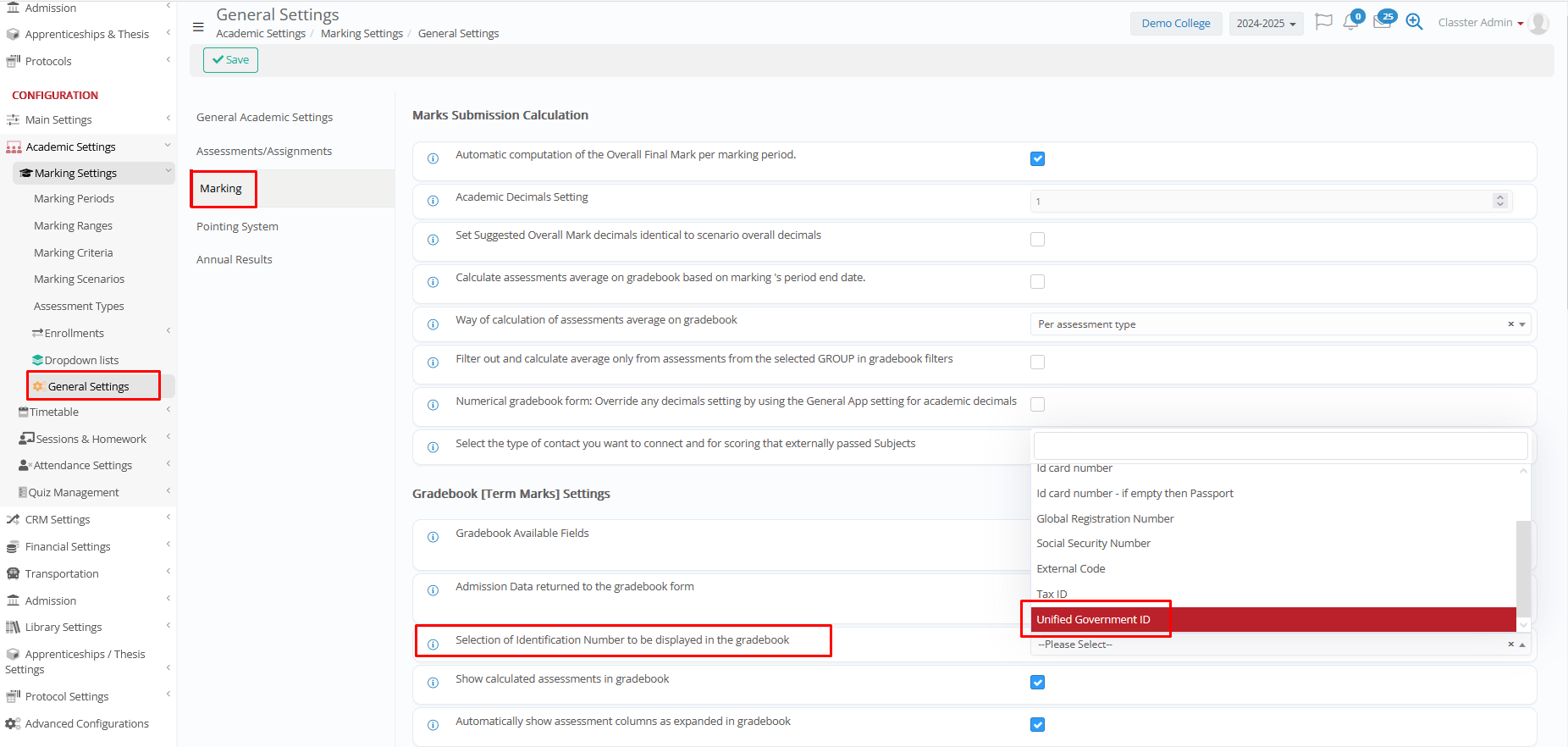
Gradebook
Academic Settings > Marking Settings > Gradebook [Term Marks] Settings > Selection of Identification Number to be displayed in the gradebook: Unified Government ID
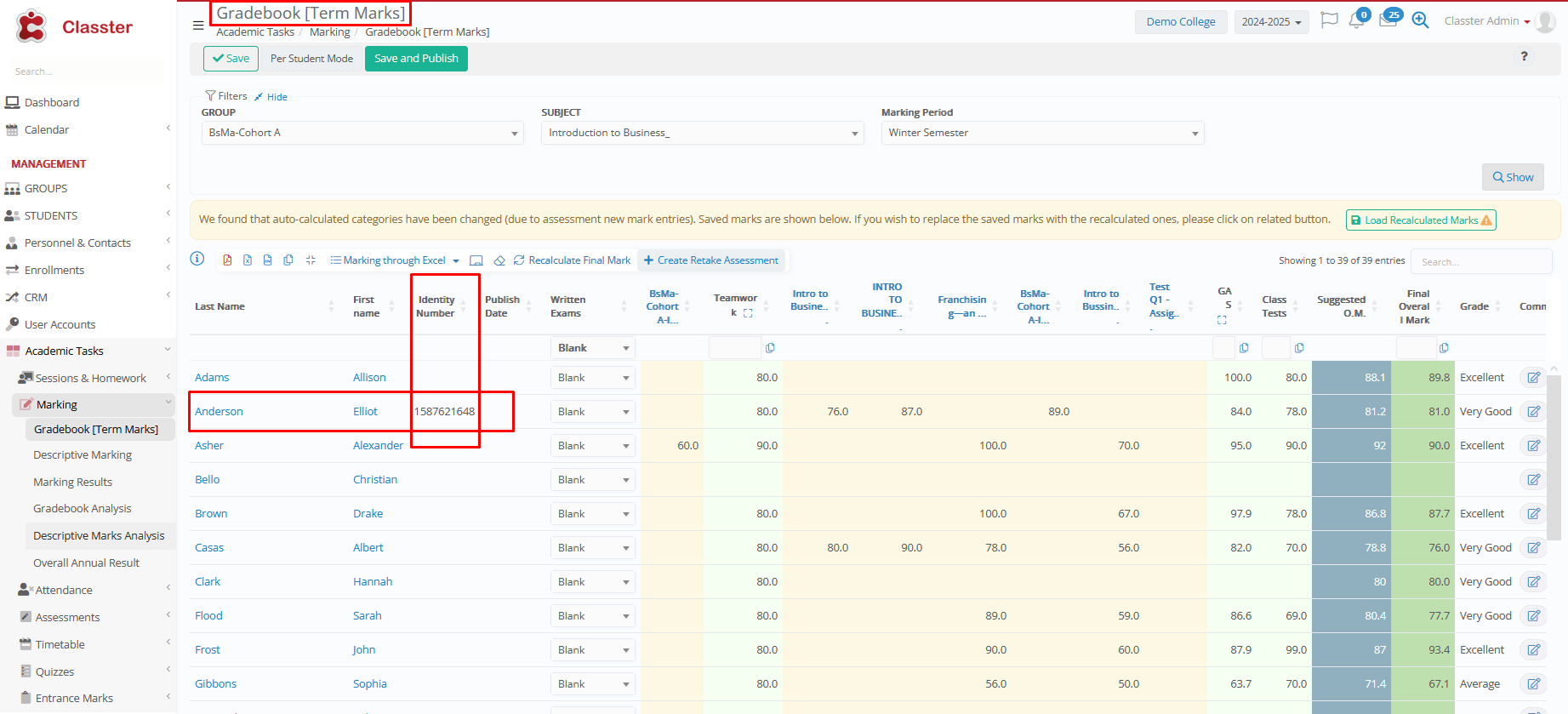
How it looks in Gradebook:
Assessment marking
Academic Settings > Assessments/Assignments > Assessment Marking Configuration > Selection of Identification Number to be displayed in the assessment marking: Unified Government ID
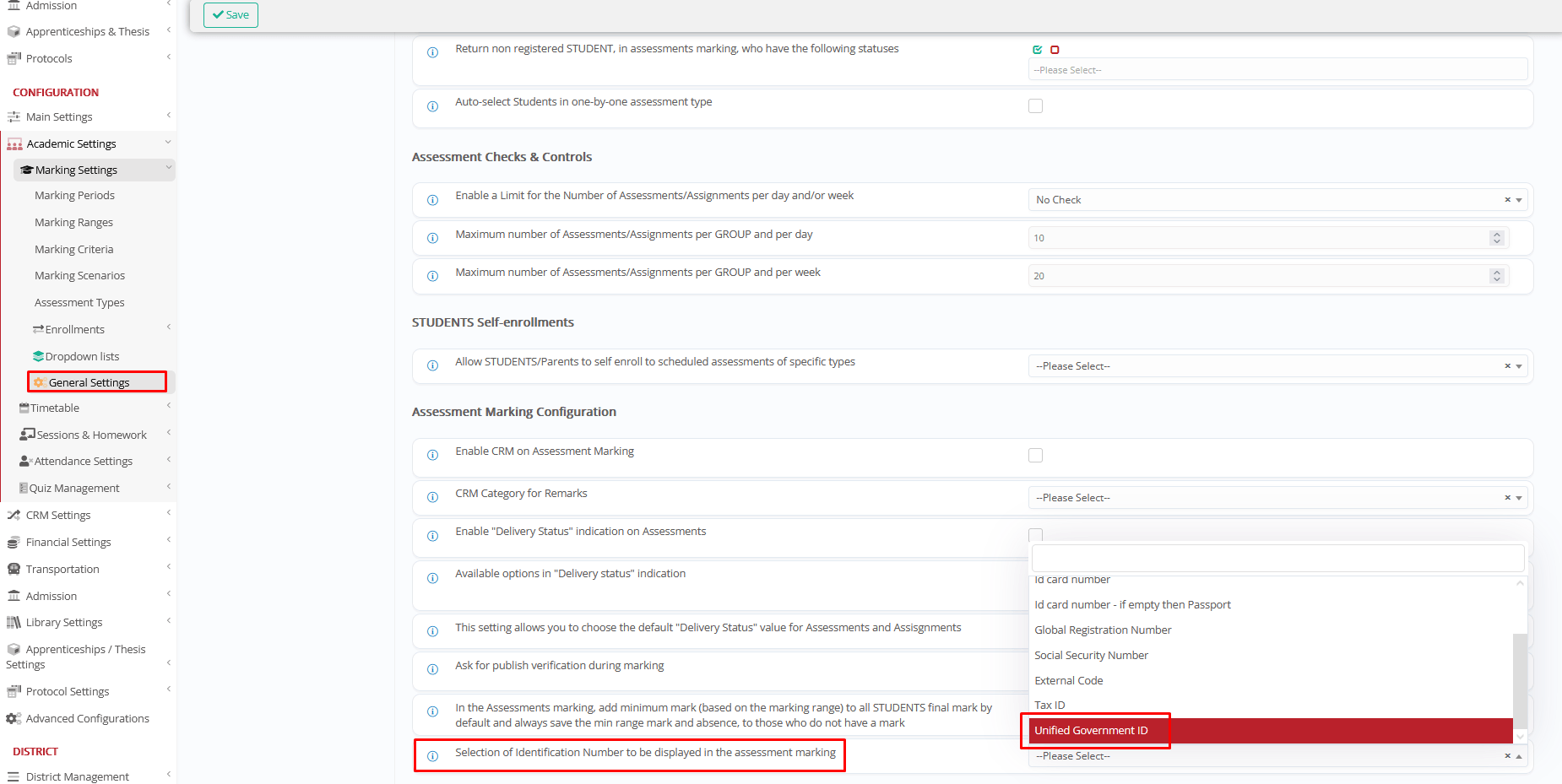
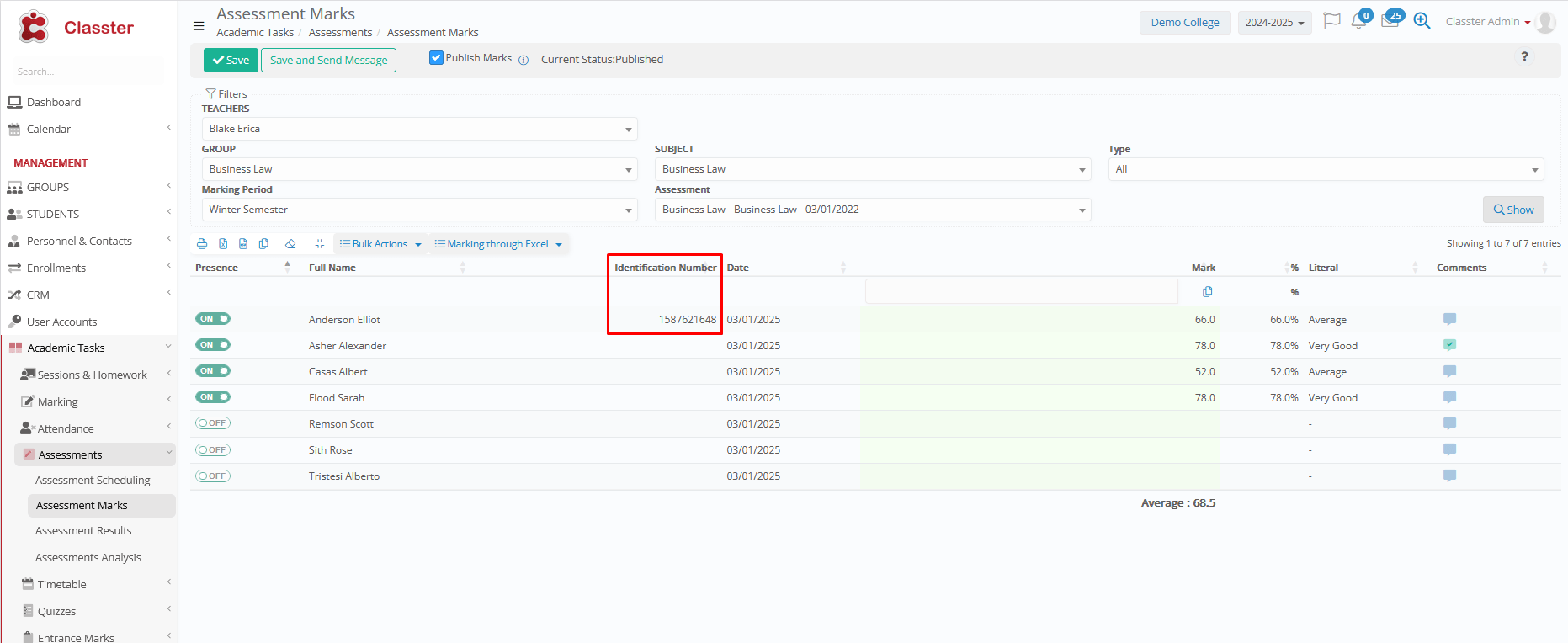
How it looks on Assessment Marks: