


In Classter, attendance with QR Code is an automated attendance-taking mechanism designed to allow _Students_ to self-submit their attendance by scanning a dynamically generated QR code using the Classter Mobile App.
This functionality aims to reduce manual effort for _Teachers_, increase accuracy, and ensure real-time validation of attendance records.
Settings
As a Classter administrator, you have to perform specific configurations to use Attendance with the QR code. These settings control who can submit attendance, how long QR codes remain valid, and under which conditions submissions are accepted.
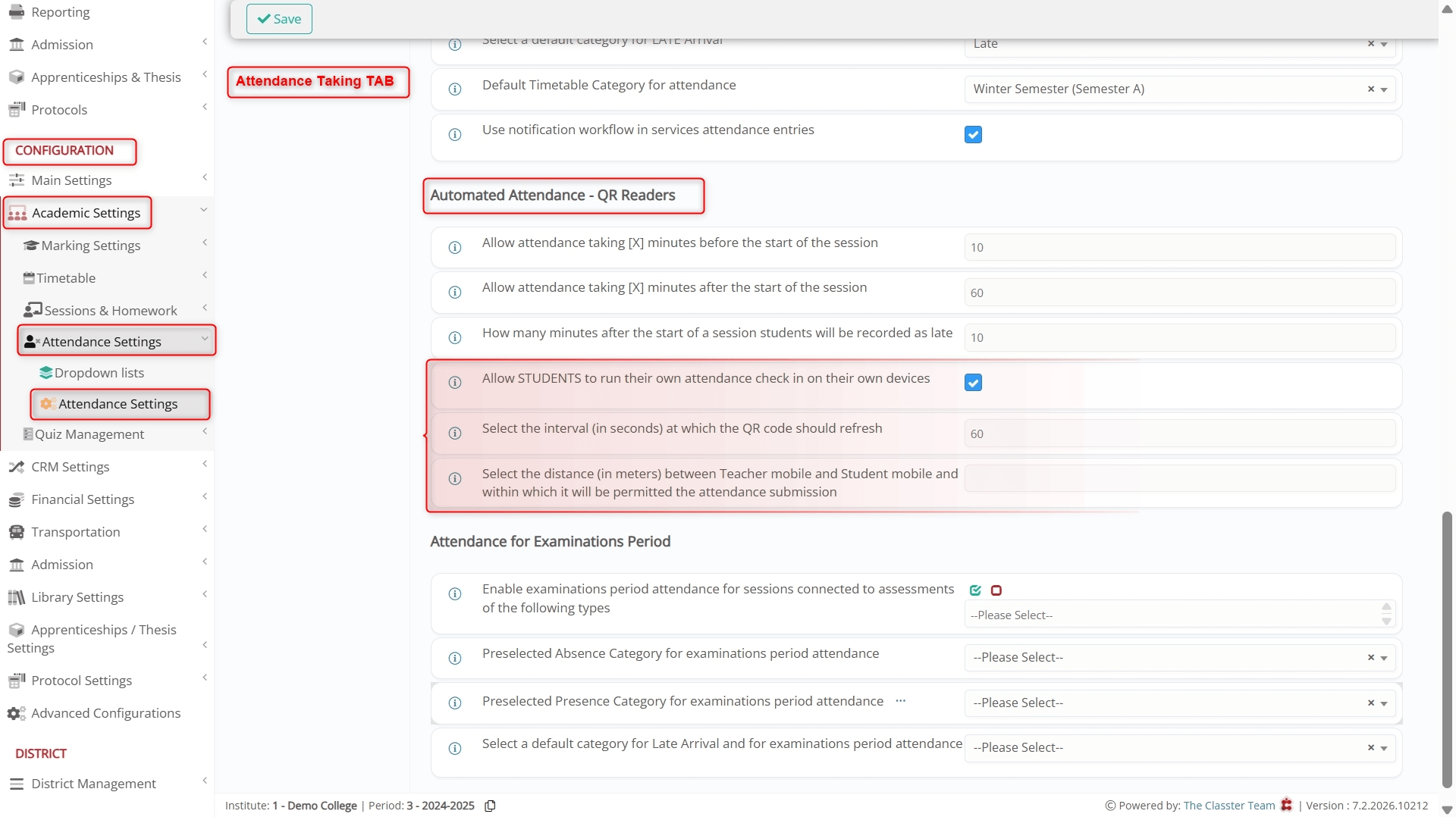
To do so, log in to Classter as an Administrator and go to: CONFIGURATION > Academic Settings > Attendance Settings > Attendance Settings > Attendance Settings > Automated Attendance – QR Readers.
Then, configure these options:
- Allow Students to Take Attendance on Their Devices: This option enables QR-based attendance functionality for Students. Once enabled, Teachers can generate QR codes, and Students can scan them to submit attendance.
- Interval in Seconds to Refresh QR Code: It defines how often the QR code refreshes, for security reasons. Students must scan the QR code within the defined interval. Once refreshed, previous QR codes become invalid. Notably, shorter intervals improve security and prevent QR sharing.
- Distance Between Teacher and Student for Attendance Submission: If specified, Students must be within the specified distance (in meters) from the Teacher’s mobile device to submit attendance. This uses device geo-location data. Moreover, leaving this field empty disables distance validation.
User Guide
Example 1: Per Subject Attendance Method (K-12)
Teacher’s View
As a Teacher, you can use the Classer mobile app to initiate a QR-based attendance session. The system generates a dynamic QR code that refreshes automatically and remains valid only within the configured time window.
Student Check-in (QR Code)
The Student Check-in method allows Teachers to open a temporary attendance session during which Students can self-register their attendance by scanning a QR code.
This method respects all existing attendance validations such as locked _Sessions_, holidays, and attendance timing rules.
Step-by-Step Instructions
Open the Classter Mobile App and log in as a Teacher.
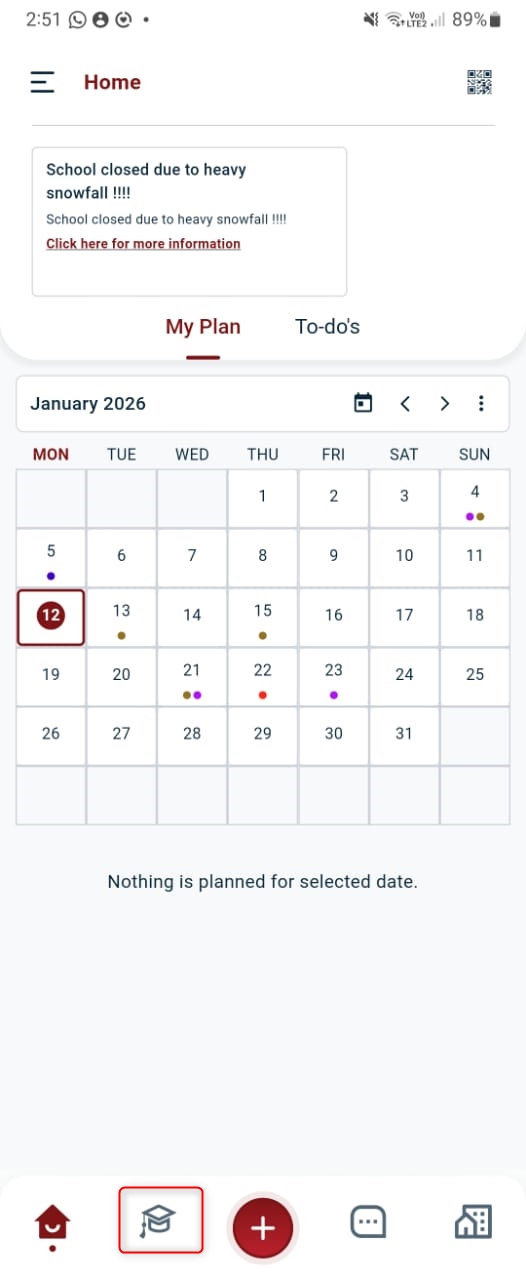
From the bottom of the screen, tap on the highlighted icon.
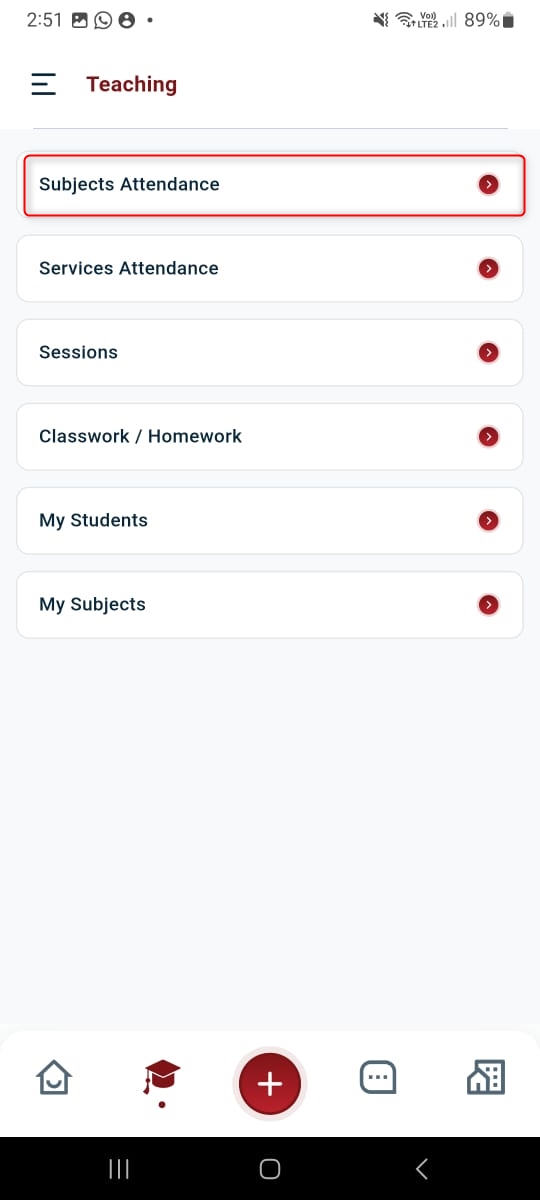
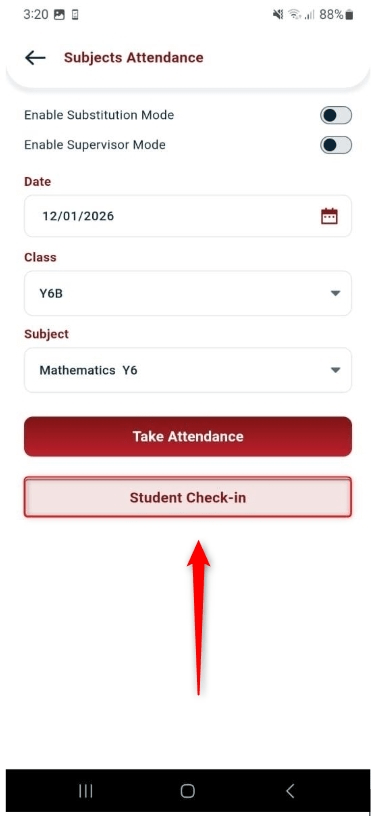
Tap on _Subjects_ Attendance.
Select Student Check-in.
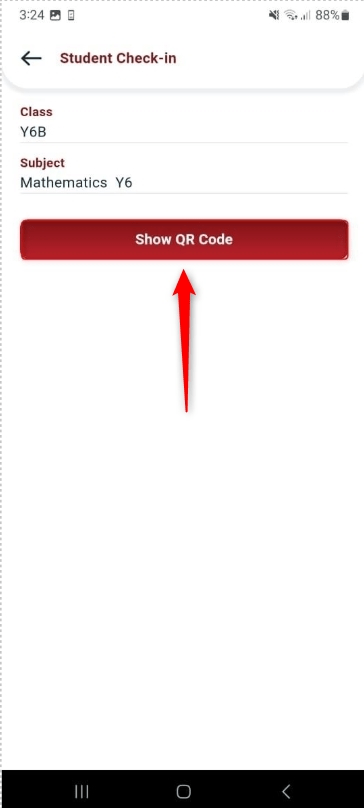
From the Student Check-in window, tap on the Show QR Code button.
Resultantly, a new screen opens displaying a dynamically changing QR code, which refreshes according to “Interval in Seconds to Refresh QR Code” settings (60 seconds in this case).
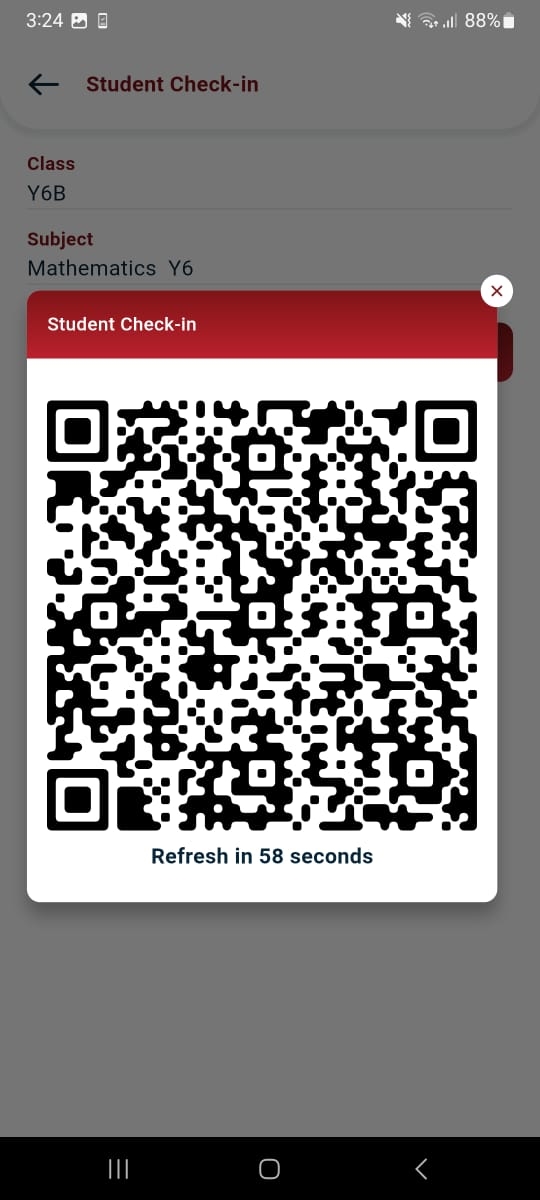
Note: As a Teacher, keep the screen open while Students scan the QR code.
Student’s View
As a Student, you can use the Classter mobile app to scan the QR code displayed by the Teacher and submit your attendance.
Attendance Check-in
The Attendance Check-in option allows Students to submit attendance securely by scanning the QR code generated by the Teacher.
This option is available only when QR-based attendance is enabled by the administrator.
Step-by-Step Instructions
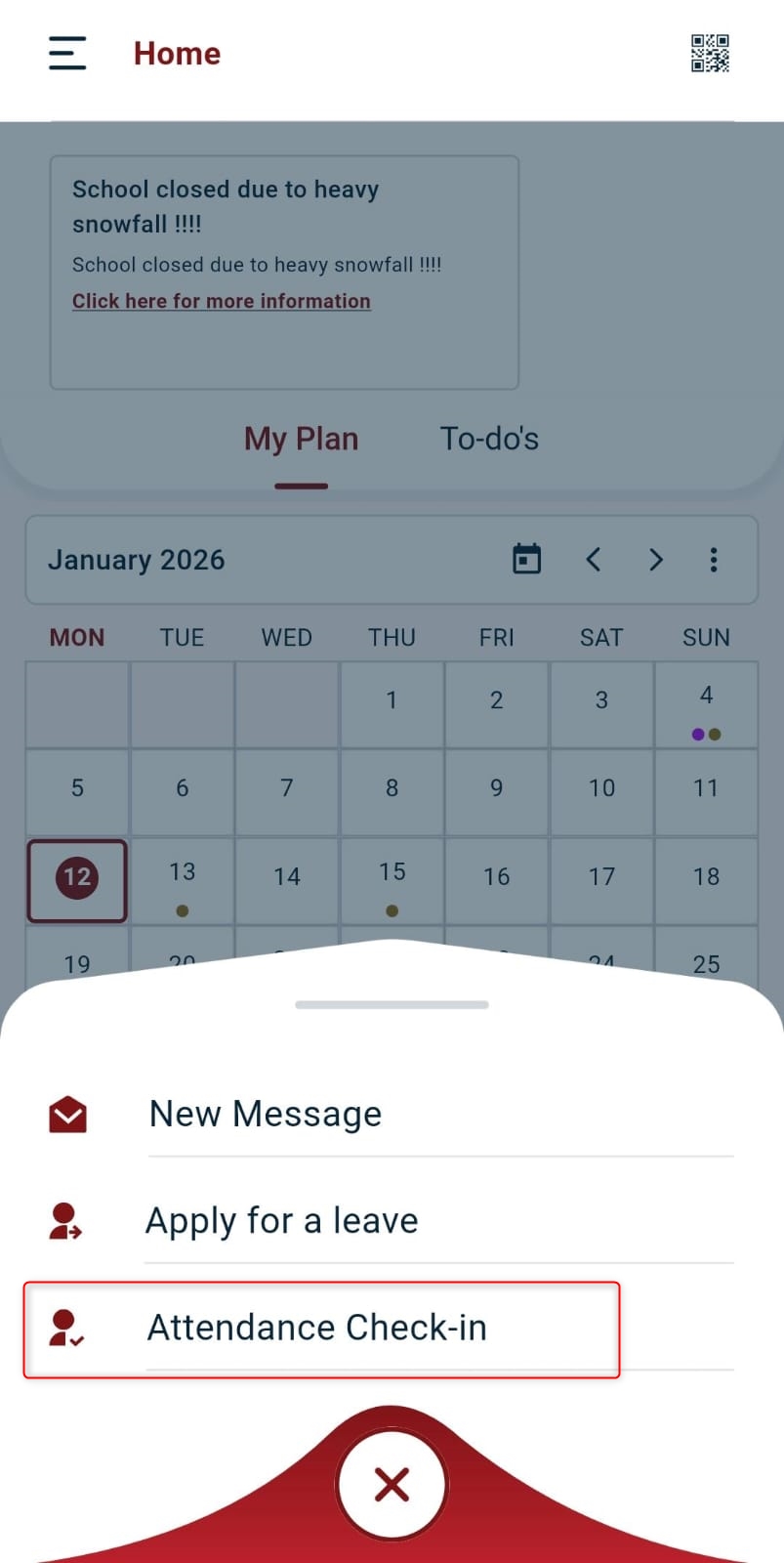
Log in to your Classter mobile app as a Student and tap on the + icon at the bottom of the screen.
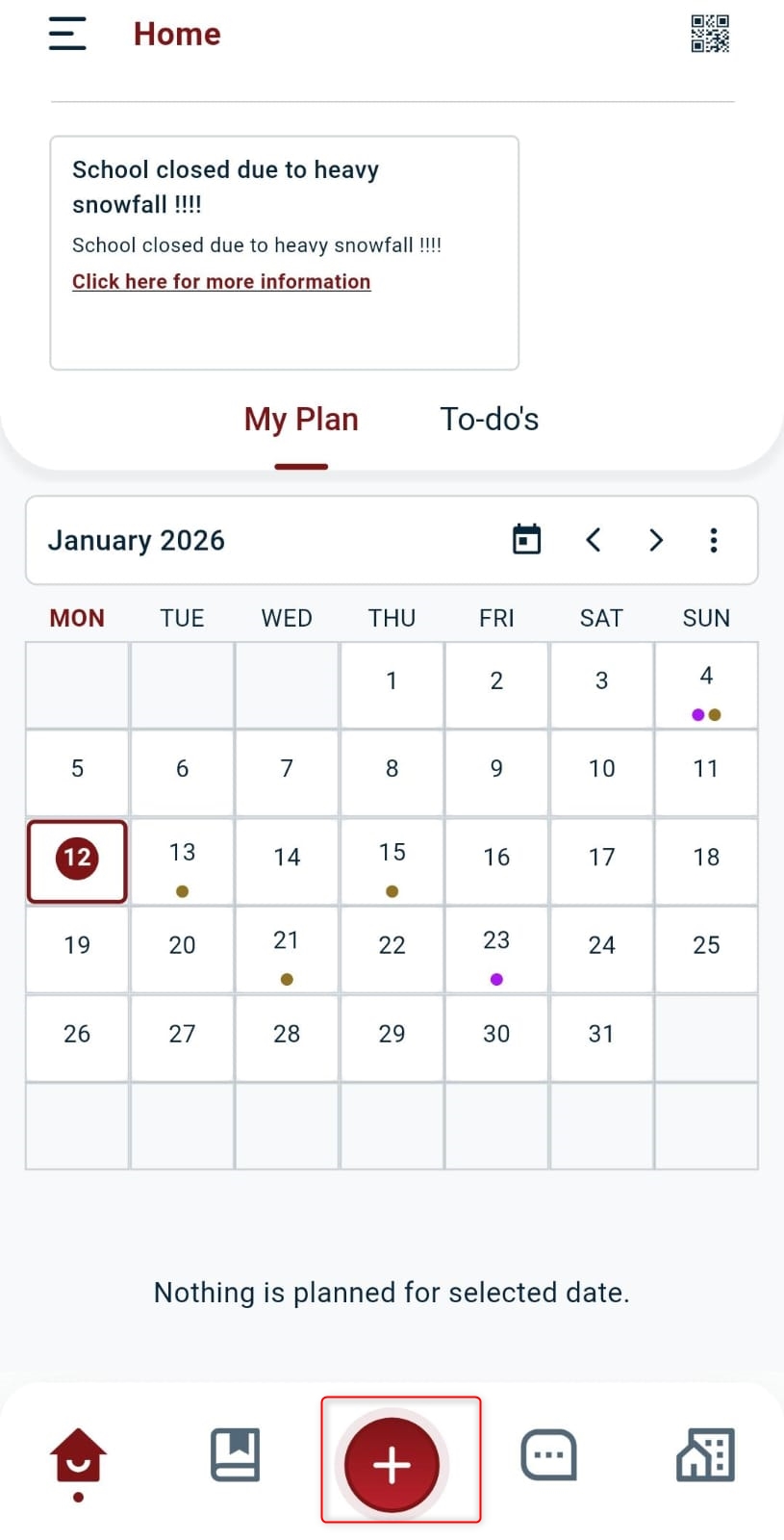
Tap on Attendance Check-in.
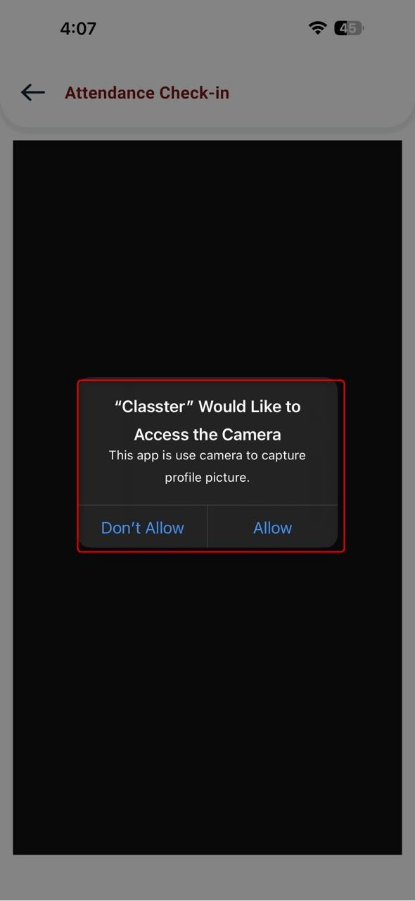
Allow Classter to use the phone camera.
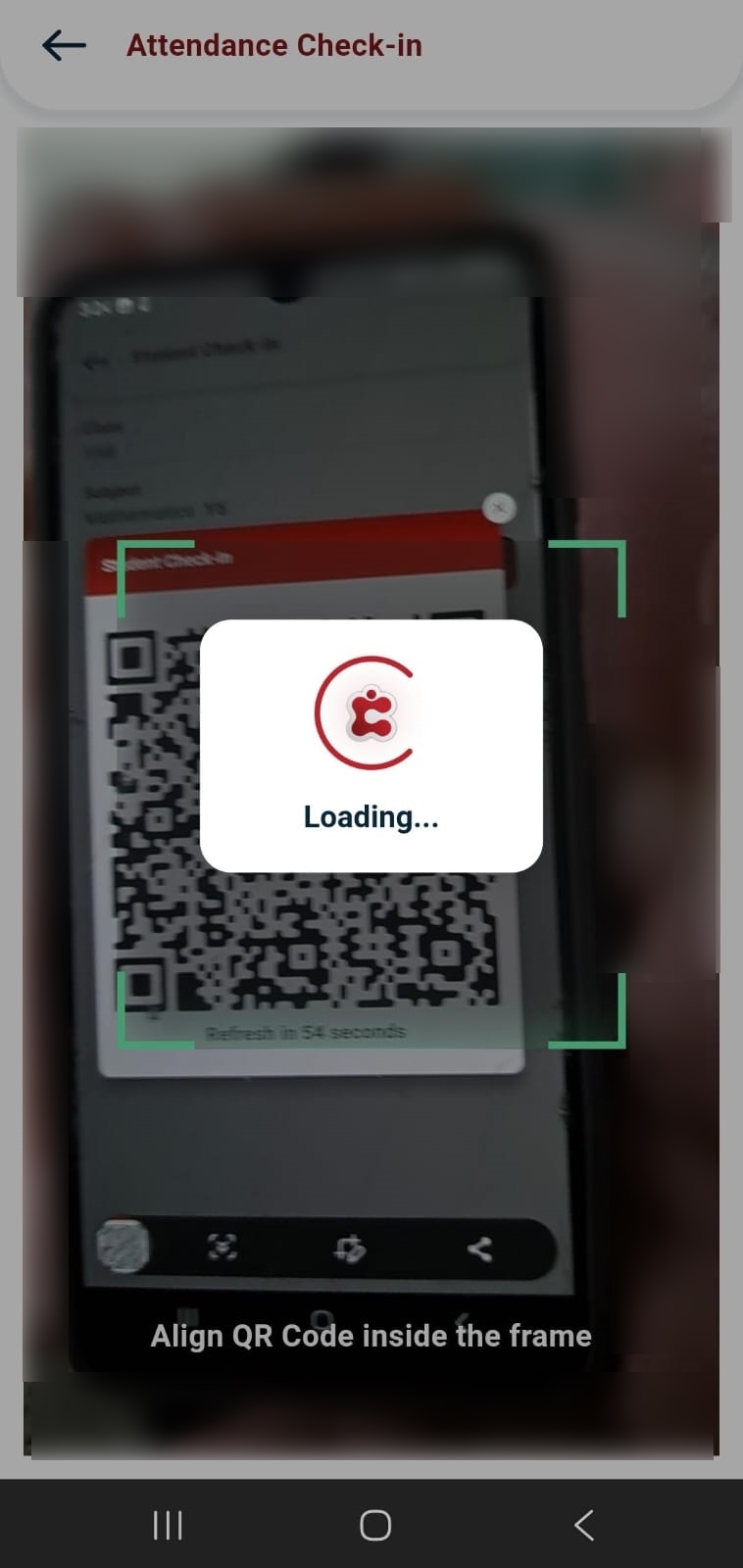
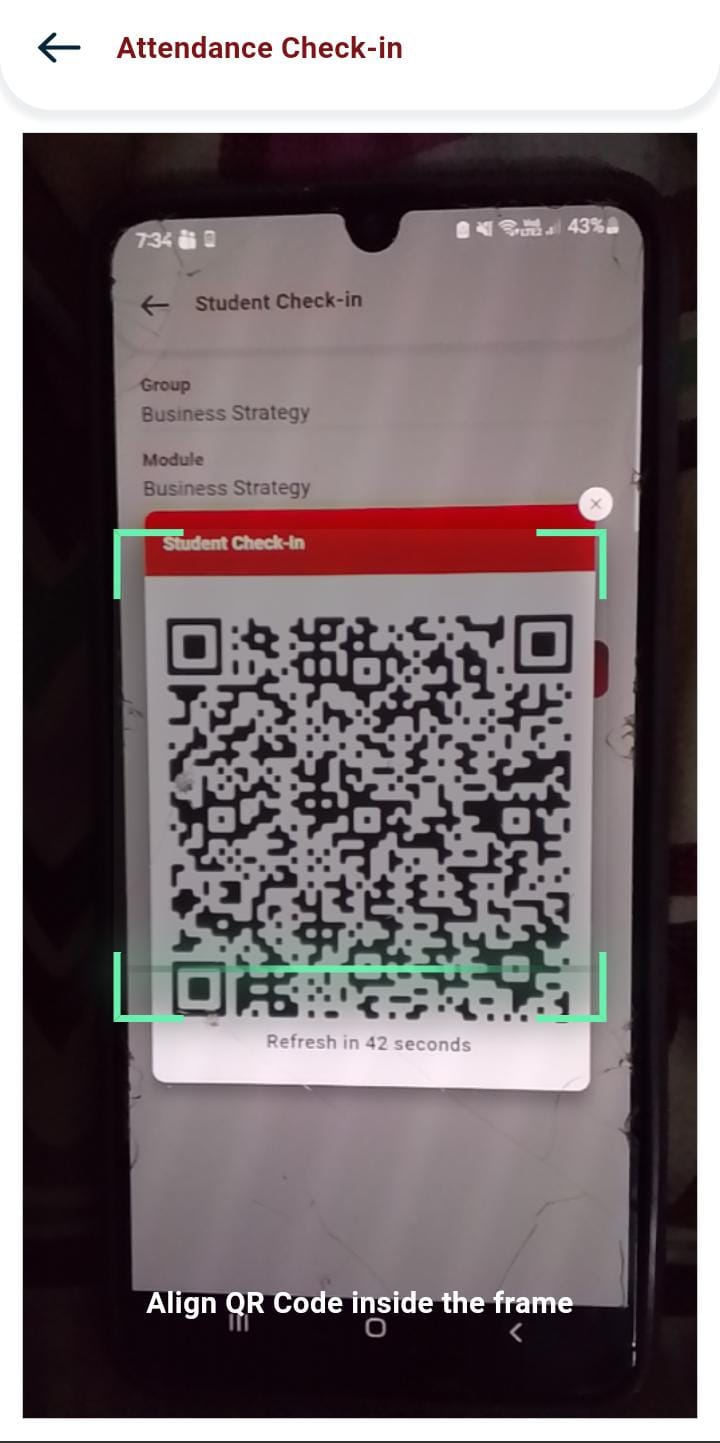
Scan the QR code displayed on the Teacher’s device and align it inside the frame.
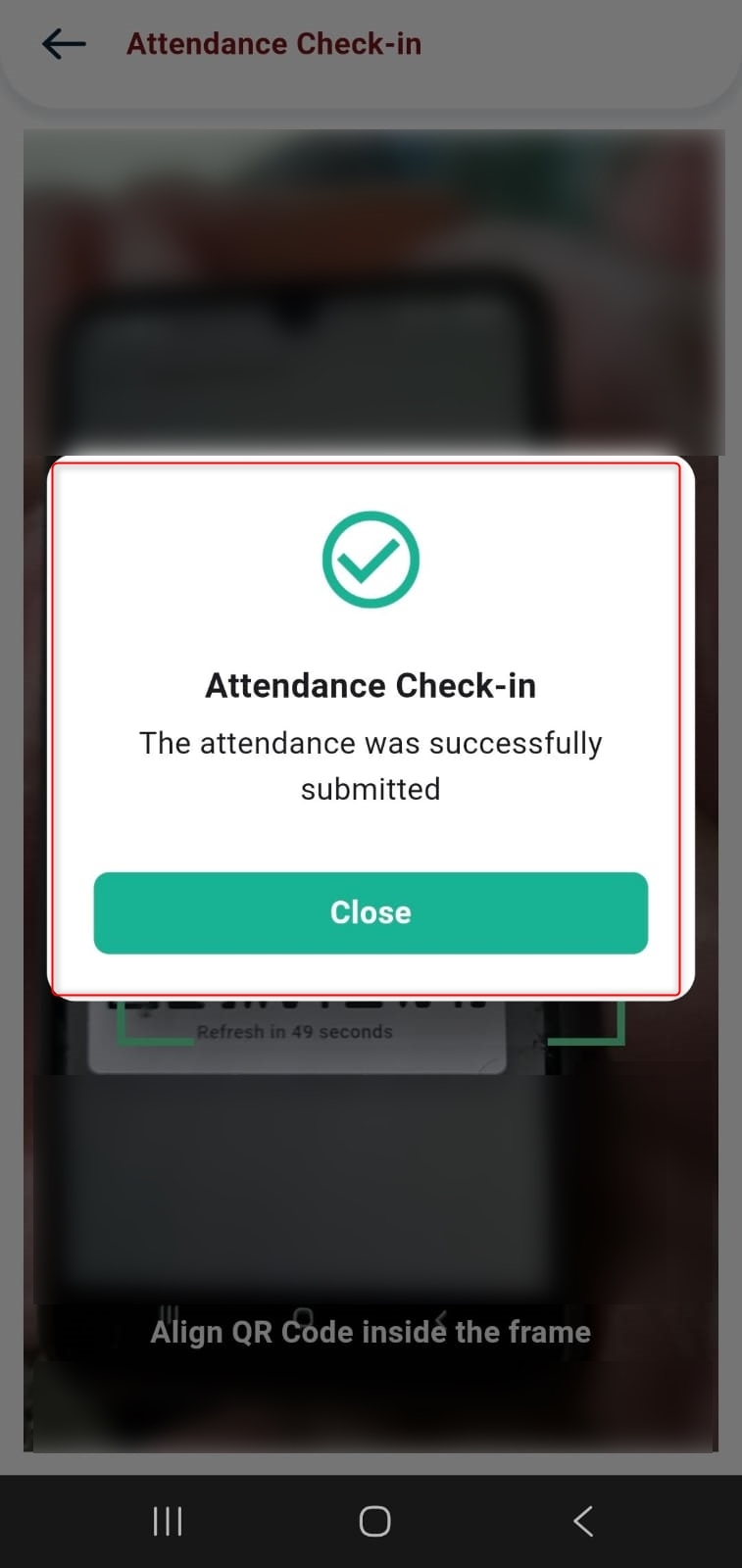
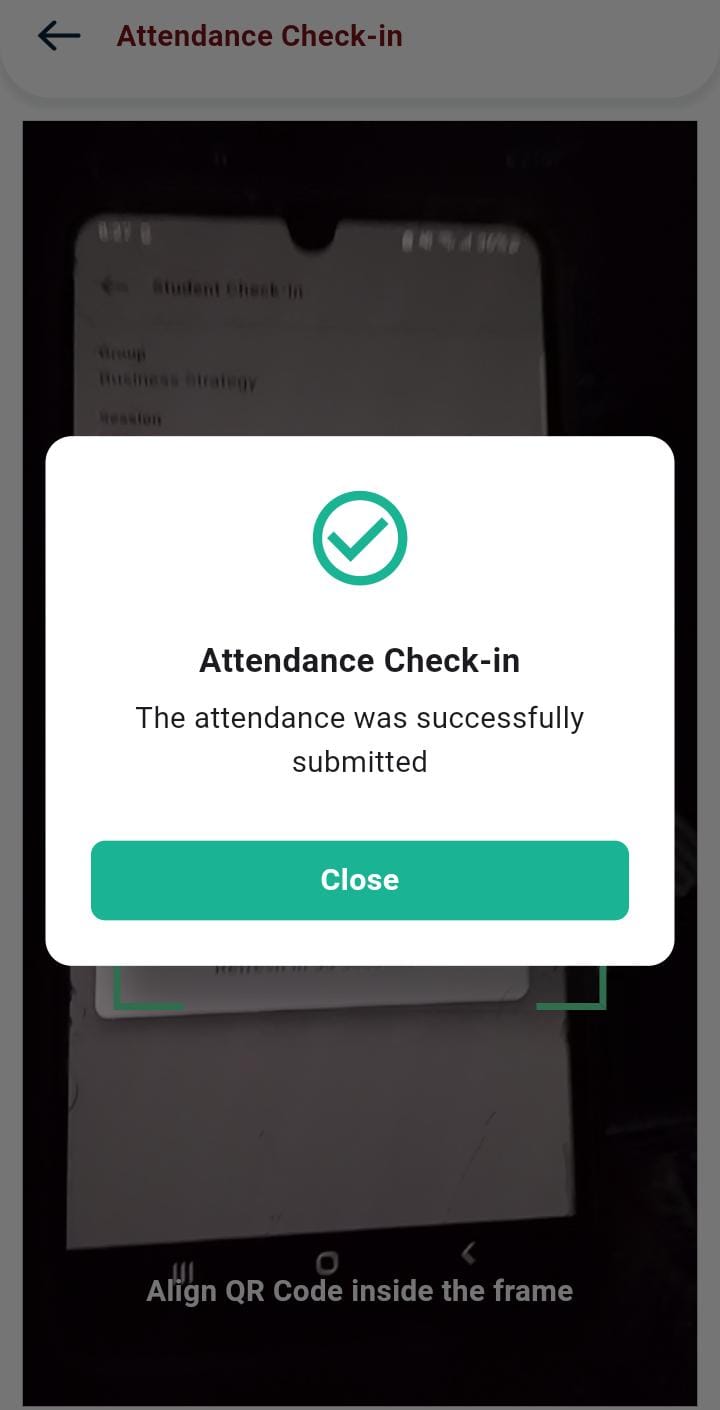
Wait for system validation. If successful, a confirmation message is shown: “The attendance was successfully submitted.”
Example 2: Per Session Attendance Method (HE)
The QR-based attendance process for K-12 institutions follows the same configuration and security rules as College-level attendance.
Teacher’s View
Teachers are allowed to initiate the attendance session from the Classter Mobile App and display a QR code for Students to scan.
To do so:
- Log in to the Classter Mobile App as a Teacher.
- Open the Sessions section.
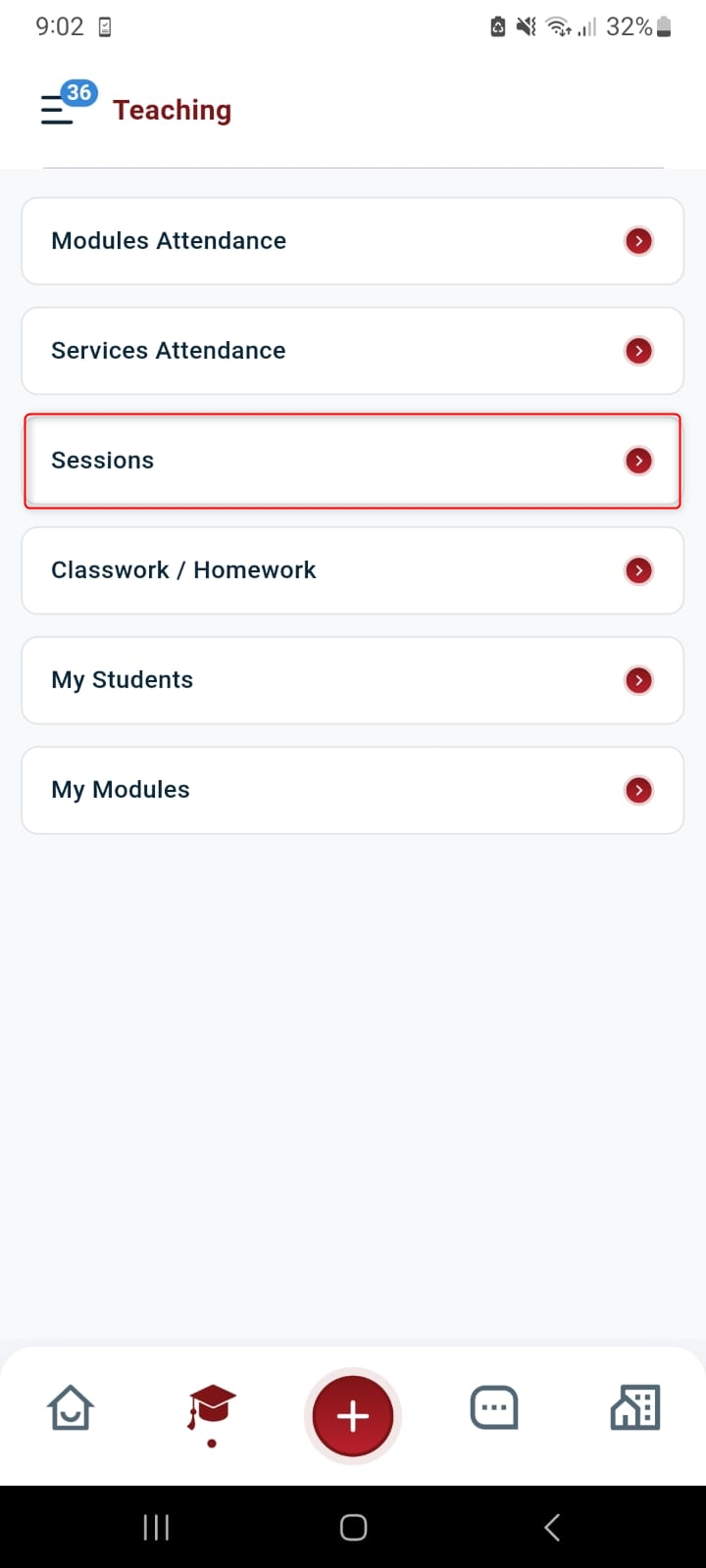
Select the required session and tap on its relevant Attendance button.
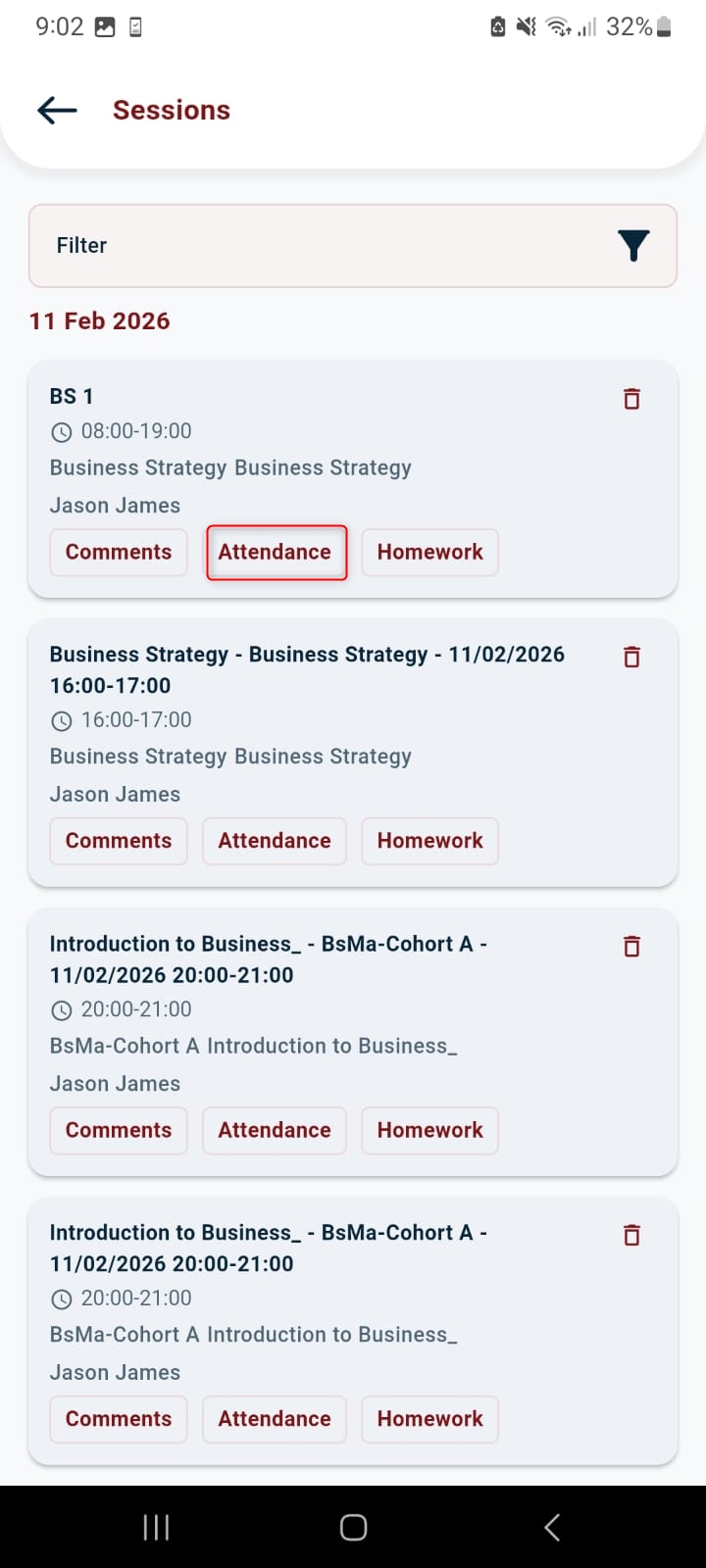
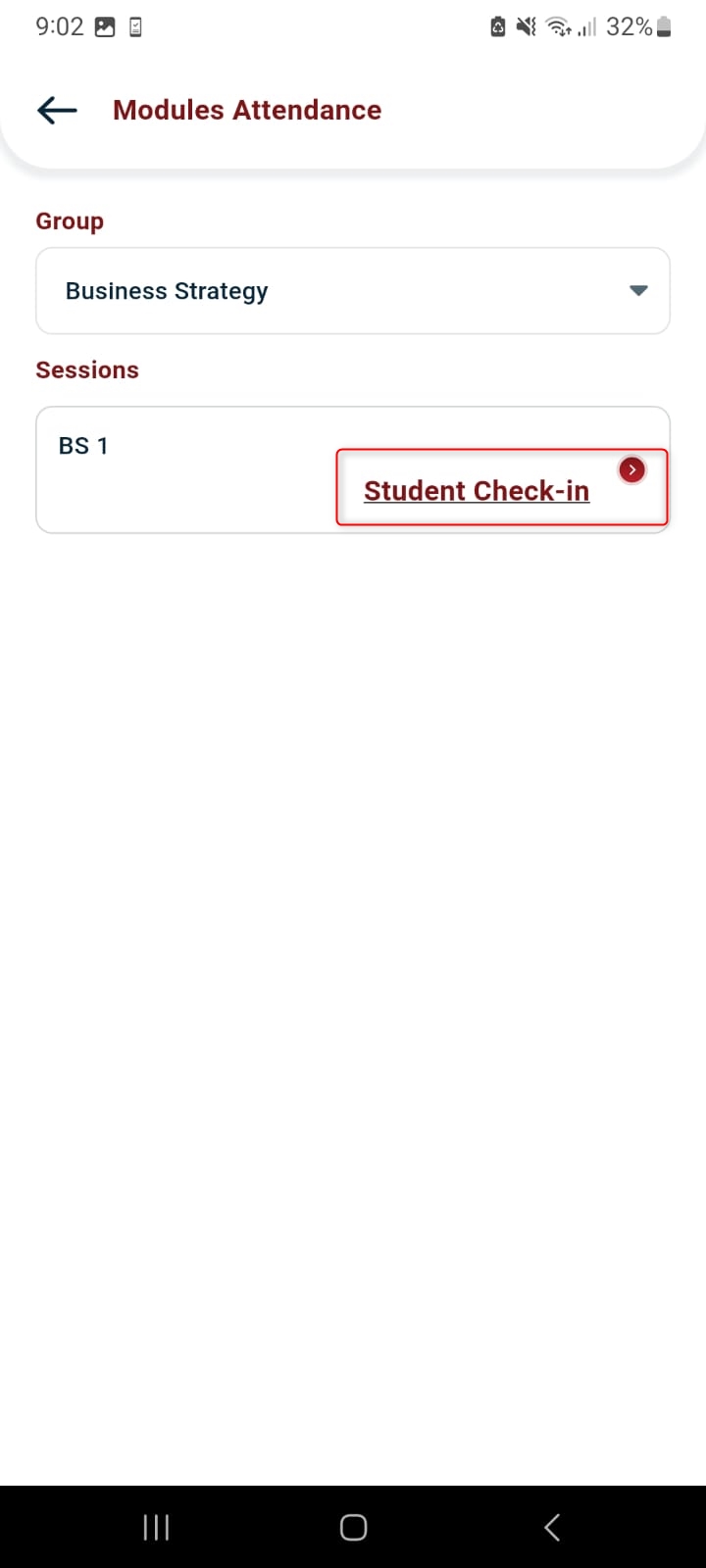
Specify the group and click the Student Check-in option.
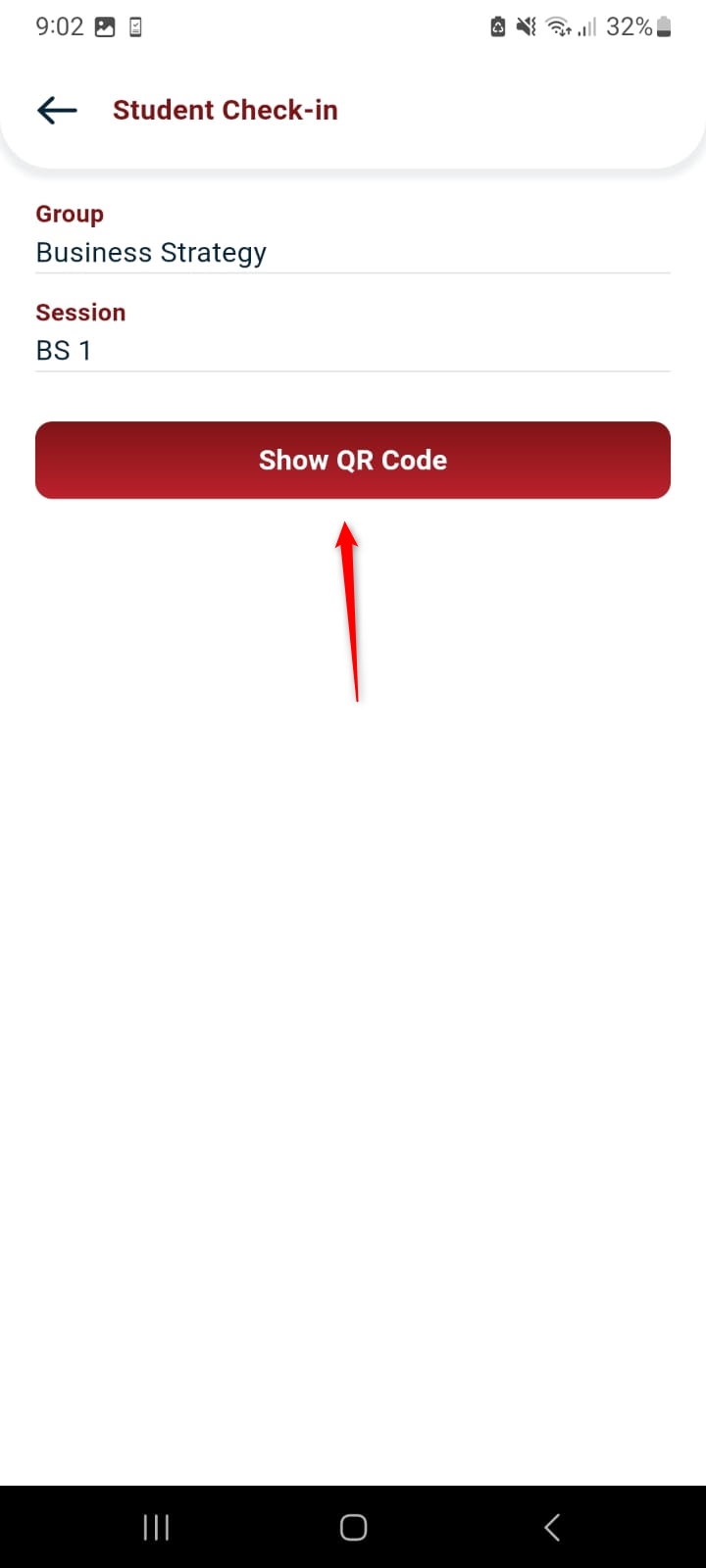
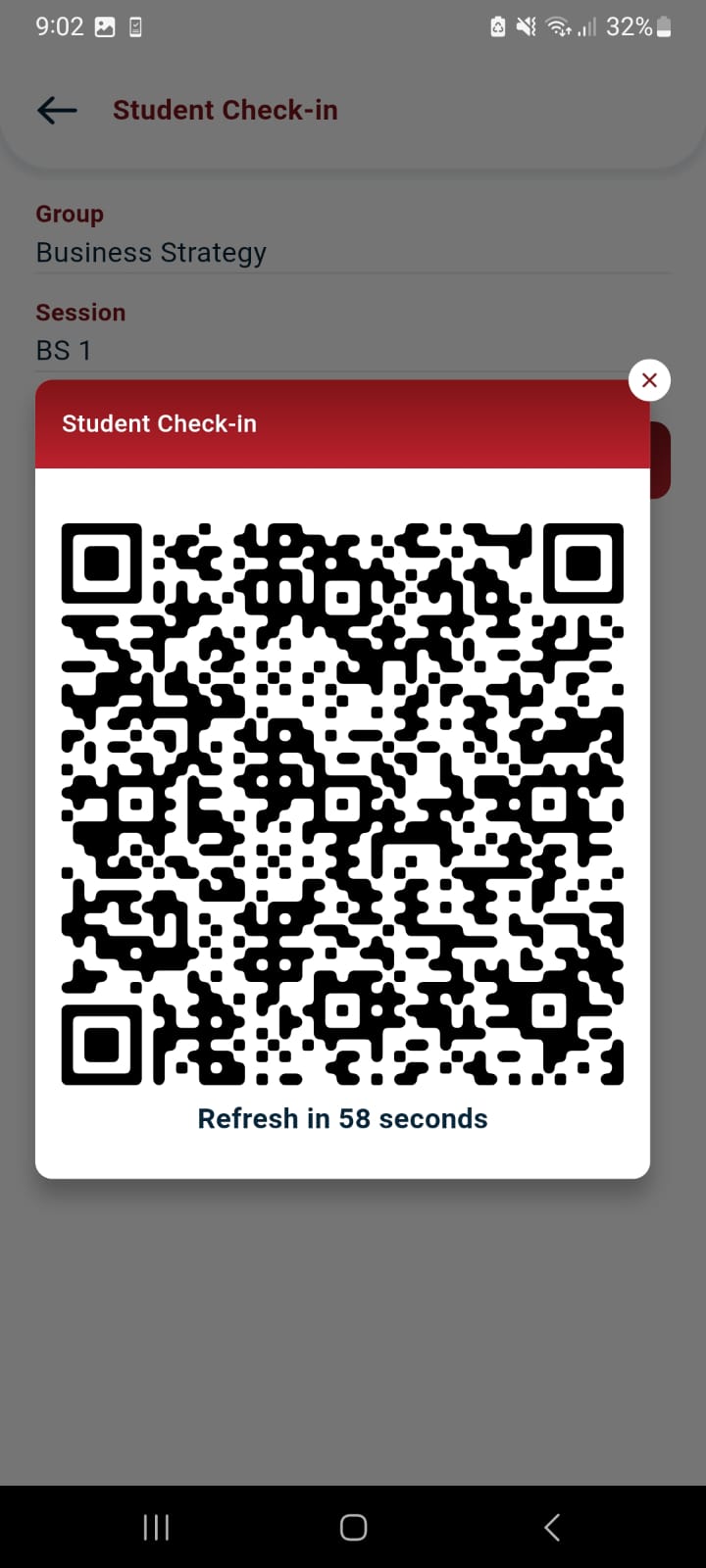
Tap the Show QR Code.
A QR code appears on the screen and refreshes automatically based on the configured interval. Notably, keep the QR code visible until all Students complete their check-in.
Student’s View
- Log in to the Classter Mobile App as a Student.
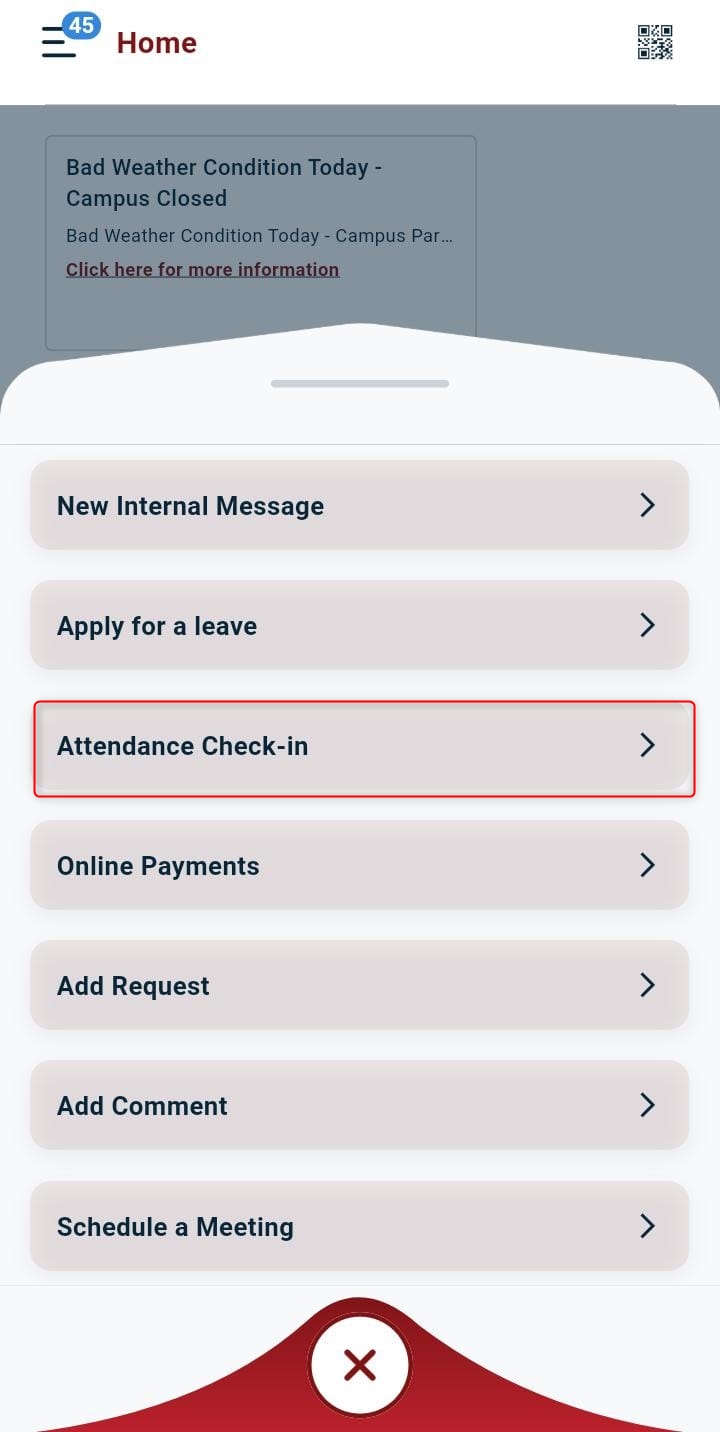
- Click on the + icon.
- Tap Attendance Check-in.
Scan the QR code displayed on the Teacher’s device and wait for system validation results.
Result:
Summary
The Attendance with QR Code feature enables a fast, secure, and automated way for Students to submit attendance using the Classter Mobile App. With minimal configuration, Teachers can generate dynamic QR codes while Students check in within a controlled time window.
The solution reduces manual work, improves accuracy, and supports both College and K-12 environments through a simple and user-friendly workflow. Once configured, QR-based attendance ensures reliable, real-time attendance recording with built-in validation and security.
