


Introduction
Educational Program Categories allow institutions to classify academic programs into broader groupings such as Study Type (e.g., Degree Student, Exchange Student), Study Mode (e.g., Distance, On-Campus, Hybrid), or Specialization.
These classifications enhance clarity in academic reporting, support program structuring, and help differentiate programs that follow different academic or administrative rules.
- K–12 institutions: Optional — may be used to add structure or support additional grouping where needed.
- Higher Education institutions: Highly recommended — categories help distinguish program variations such as Study Type, Study Mode, or Specialization, improving reporting accuracy and supporting admissions and re-registration workflows.
Enable the entity
Path: Main Settings > General Settings > Basic Customization > Core Entities Settings.
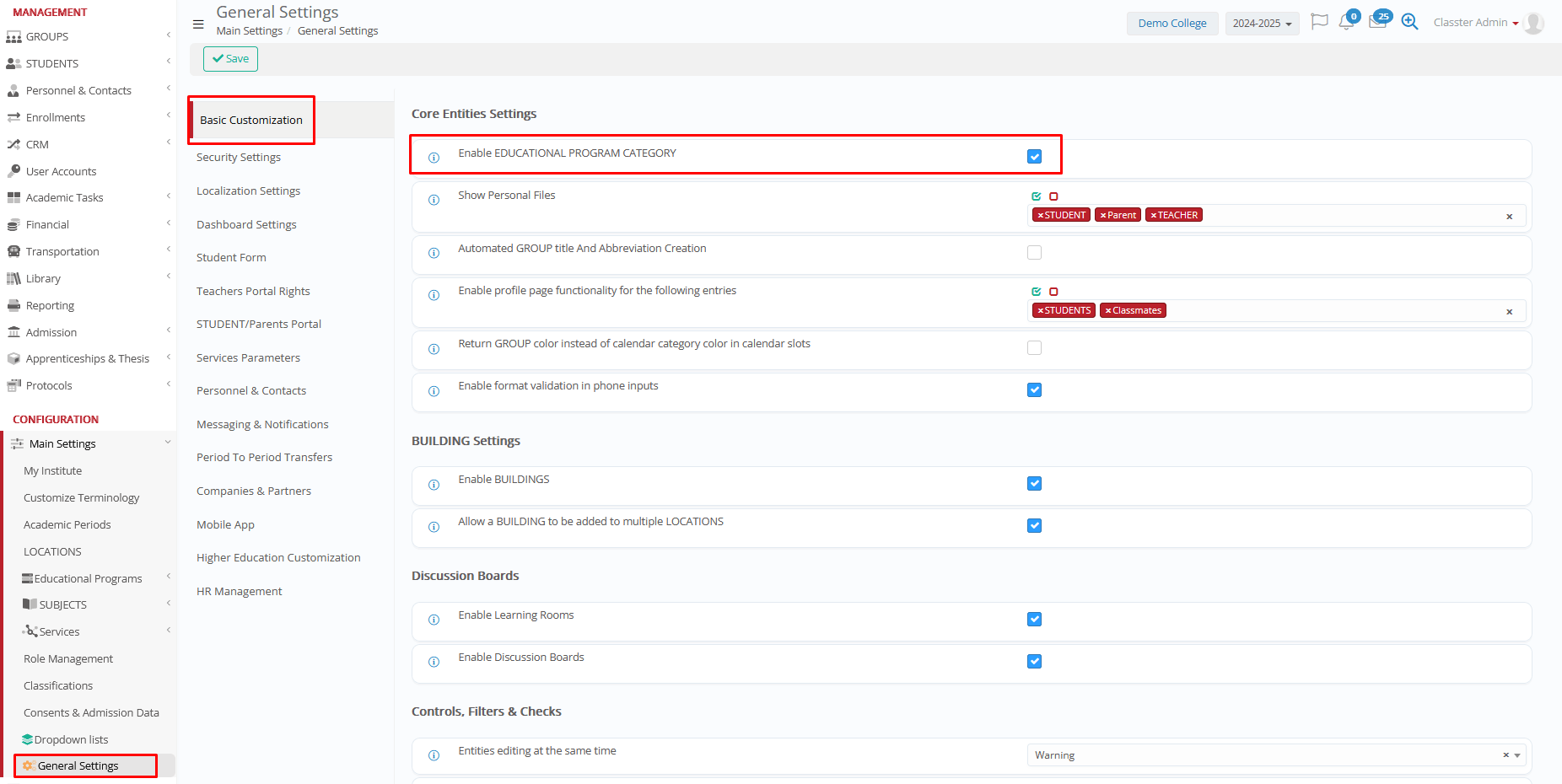
- Active: Category column visible + usable for filtering
- Inactive: Category column hidden everywhere
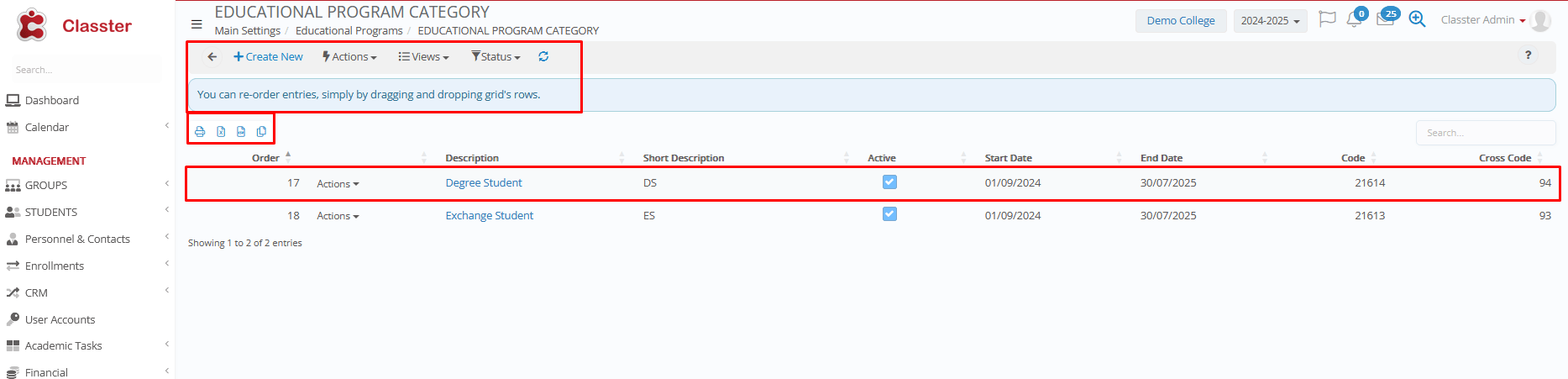
To access and manage categories, navigate to Main Settings > Educational Programs > Educational Program Category.
Educational Program Category List
Each category contains the following fields:
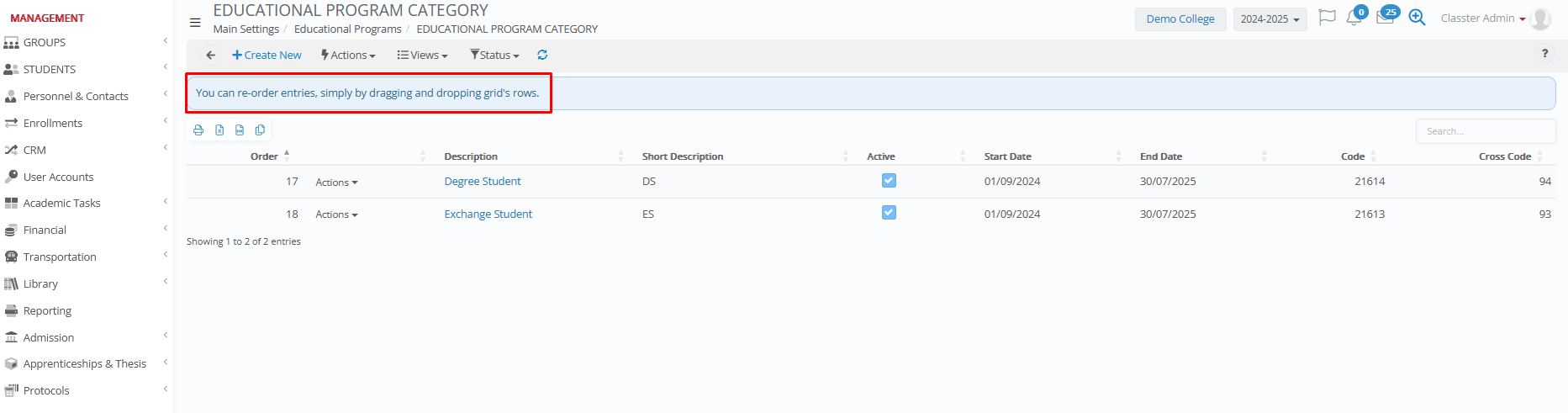
- Order – Controls its position in dropdowns and lists (select → drag/scroll → save)
- Description – Full category name
- Short Description – Abbreviation used in reporting
- Active – Indicates if the category is in use
- Start / End Dates – Validity period
- Code / Cross Code – Identifiers for integrations, imports, and exports
Main Actions & Views
Create · Actions · Views · Status · Re-order · Grid Tools · Reload
Create/Entity Card
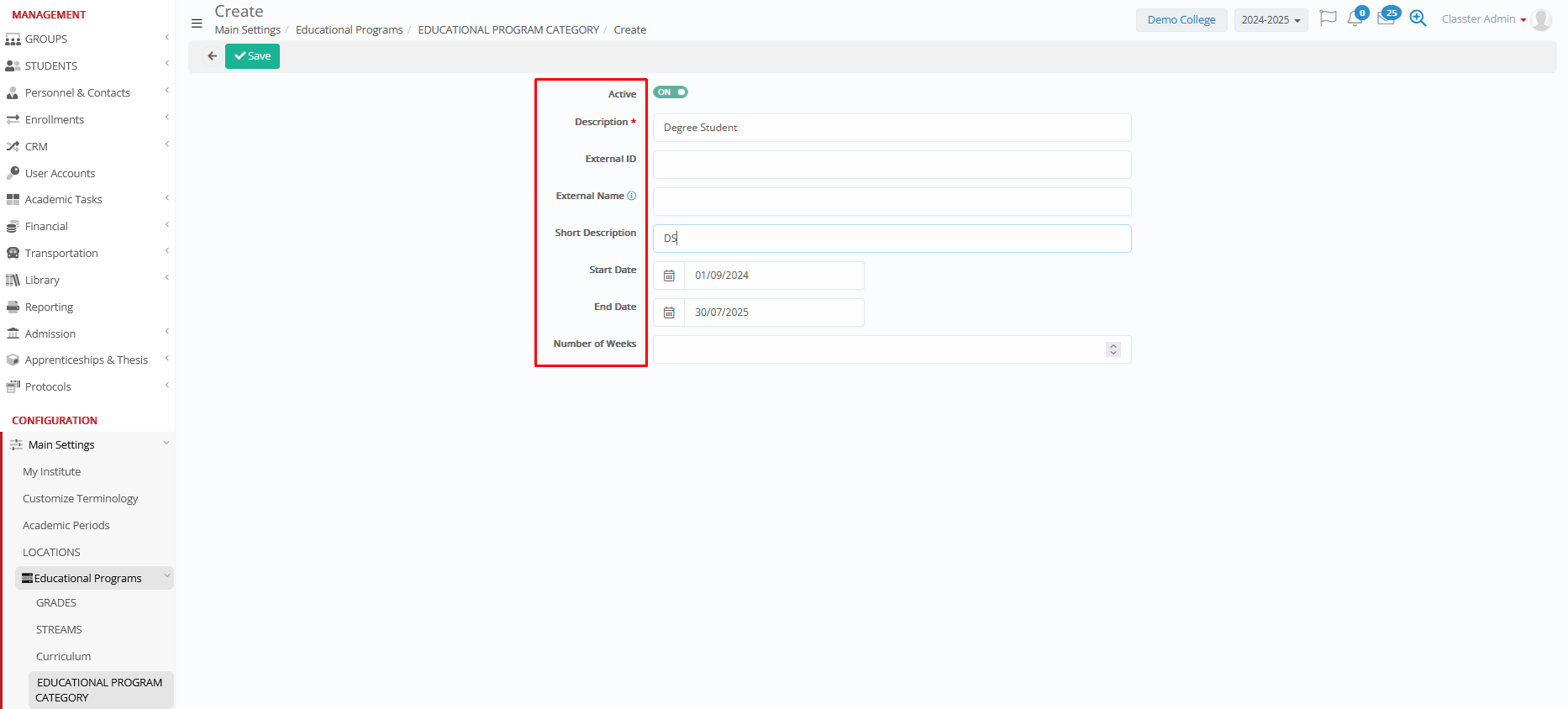
Select + Create New and complete the available fields:
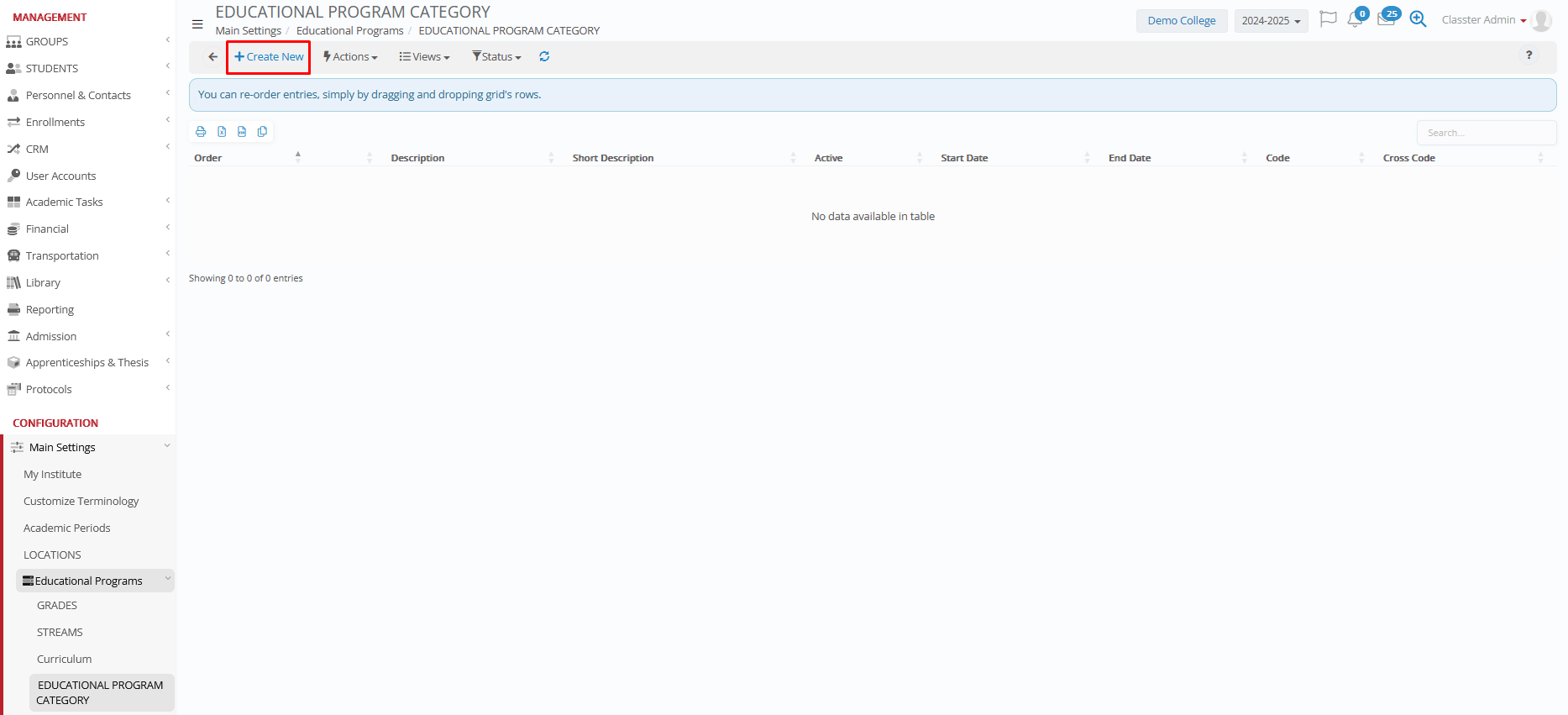
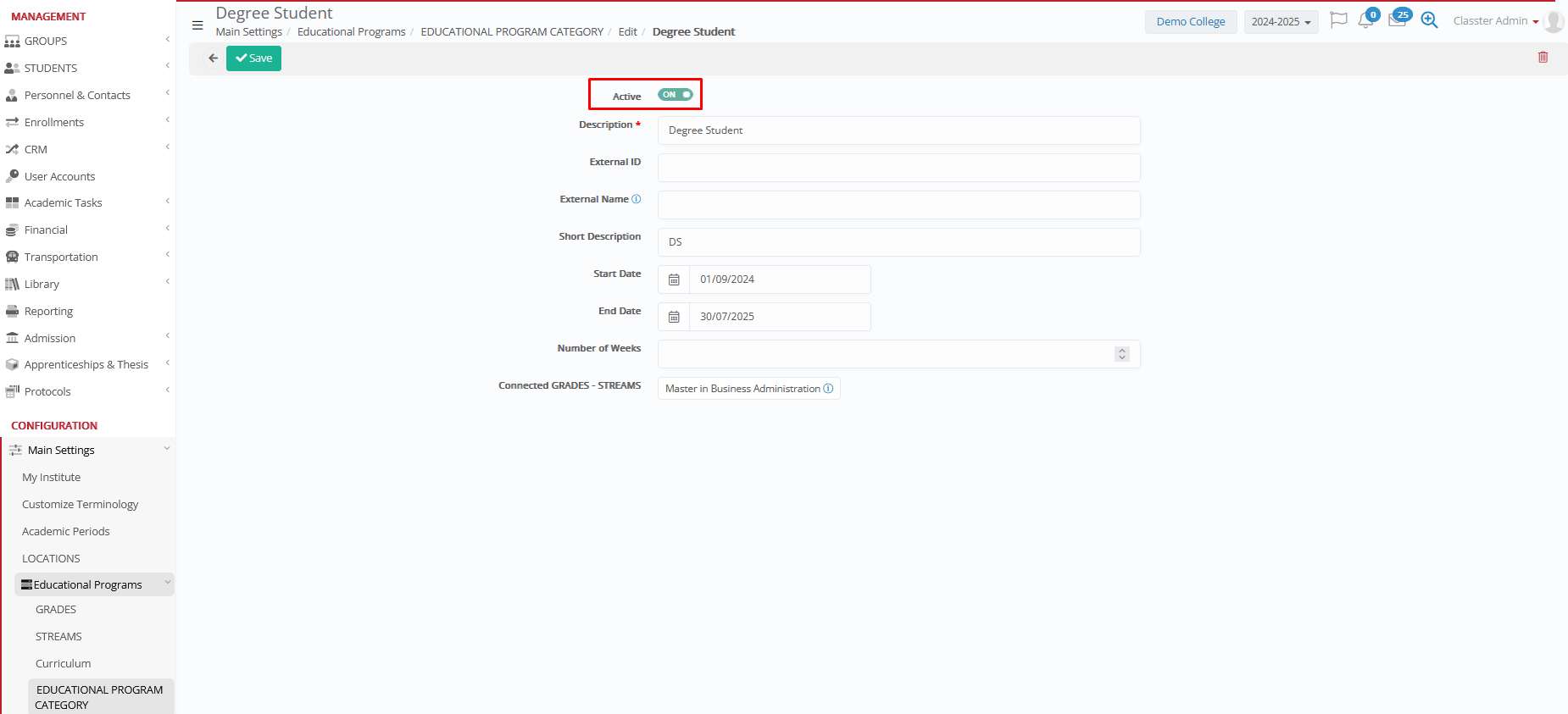
- Active / Inactive: Controls whether the category can be used in all related processes, including admissions, re-registration, and program setup.
- Description: The full name of the category.
- External ID: A unique code for integrations and data mapping.
- External Name: The display name used by external systems or integrations; useful when the category must appear differently outside Classter.
- Short Description: A shortened label or abbreviation for concise use.
- Start Date / End Date: Defines the period during which the category is valid.
- Number of Weeks: Specifies the academic duration associated with the category.
Actions
Transfer categories to other parts of your Classter setup to ensure consistency:
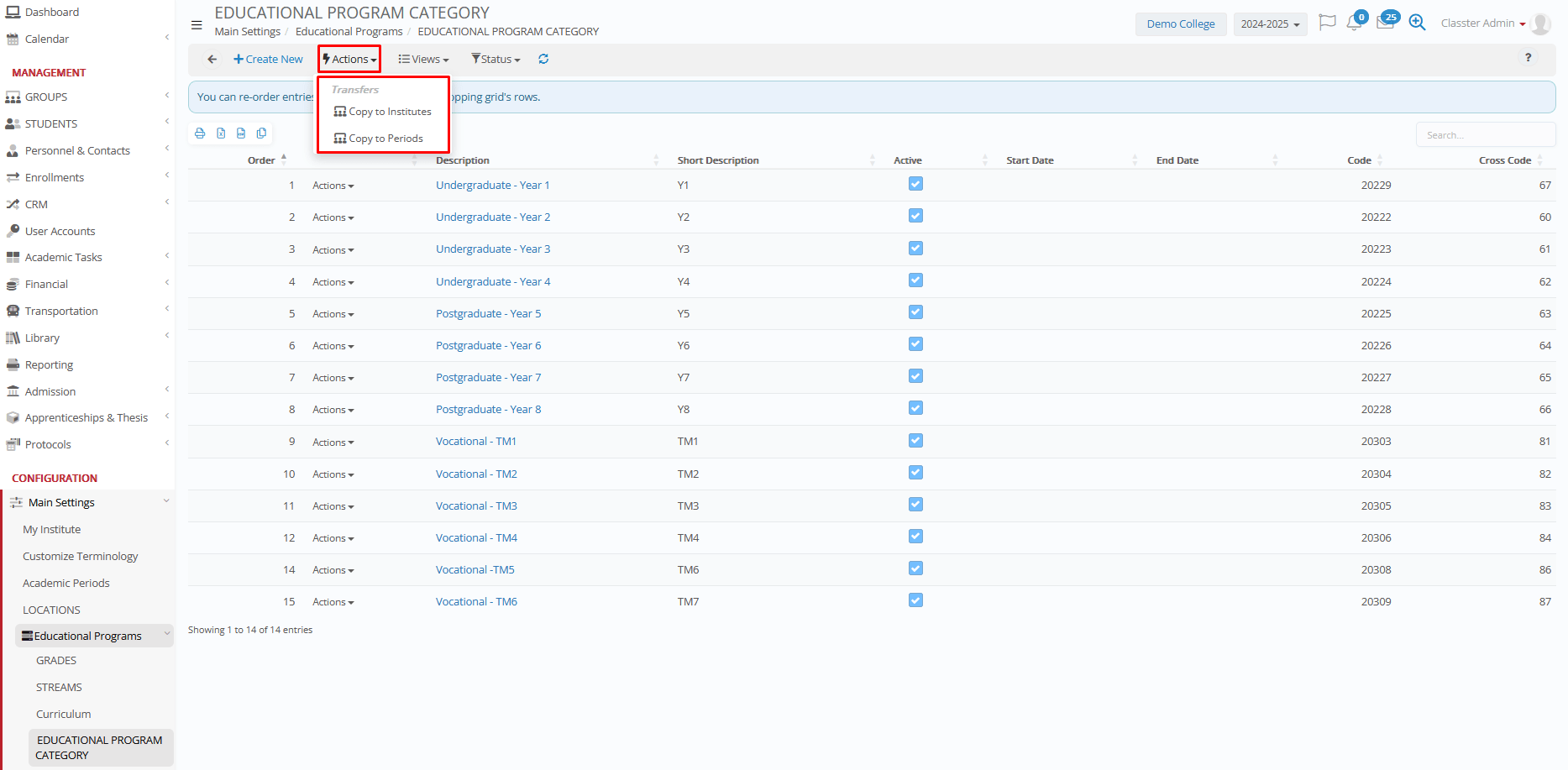
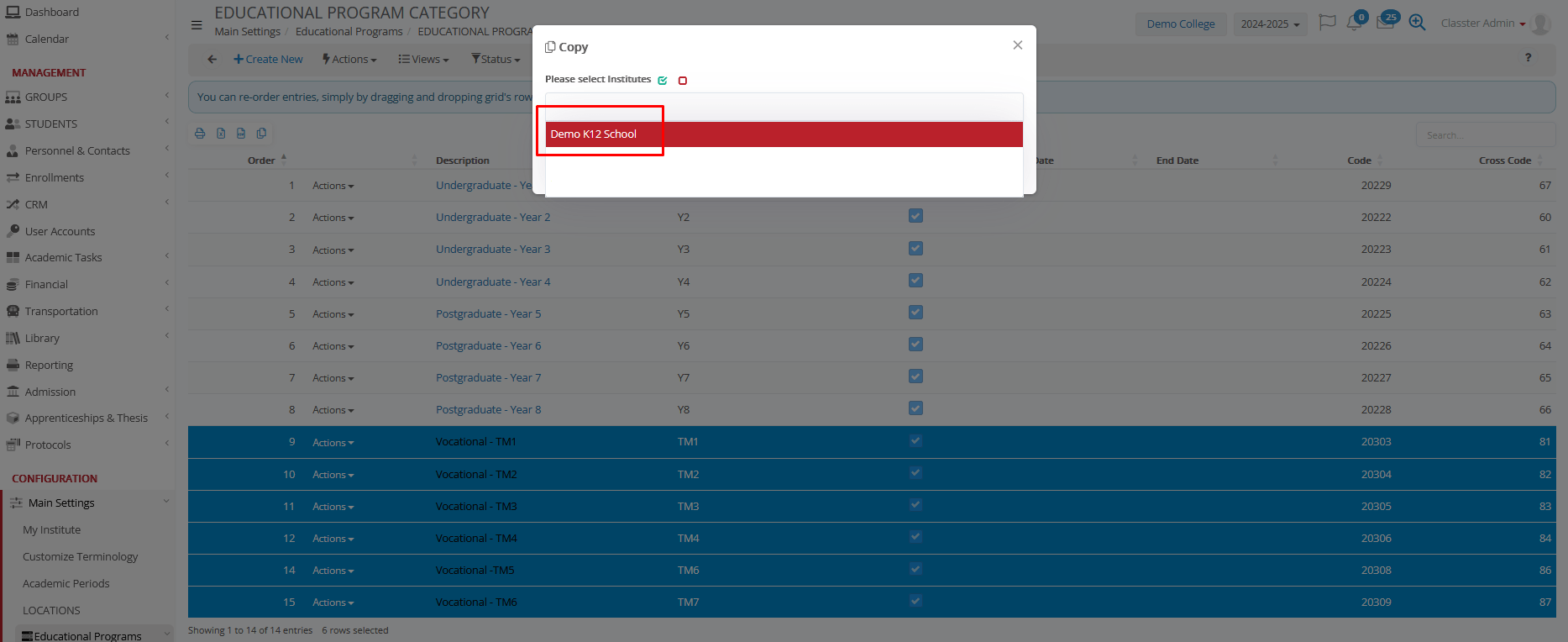
- Copy to Institutes – Copies the category to other institutes in the same Classter organization
- Copy to Periods – Copies the category to future academic years
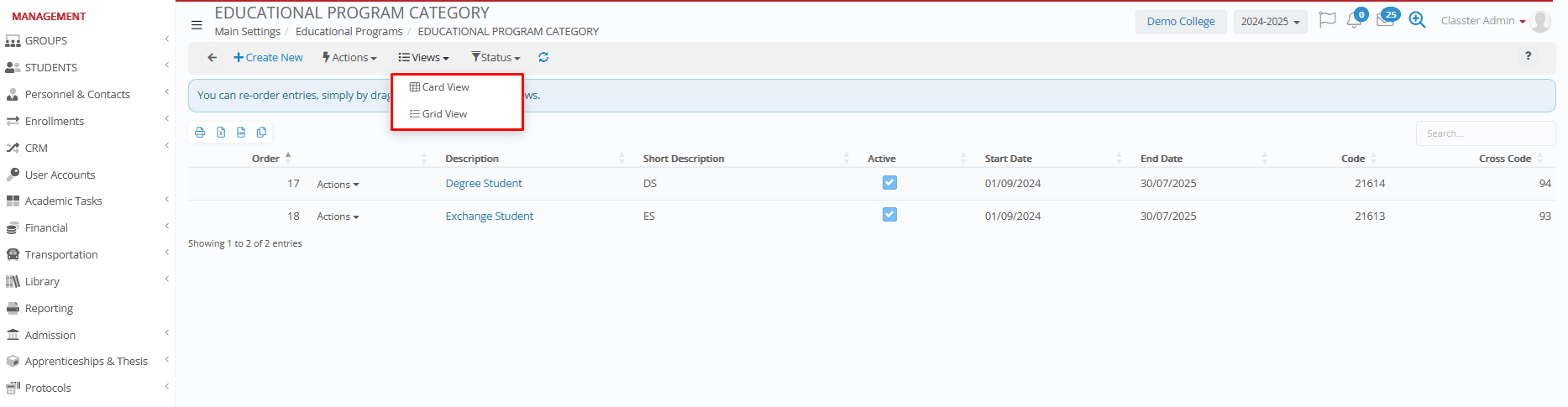
Views
- Card View – Displays categories as individual cards for a clean, readable layout
- Grid View – Shows categories in a table, ideal for sorting, comparing, and scanning multiple records
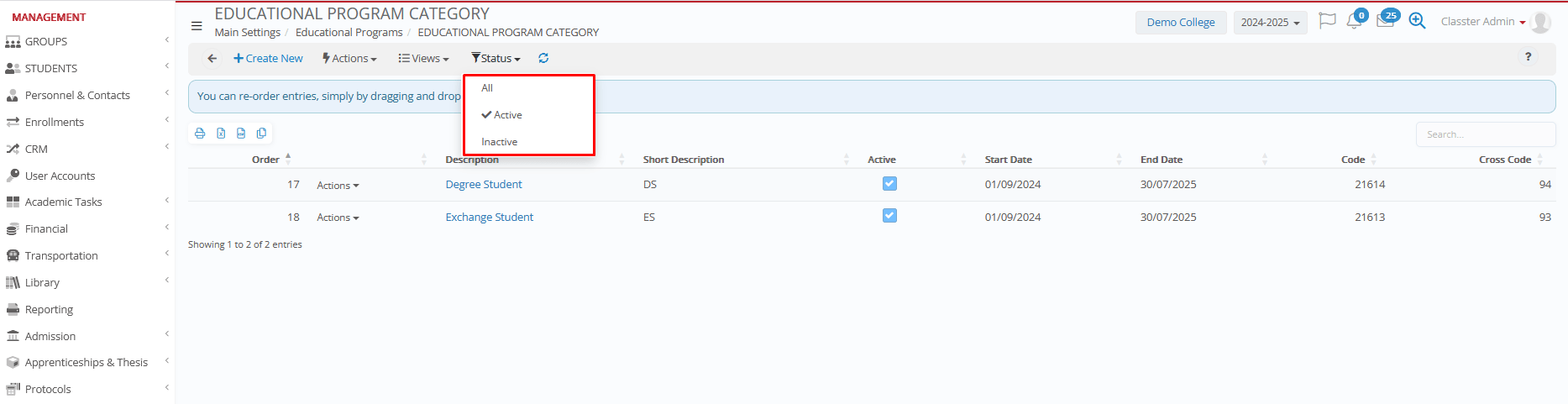
Status
- All – Displays all categories
- Active – Shows categories currently in use
- Inactive – Shows categories disabled but retained for reference or future reactivation
Re-order
Adjust how categories appear in selection lists across Classter. Select a category, drag it to the desired position, and save to apply.
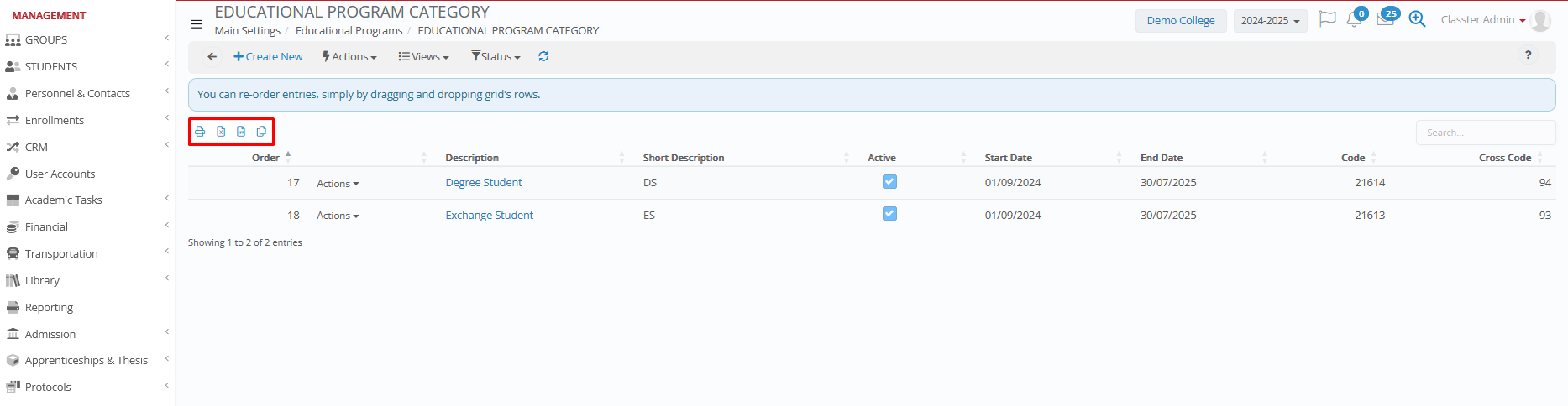
Grid Tools
- Print – Generates a print-ready version of the list
- Excel / CSV – Exports data for offline review or reporting
- Copy – Copies grid content for quick sharing
Row Actions
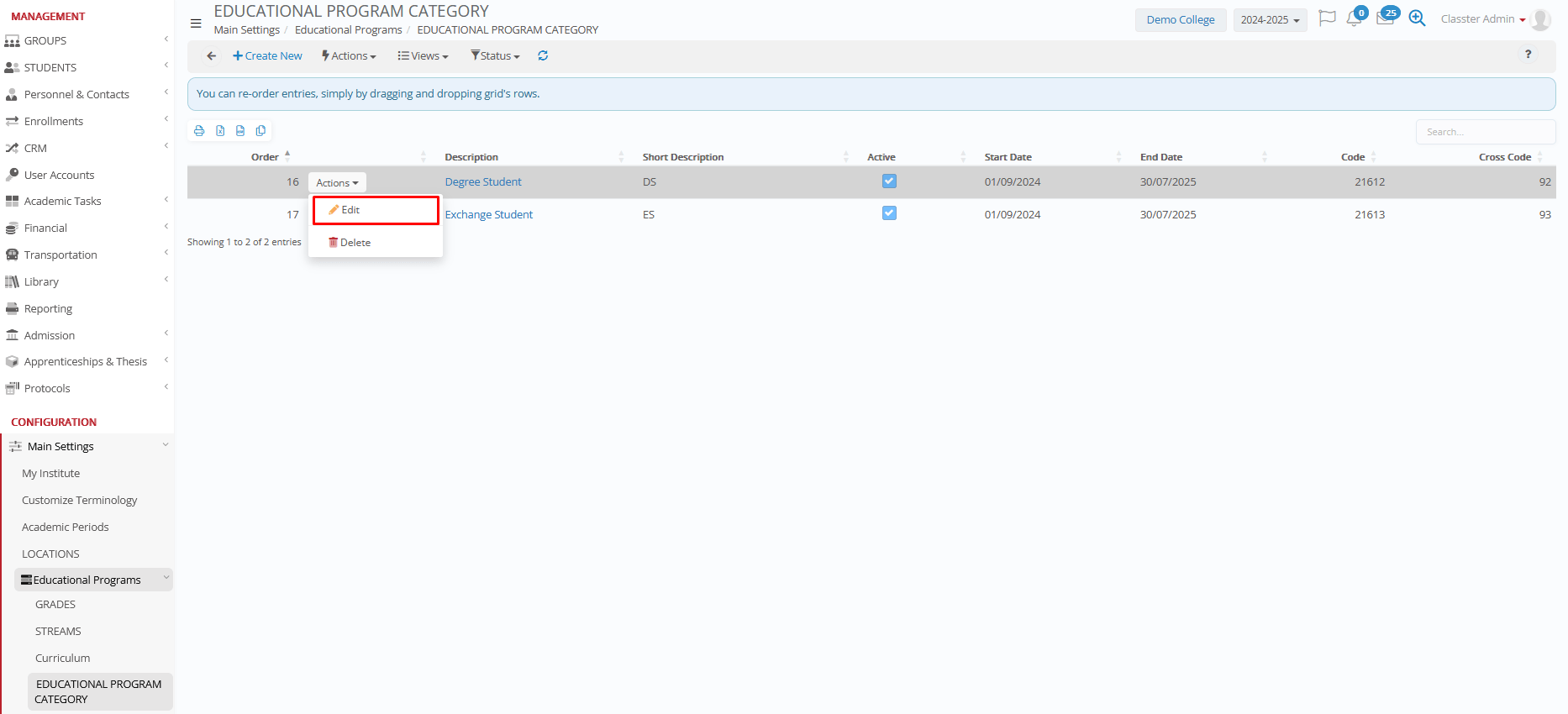
Edit
Use Actions → Edit to modify any field.
You may also link the category to specific Grades or Streams, ensuring it appears only where relevant.
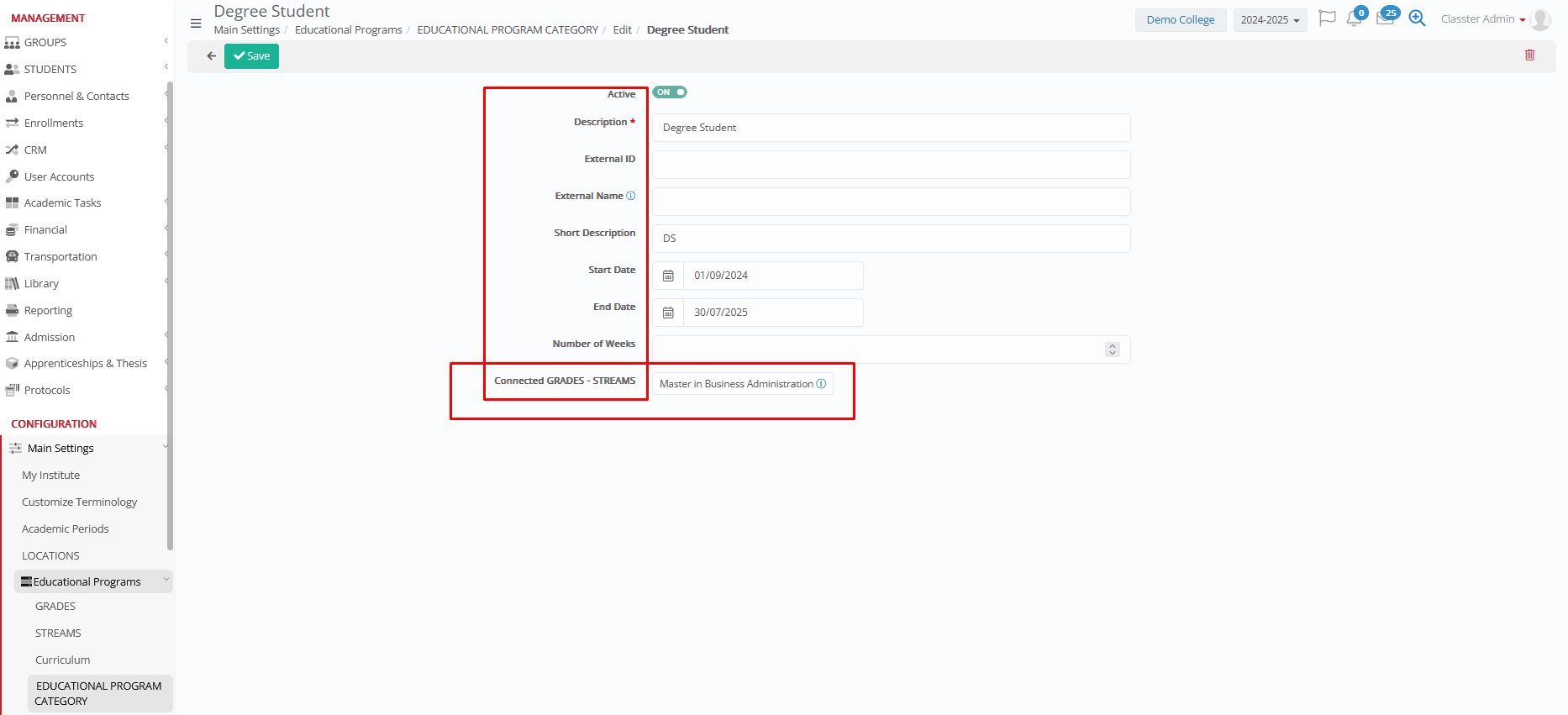
Connected Grades and Streams: Displays which Grades and Streams use the category (appears after initial setup).
Delete
Use Actions > Delete.
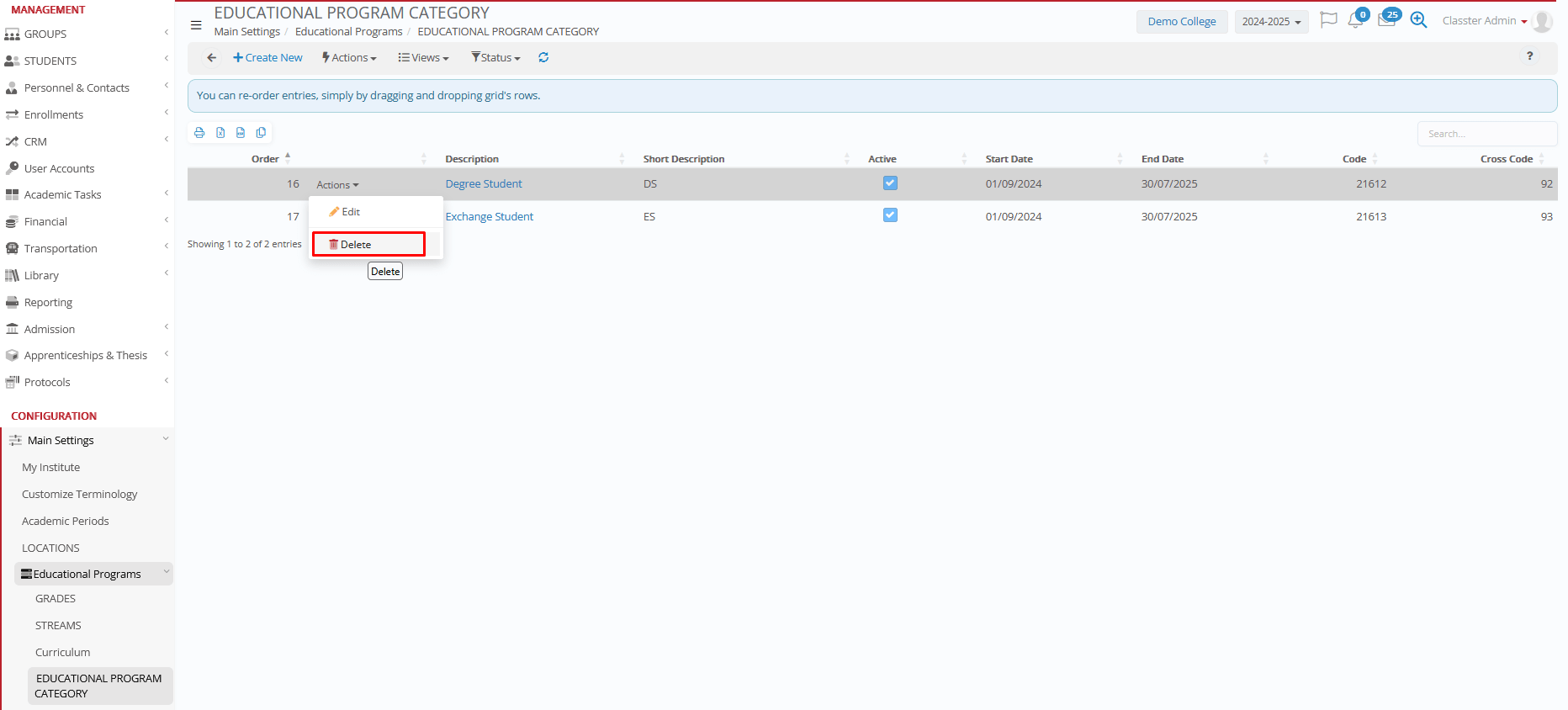
Important rules:
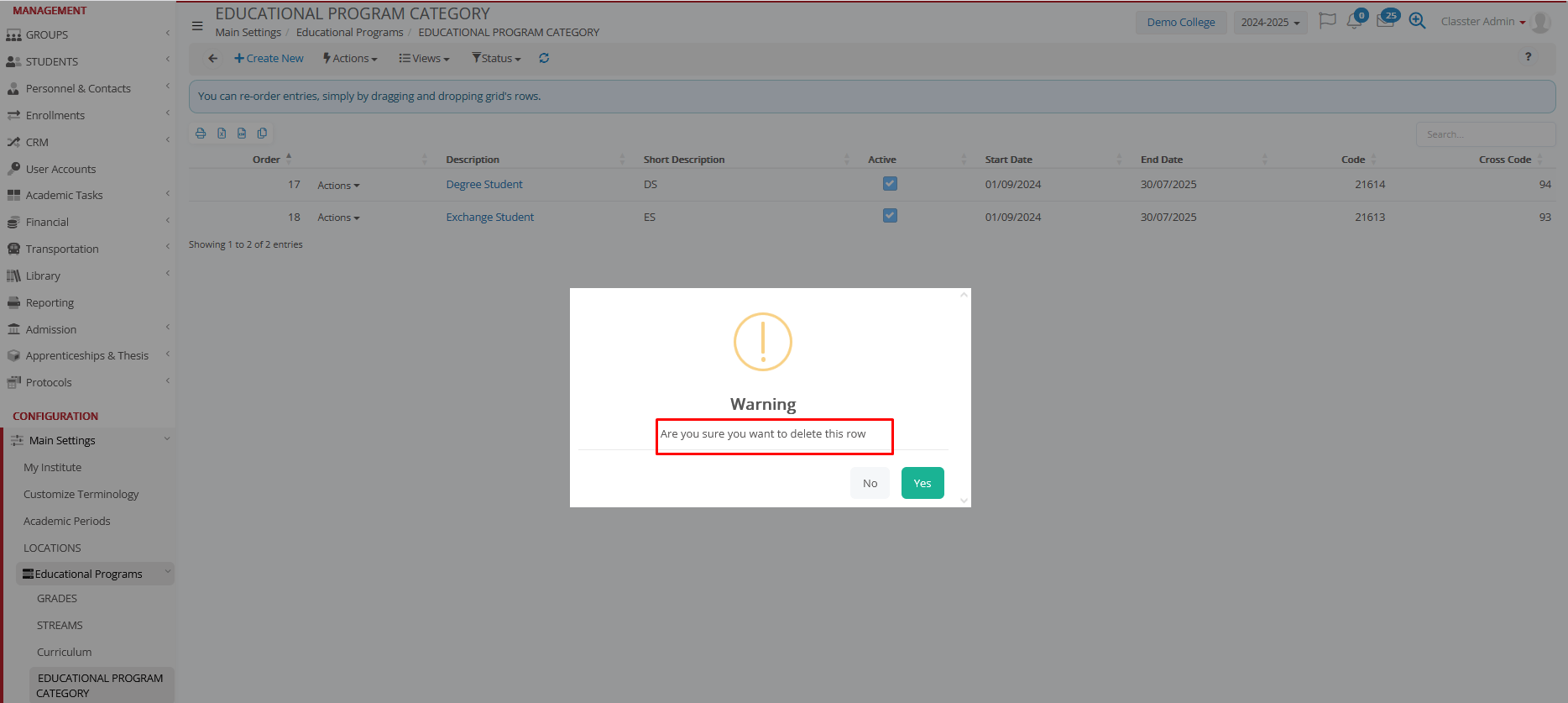
- Only delete categories that have never been assigned to students
- Prefer deactivation rather than deletion for historical accuracy
Related System Settings
Selection of Educational Program Category by Students
Path: Main Settings > General Settings > Student-Parent Portal.
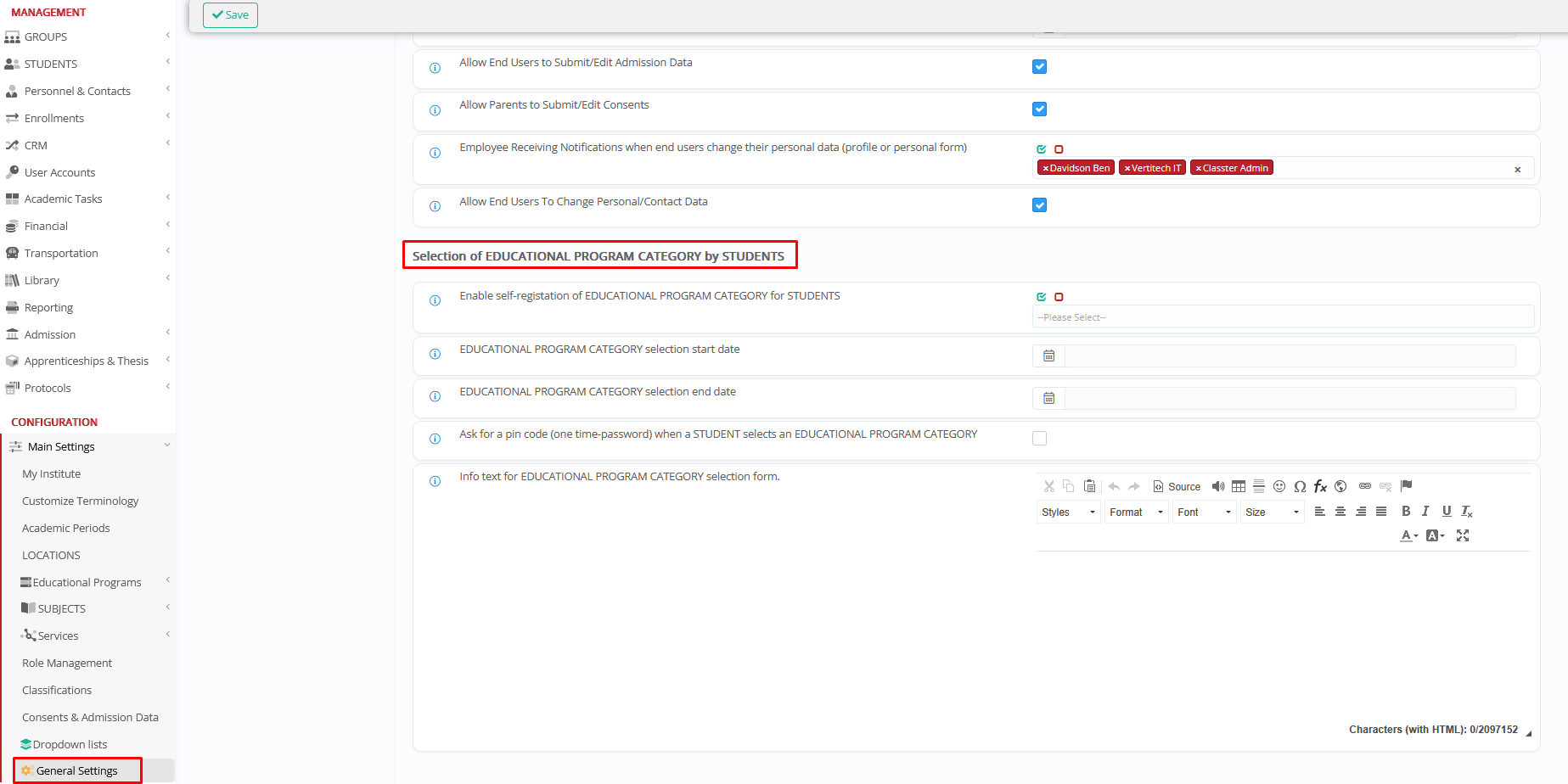
- Enable category self-selection
- Selection start date
- Selection end date
- Require PIN/OTP for selection
- Info text for selection form
Annual Result Calculation
Path: Academic Settings > Marking Settings > General Settings > Annual Results
Models can be based on:
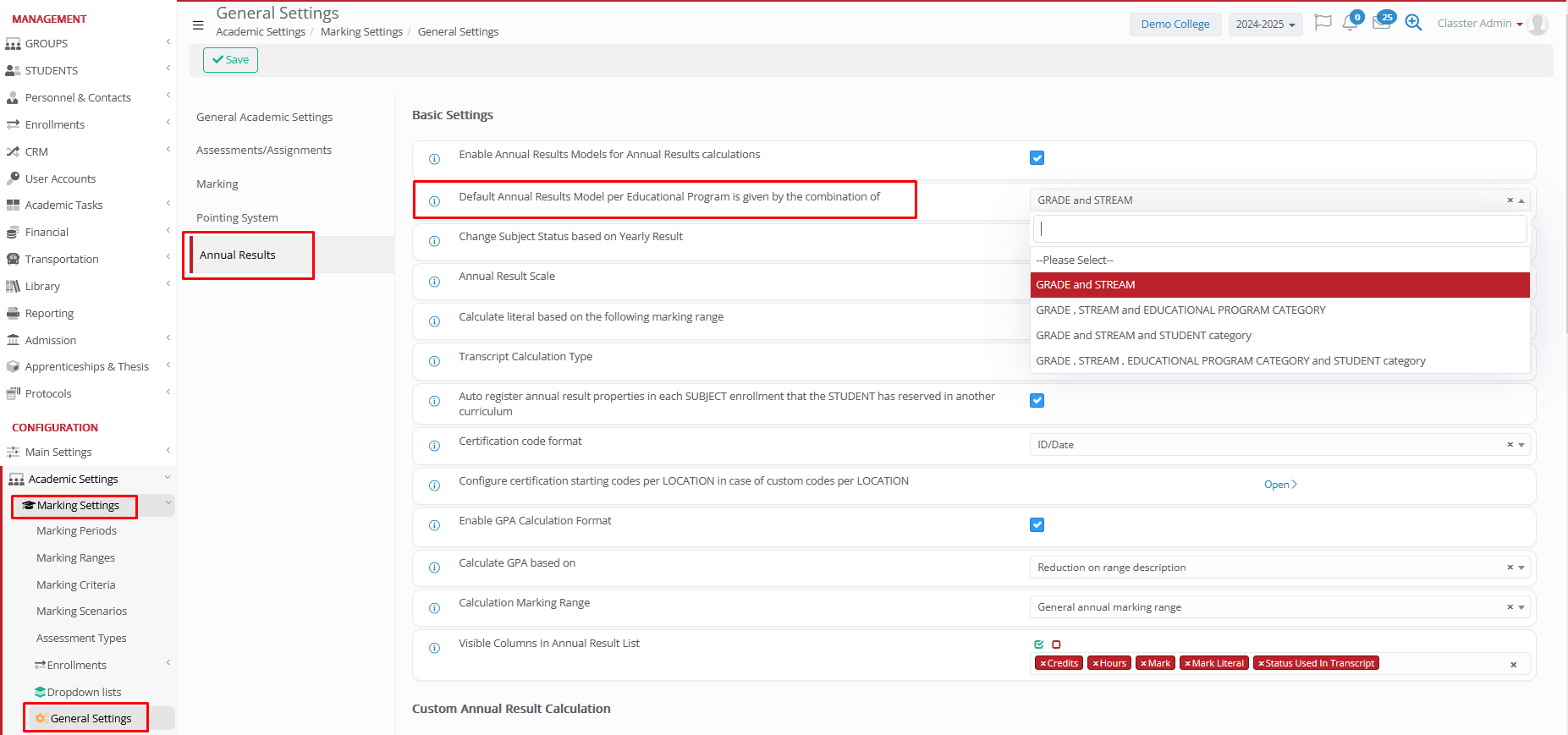
- Year + Stream
- Year + Stream + Educational Program Category
- Year + Stream + Student Category
- Year + Stream + Educational Program Category + Student Category
- Bulk actions available for mass assignment
Application Submission Settings
Path: Admission > Admission Settings > Application Management > Application Submission Settings.
- Enabled EDUCATIONAL PROGRAM CATEGORY (all if empty): Auto-select first category if user leaves all empty
- Disable the selection of Educational Program Category: User cannot select a category; system auto-selects first
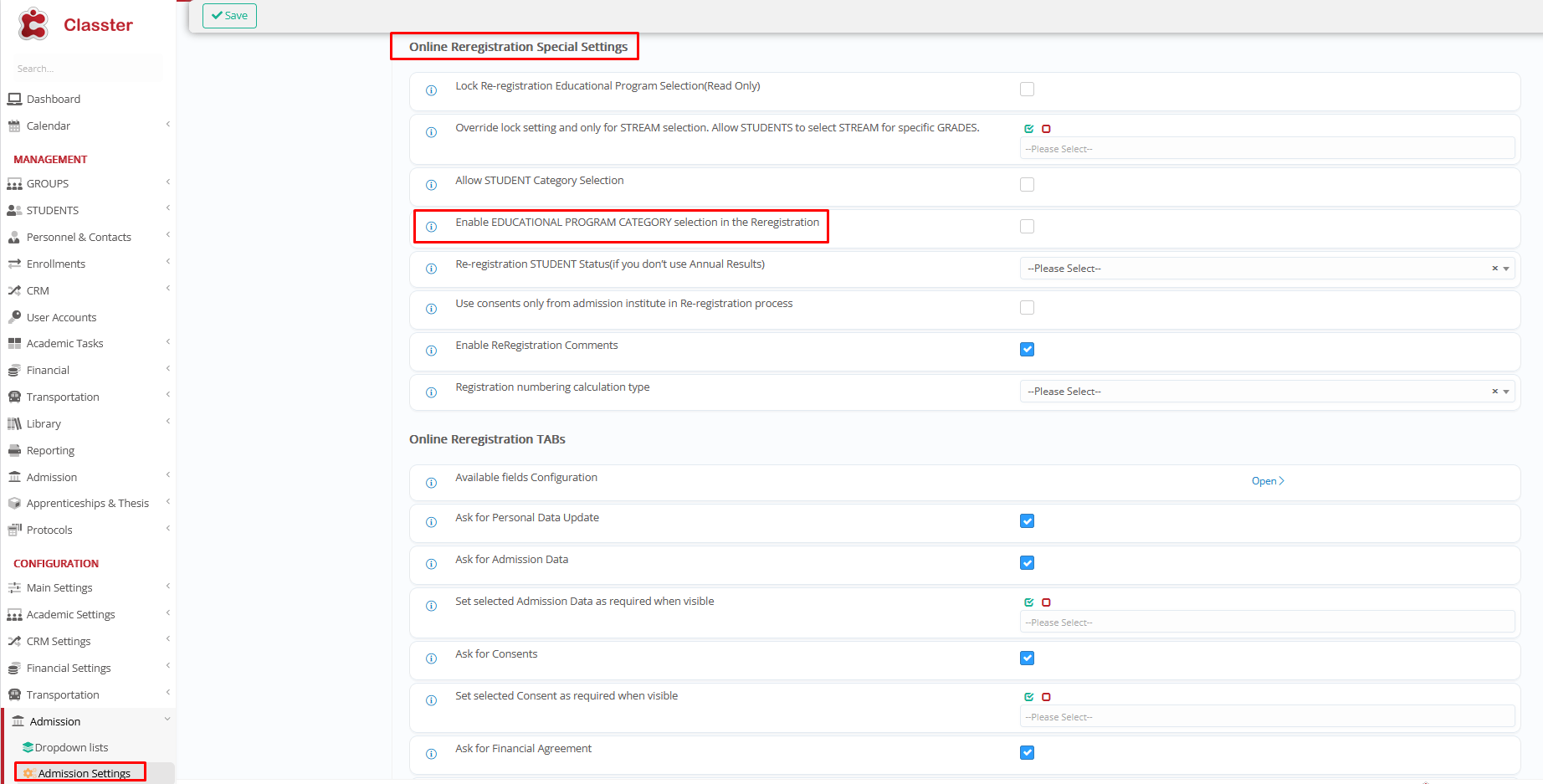
Category Selection in Re-Registration
Path: Admission > Admission Settings > Online Re-registration Special Settings.
- Active: Category visible/editable during re-registration
- Inactive: Category hidden and locked
Practical Use Cases
- Educational Program Structure: Specify the category, specialization, type, mode etc,. of the selected students’ program. Based on the main Institution’s setup. (e.g., Distance, Exchange, Theoretical spec. or any other type needed based on the structure.) You can also refer to the ‘Basic Institution Setup’ manuals.
- Admissions: Allow or restrict applicants’ selection of the category, specialization, type, mode etc,.
- Re-registration: Automate next-year category selection or allow families to confirm a change.
- Online enrollments to subjects: Apply different rules of subjects’ enrollments, per category if needed.
- Curriculum & Results Calculation: Apply different academic models per category (rules for marks calculations etc,.)
- Reporting: Different reports per category. Custom reporting for any need, like grouping students in analytics and others.
- Multi-Institute Structures: Reuse the same categories across institutes and academic periods, for a unified structure or custom grouping.
