Introduction
This feature enables the automatic creation of annual result entries for subjects that a student has reserved in another curriculum, eliminating the need for manual input.
For College Mode only.
Setting
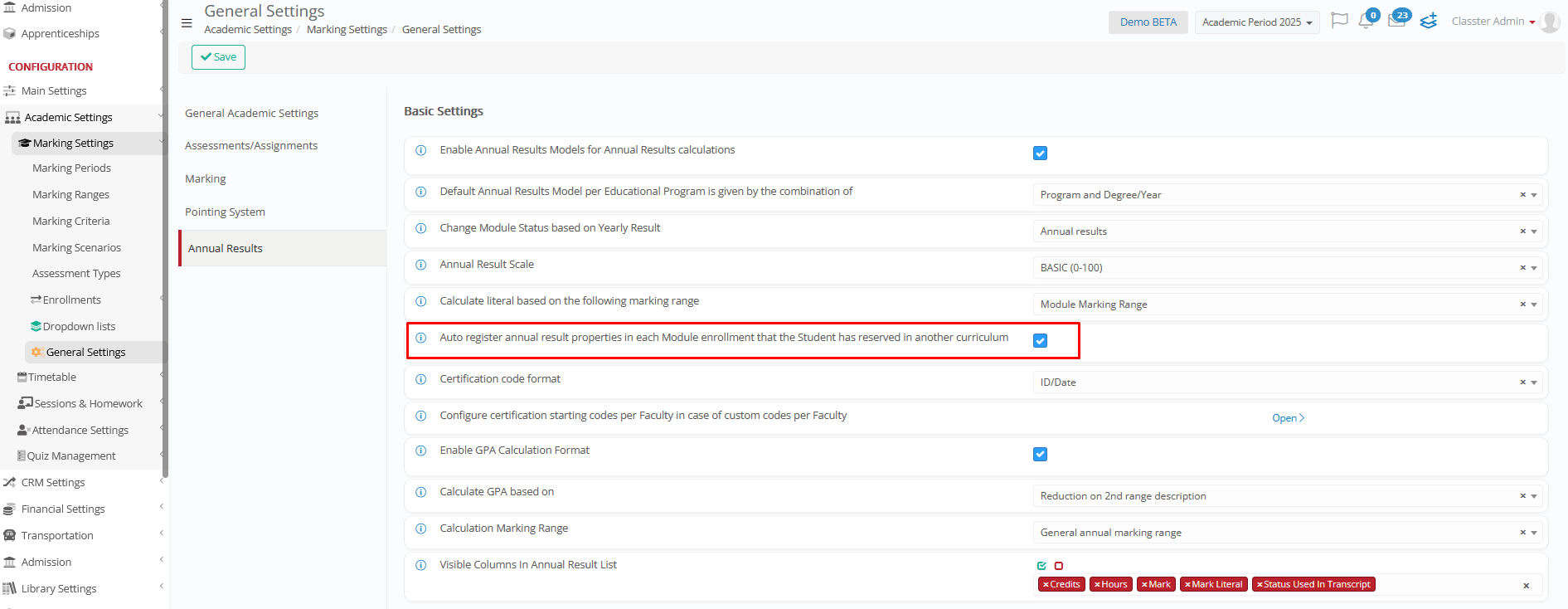
When the Auto Register Annual Result Properties in Each _Subject_ Enrollment That the Student Has Reserved in Another Curriculum.
Navigate to CONFIGURATION > Academic Settings > General Settings > ‘Annual Results’ Tab > ‘Basic Settings’ section > ‘Auto Register Annual Result Properties in Each _Subject_ Enrollment That the Student Has Reserved in Another Curriculum’ setting.
How it works
When the setting is enabled, the system will automatically handle the reserved subject entries as follows:
Detection of Reserved Subjects:
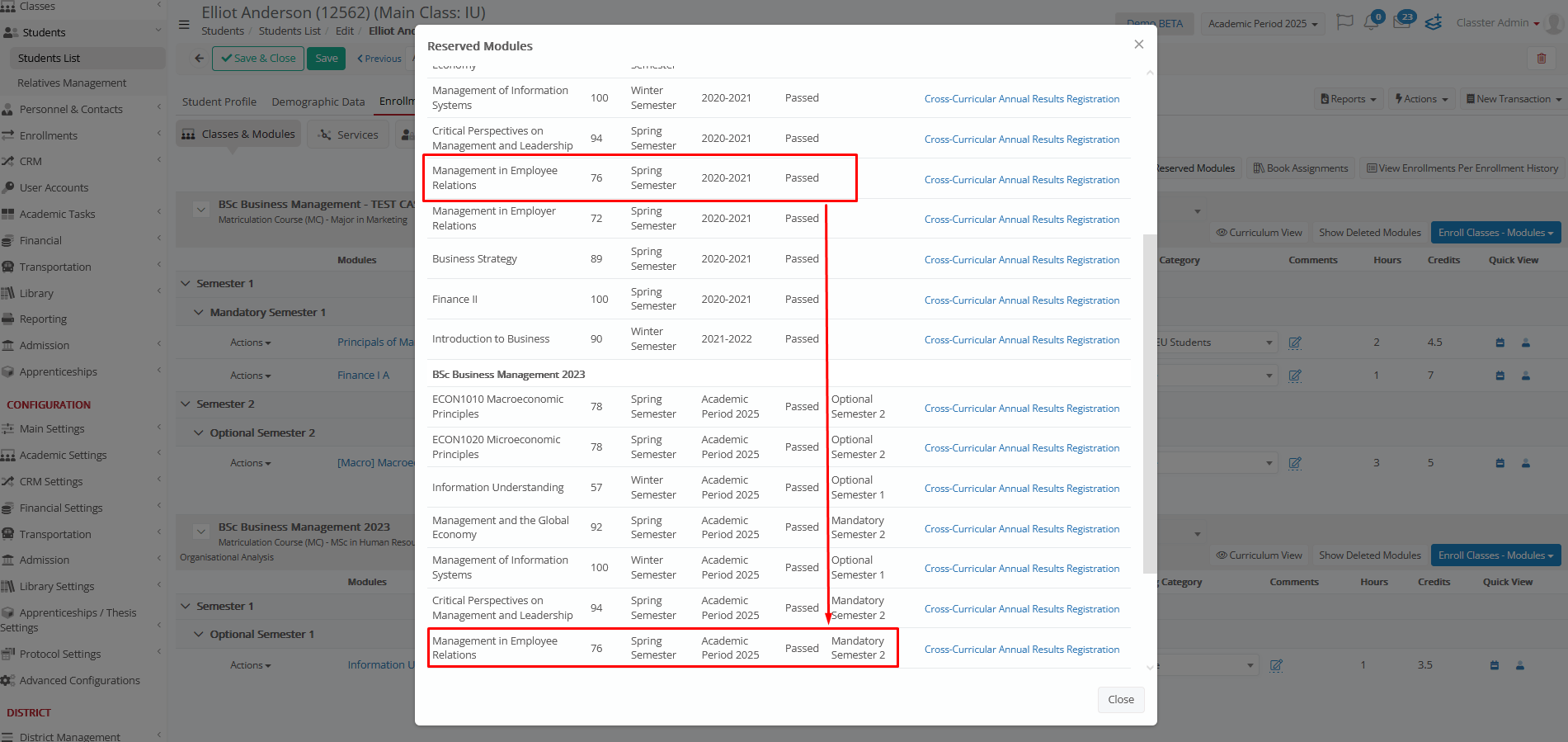
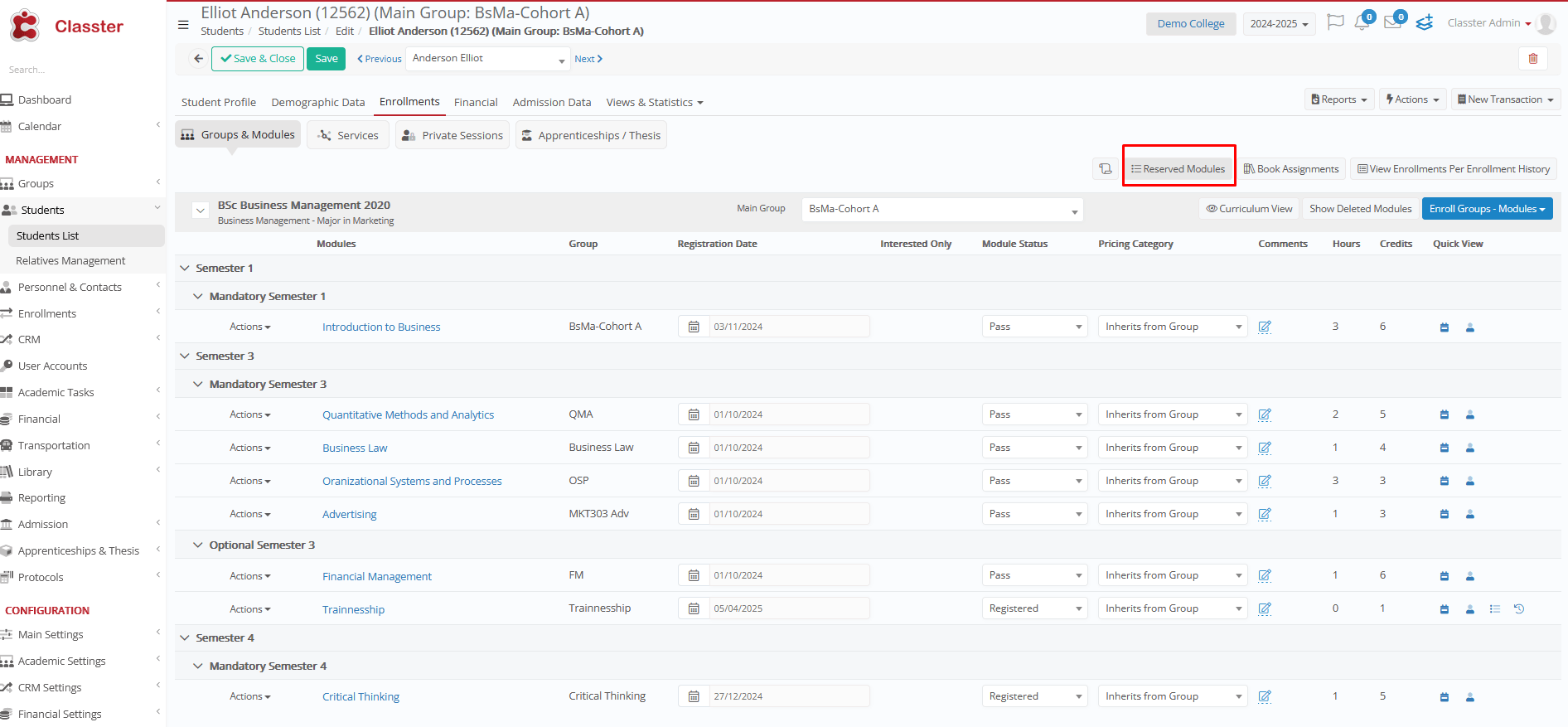
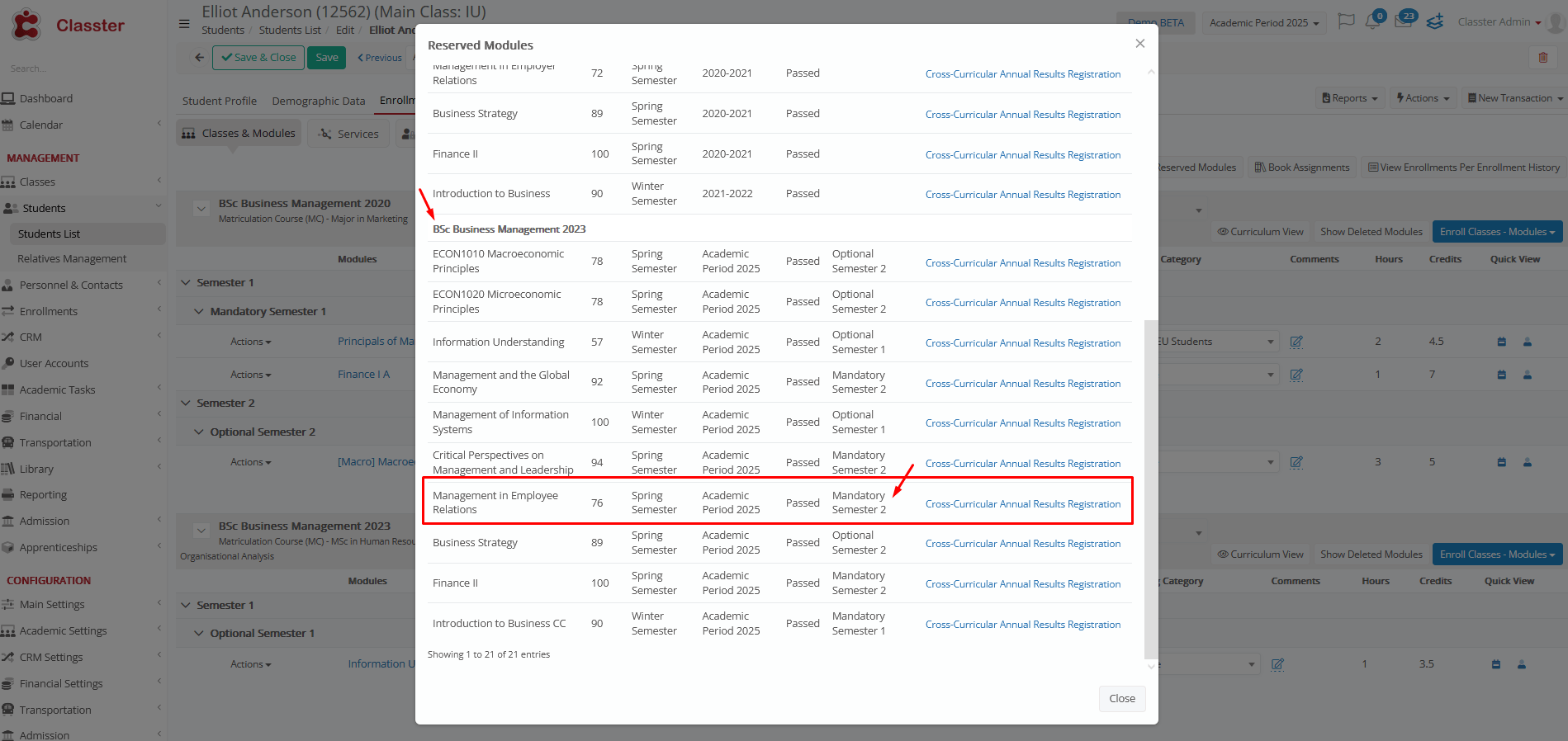
The system will detect if a student has reserved and previously passed a subject in another curriculum when pressing the Reserved Subjects button in the Enrollments tab.
Automatic Creation of Annual Result Entry:
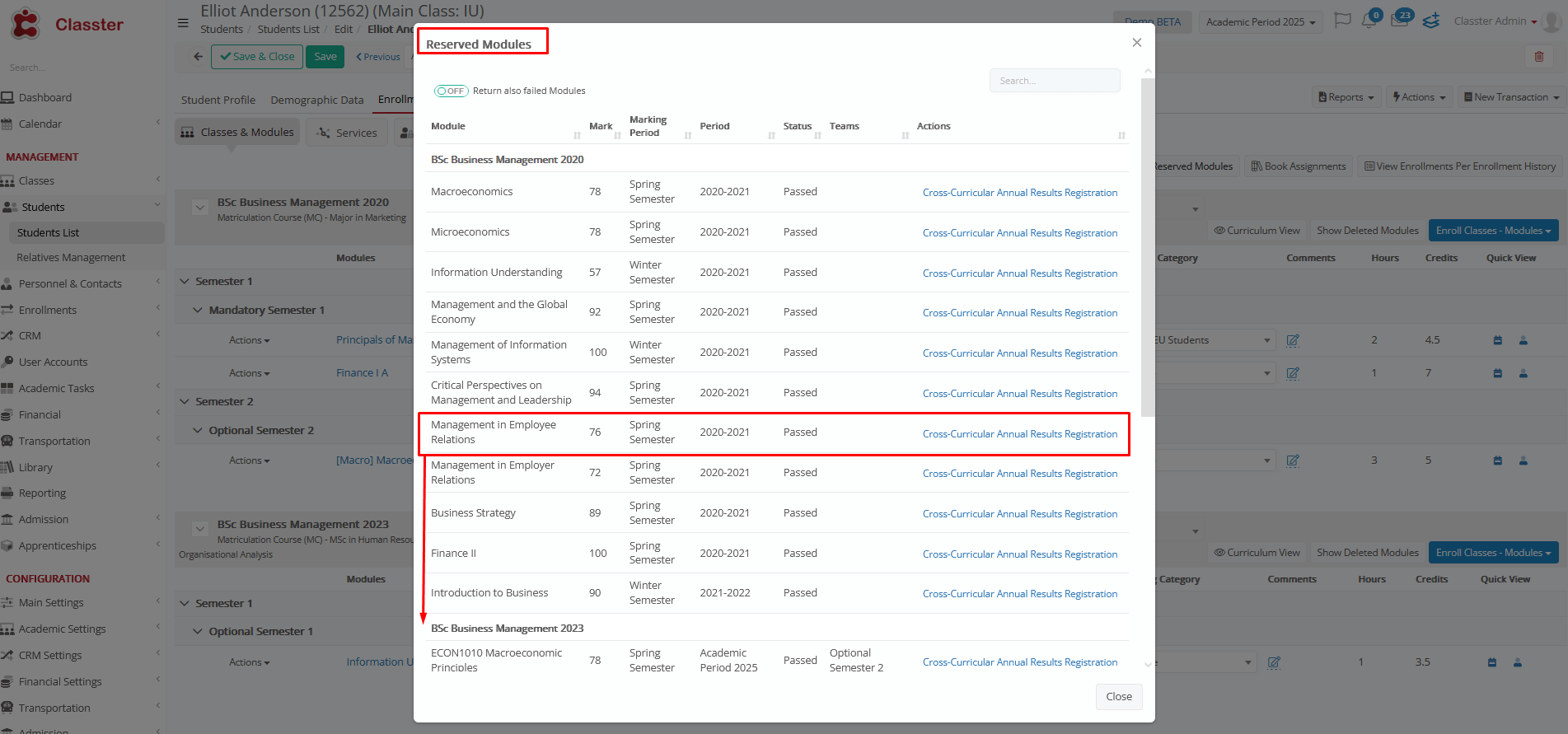
Upon enrollment in the same subject again, the system will automatically create an Annual Result entry for that subject, eliminating the need for manual data entry.
Status and Classification Assignment:
The newly created entry will be marked as Forced (locked), and the system will automatically apply the correct Status and Classification based on the student’s previous completion of the subject.
The process
To ensure that the Auto Register Annual Result Properties for Reserved Subjects in Another Curriculum setting functions correctly, complete the following steps:
Pre-requisite
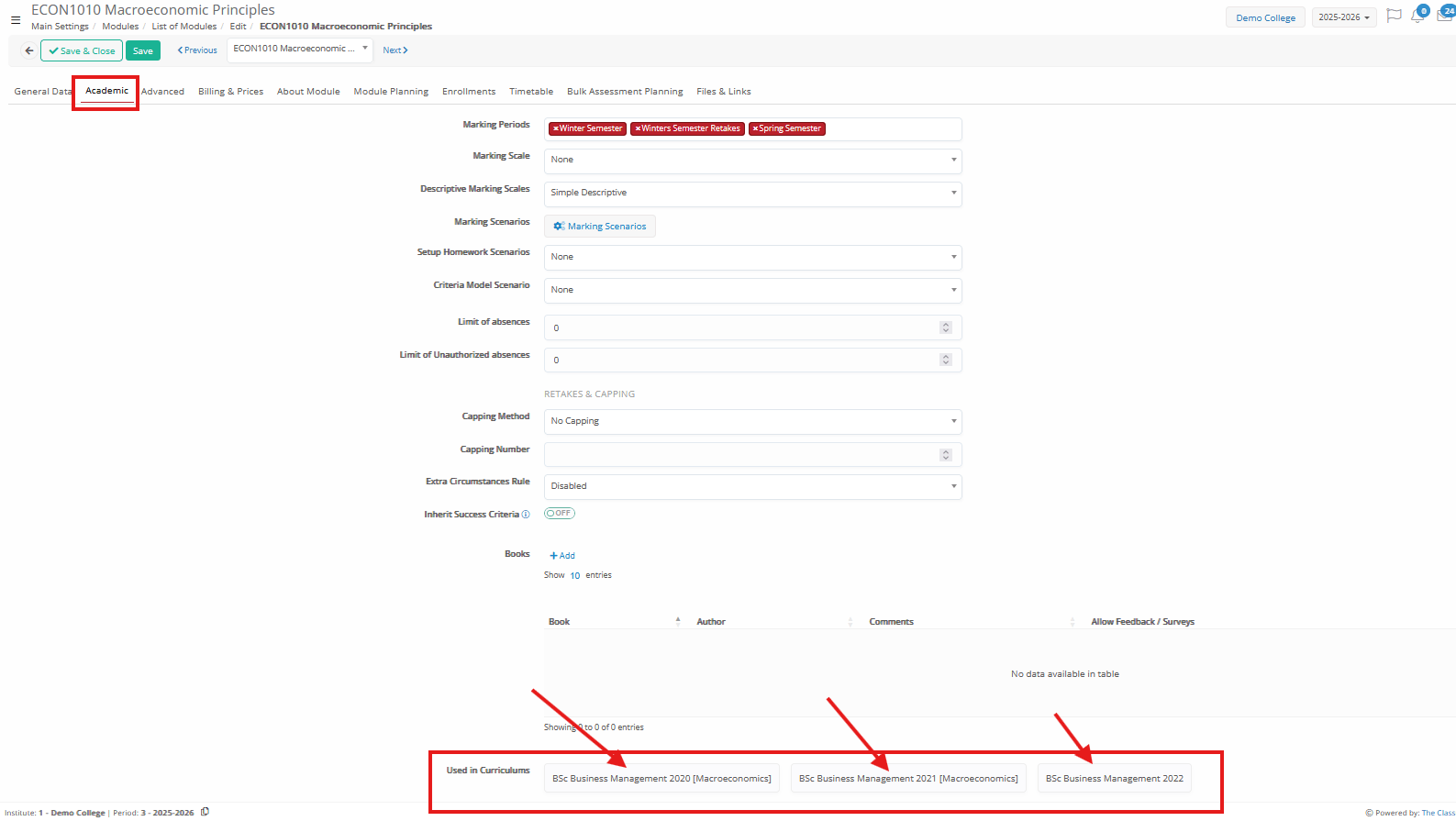
The functionality is designed for cases where multiple curricula/programs share common _Subjects_. So, the same _Subject_ entities must be linked across the curricula (CONFIGURATION > Main Settings > _Subjects_ > List of _Subjects_).
As per the curriculum manual that you can refer as well, you can use the same _Subject_ entities in various curricula (CONFIGURATION > Main Settings > Educational Programs > Curriculum > Edit Structure), being able to rename them per curriculum or change their academic properties (e.g. credits, pre-requisite subjects etc.).
Ensure that subjects are properly connected across different programs by creating them once and linking them to multiple Curriculum.
Register Reserved Subjects
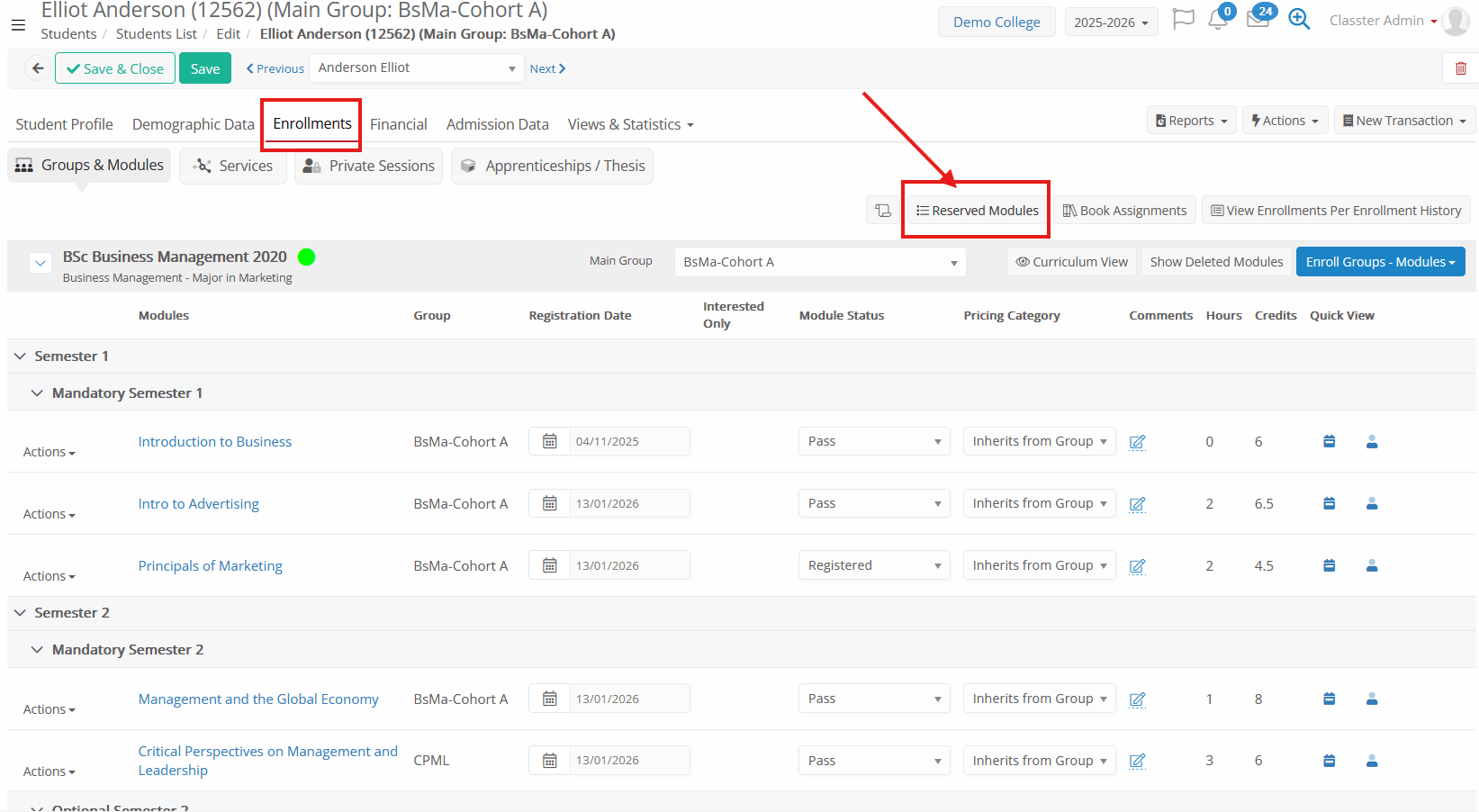
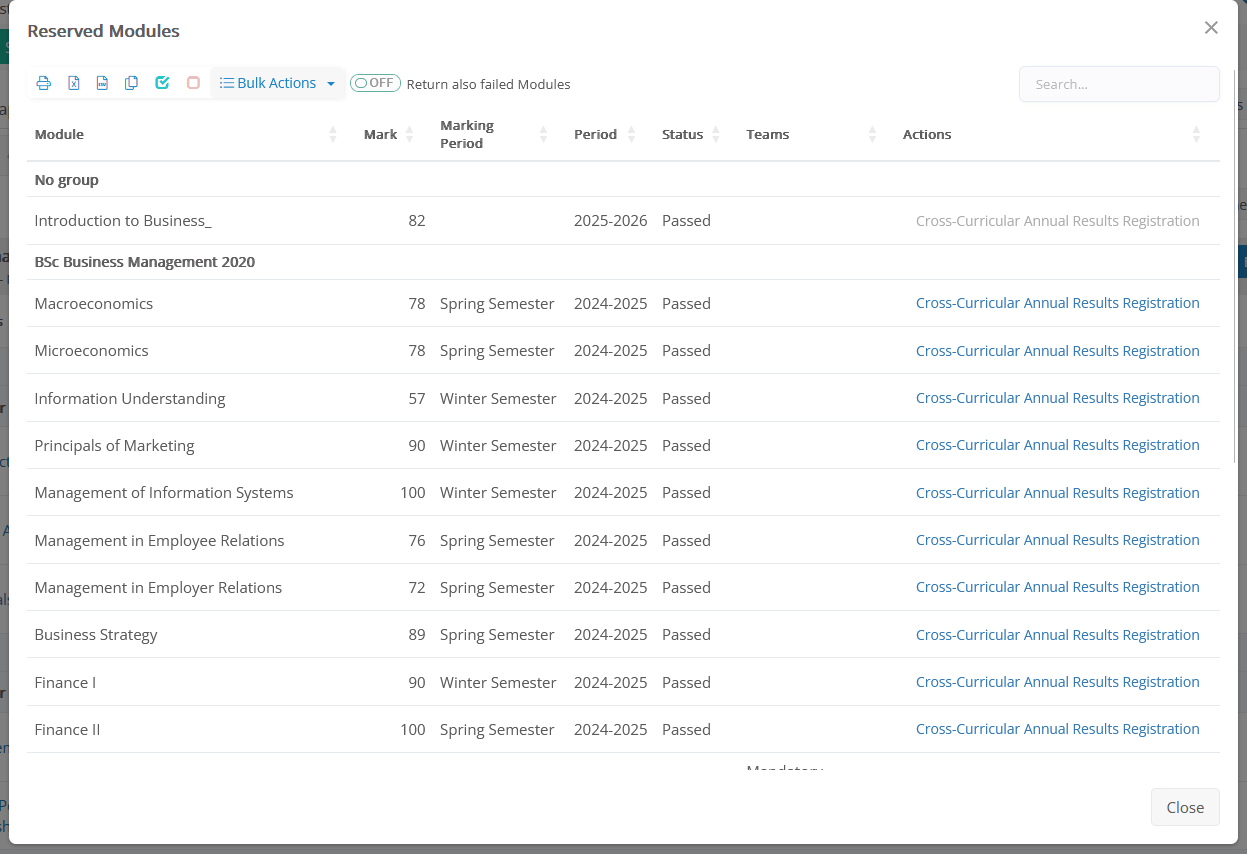
At the Student Form > Enrollments (Curriculum View), you can find the ‘Reserved _Subjects’ option, where you will see all finalized/reserved annual results of _Subjects_ from all academic periods/curriculum of the student.
You can enroll the subject through the standard default manual enrollment process in the curriculum:
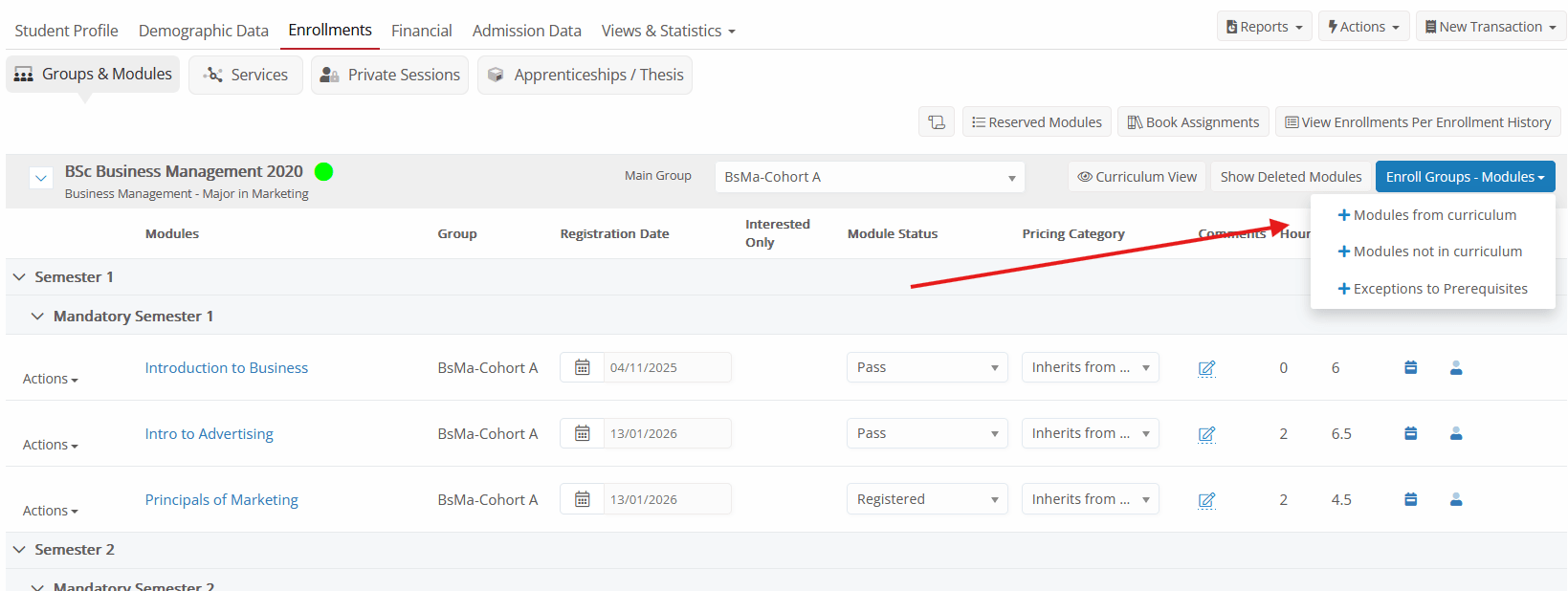
*You need to do the enrollments from the default ‘Curriculum’ view
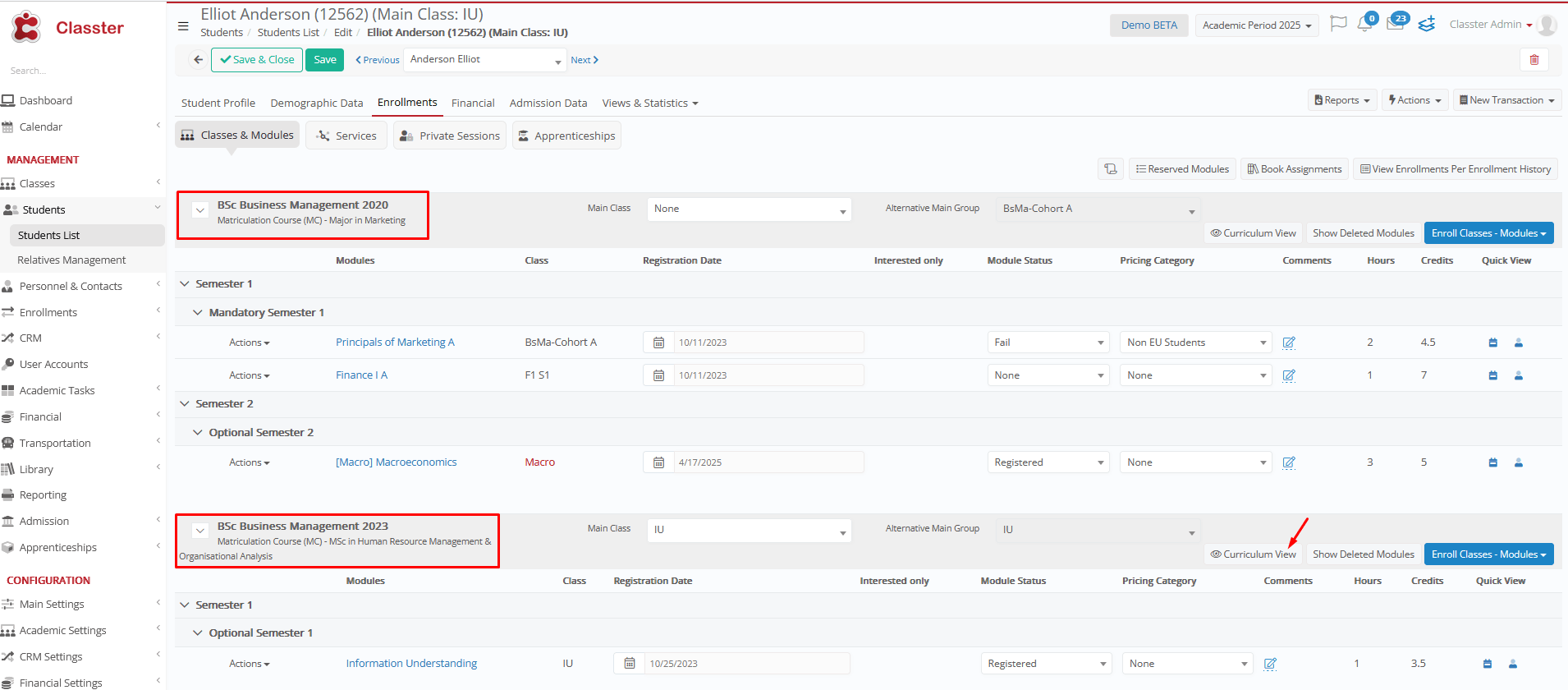
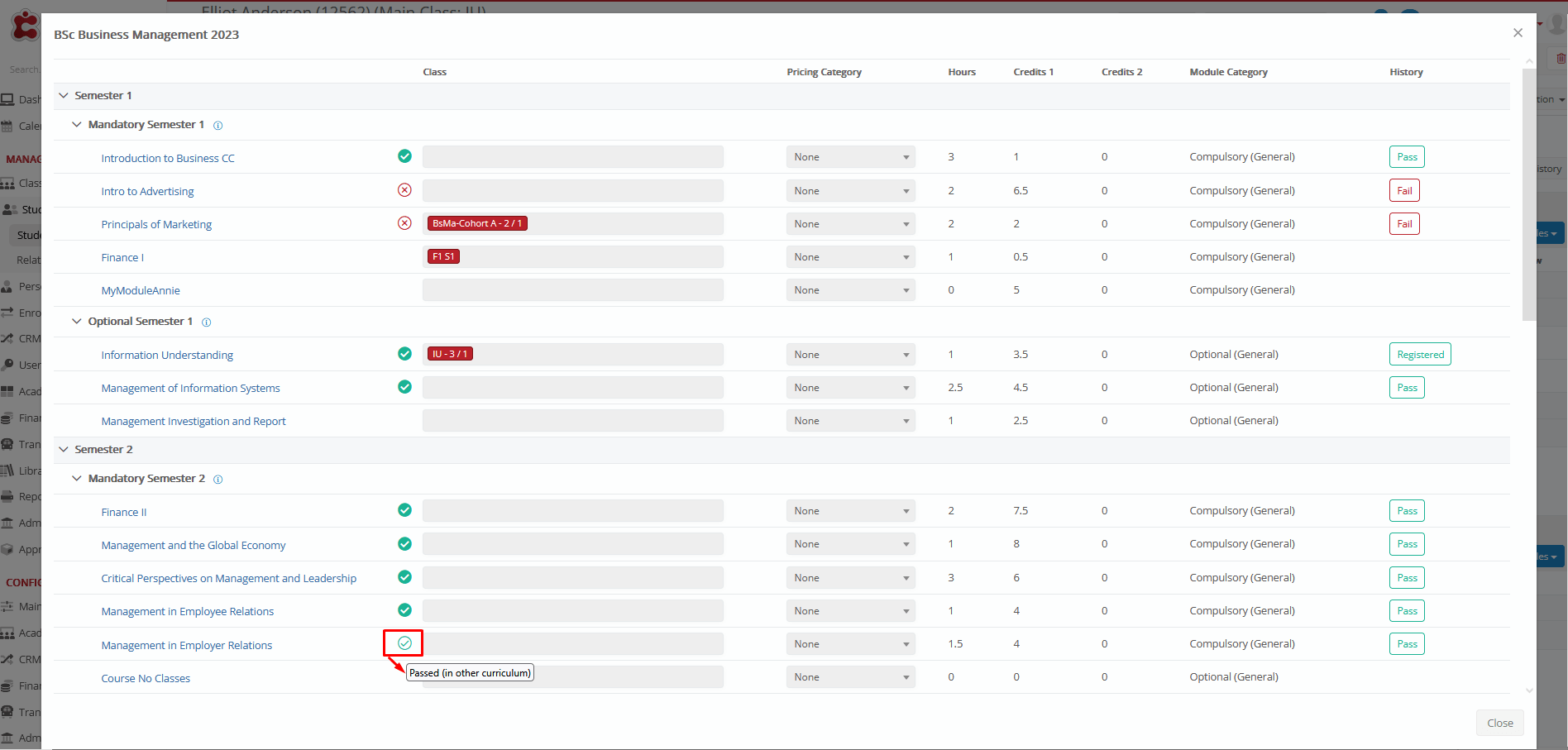
During the enrollment process, you will see a special icon at the reserved subjects from other curriculum as below. All you need to do is select the subject(s) again during enrollment and save.
Curriculum Classification
Please note that students must be linked to the correct Classification (e.g., Year, Semester, Mandatory) for each subject they enroll in.
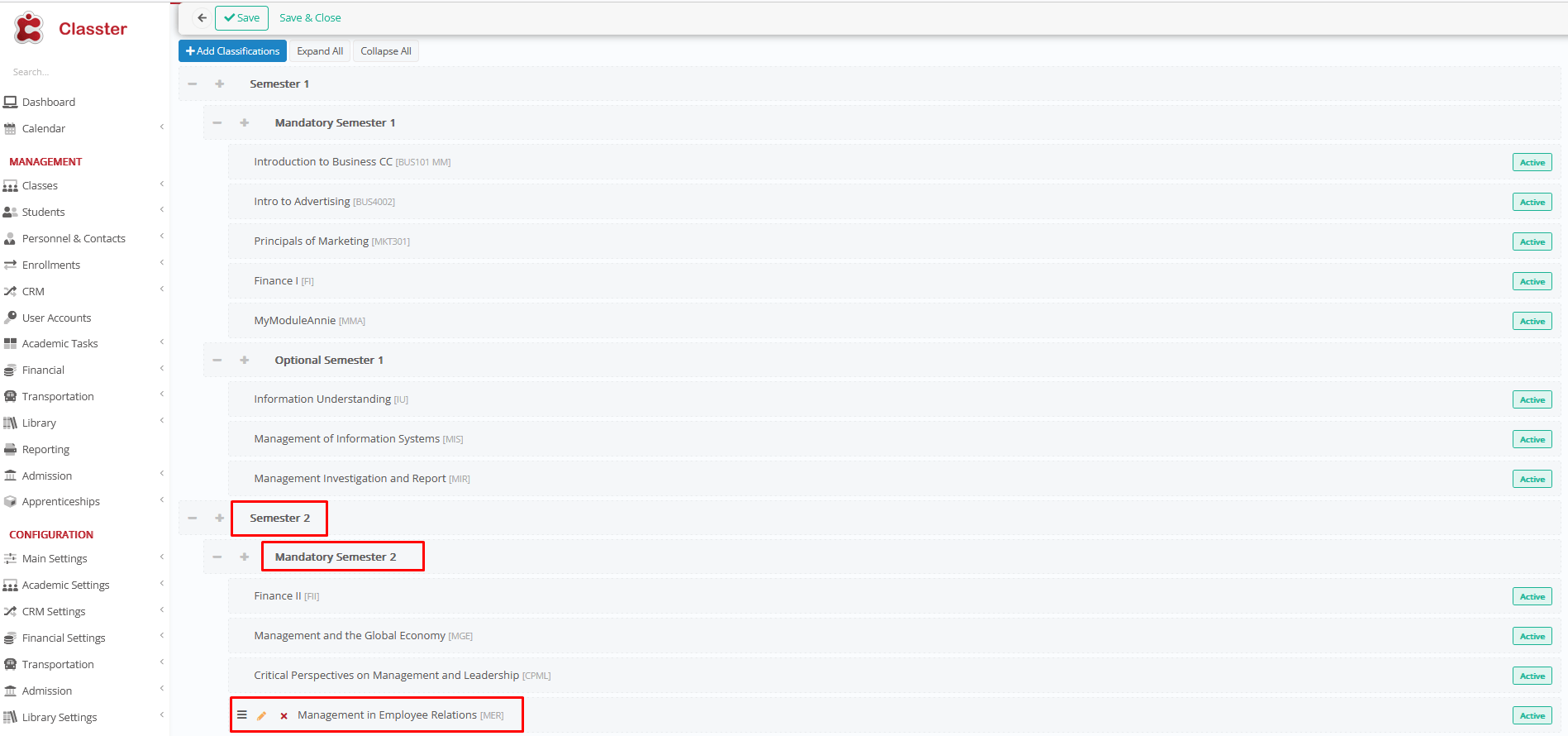
This classification data will be reflected in the Annual Results, indicating the group in which the student completed the subject.